
ShortMax pulled you in with bite-sized drama and cliffhanger endings, and now you’re paying a recurring fee you barely remember signing up for. Maybe the content got stale, maybe you realized you were burning through coins faster than expected, or maybe you just want to trim your monthly subscriptions.
Whatever the reason, figuring out how to cancel your ShortMax subscription shouldn’t require a detective’s license, but the process isn’t always as straightforward as tapping a single button. The platform you subscribed through, the type of plan you chose, and even the device you used to sign up all affect the exact steps you need to follow.
This guide walks you through the entire cancellation process across every platform, covers refund options, and addresses the most common problems people run into along the way. Five steps, no runaround.
Understanding Your ShortMax Subscription and Billing Cycle
Before you rush to cancel anything, you need to understand exactly what you’re paying for and who’s charging you. ShortMax is a short-form video streaming app that offers serialized content, often in episodes of just a few minutes each. The app uses a freemium model: some content is free, but premium episodes require either coin purchases or a VIP subscription. These are two fundamentally different payment structures, and confusing them is one of the most common mistakes people make during cancellation.
Your billing cycle depends on when you first subscribed and which plan you selected. Most VIP subscriptions renew weekly or monthly, and the renewal date is tied to the original purchase date, not the first of the month. If you subscribed on the 14th, you’ll be billed again on the 14th. Missing your cancellation window by even a day means you’re locked into another billing period. ShortMax does not prorate refunds for partial periods, so timing matters.
The fact that 76% of US adults believe subscription services intentionally make cancellation difficult tells you something about the industry standard. ShortMax isn’t the worst offender, but the app doesn’t exactly put a giant “Cancel” button on the home screen either. Understanding your billing source and subscription type before you start clicking around will save you from the frustrating loop of canceling the wrong thing or canceling in the wrong place.
Identifying Your Subscription Platform
Here’s the critical detail most cancellation guides gloss over: ShortMax doesn’t always handle billing directly. If you downloaded the app from the Apple App Store and subscribed through an in-app purchase, Apple manages your billing. If you got it from Google Play, Google handles payments. If you subscribed through the ShortMax website, the company itself may process your payments through a third-party processor like Stripe.
This distinction determines everything. Canceling inside the ShortMax app often does nothing to stop recurring charges because the app isn’t the entity billing you. You need to cancel with whoever is actually processing your payment. Check your email for a subscription confirmation, look at your credit card or bank statement, or review your Apple ID or Google Play purchase history. The billing source is your starting point, and getting it wrong means you’ll think you’ve canceled when you haven’t.
The Difference Between Coins and VIP Subscriptions
ShortMax uses two monetization methods that people frequently confuse. Coins are a one-time in-app currency purchase. You buy a bundle, spend them to unlock episodes, and when they’re gone, they’re gone. There’s no recurring charge for coins unless you’ve opted into an auto-refill feature, which some users enable without realizing it.
A VIP subscription, on the other hand, is a recurring charge that grants access to premium content for a set period. This is what most people want to cancel. If you only purchased coins once and never subscribed to VIP, you may not have an active subscription at all. Your bank statement will clarify this: look for recurring charges from Apple, Google, or ShortMax at regular intervals. A single charge that never repeated was likely a coin purchase, not a subscription.
Step 1: Check Your Billing Source
This is the step that saves you from wasting 30 minutes canceling in the wrong place. Pull up your bank or credit card statement and search for the charge. The merchant name will tell you who’s billing you.
If the charge shows as “Apple.com/bill” or a variation, your subscription runs through Apple. If it reads “Google” or “GOOGLE*ShortMax,” it’s a Google Play subscription. If the charge lists ShortMax directly, or a payment processor name you don’t recognize, you likely subscribed through the website. Some users find charges labeled with generic processor names like “Stripe” or “Paddle,” which typically indicate a direct web subscription.
Once you’ve identified the billing source, you know exactly which cancellation path to follow. Don’t skip this step. I’ve seen people go through the entire Apple cancellation process only to discover their subscription was through Google because they switched phones six months ago and forgot. Your bank statement doesn’t lie, so start there.
If you have multiple ShortMax charges from different sources, you may have accidentally created duplicate subscriptions. This happens more often than you’d think, especially when people reinstall the app on a new device and subscribe again without realizing their old subscription is still active. Cancel all of them.
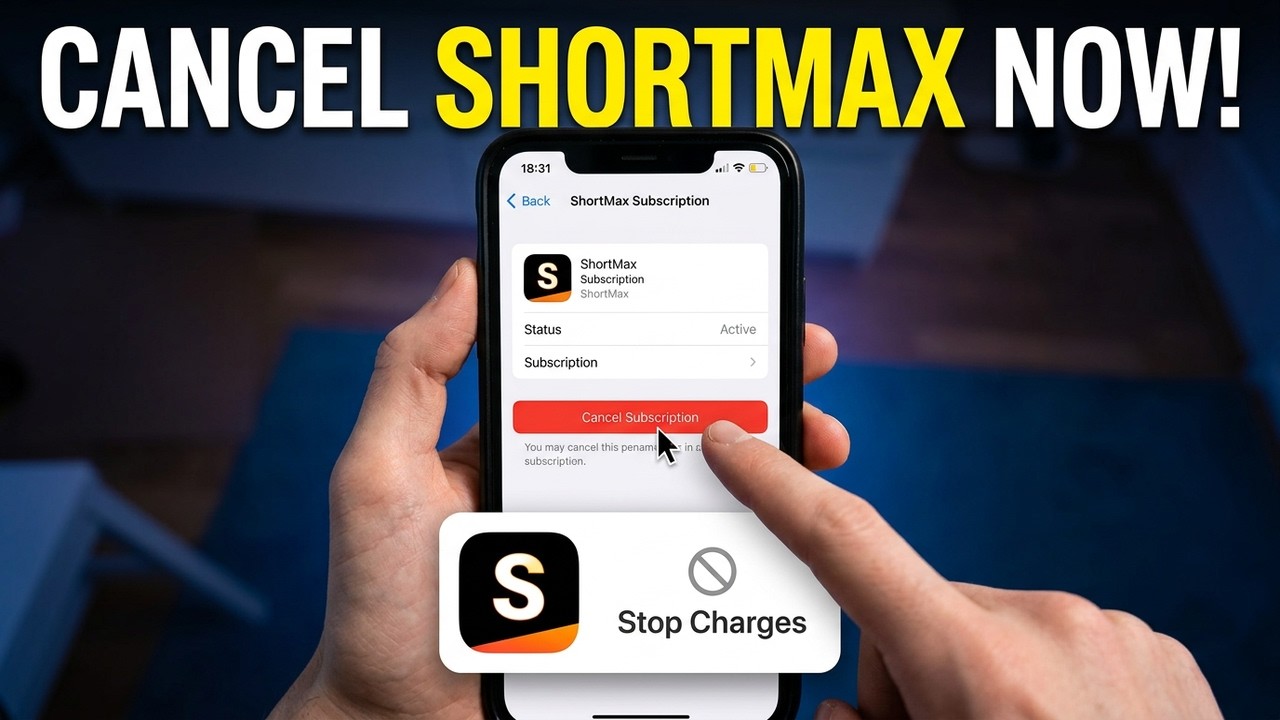
Step 2: Cancel ShortMax on iOS Devices
If Apple is your billing source, the cancellation happens entirely within your iPhone or iPad’s settings. You cannot cancel an Apple-managed subscription from within the ShortMax app itself. The app might show your subscription status, but the actual cancellation toggle lives in your Apple ID settings.
This is Apple’s design choice, not ShortMax’s. Apple manages all App Store subscriptions centrally, which means every app subscription you’ve ever purchased through iOS can be found in one place. The upside is consistency. The downside is that the path to get there has changed across iOS versions, and Apple buries it just deep enough that many users give up.
Navigating to Apple ID Settings
On an iPhone or iPad running iOS 16 or later, open the Settings app and tap your name at the very top of the screen. This takes you to your Apple ID page. From there, tap “Subscriptions.” You’ll see a list of every active and expired subscription tied to your Apple ID.
If you’re running an older iOS version, the path is slightly different: Settings, then your name, then iTunes & App Store, then tap your Apple ID at the top, then View Apple ID, then Subscriptions. Apple consolidated this in newer versions, but the older path still works on devices that haven’t updated.
You can also manage subscriptions through the App Store app. Open it, tap your profile icon in the upper right corner, then tap Subscriptions. This route gets you to the same place with fewer taps.
Managing Active Subscriptions
Once you’re in the Subscriptions menu, find ShortMax in the list. Tap on it to see your plan details, including the renewal date and price. At the bottom of this screen, you’ll see a red “Cancel Subscription” button. Tap it, confirm the cancellation, and you’re done.
After canceling, your subscription remains active until the current billing period ends. If you paid for a monthly plan on March 10th and cancel on March 22nd, you’ll still have access until April 10th. Apple does not issue automatic refunds for the remaining days.
One common pitfall: if ShortMax doesn’t appear in your active subscriptions list, it may have already expired, or it may be listed under a slightly different name. Check the “Expired” section below your active subscriptions to see if it’s there. If you genuinely can’t find it anywhere, your subscription likely isn’t through Apple, and you need to check Google Play or the ShortMax website instead.
Step 3: Cancel ShortMax on Android Devices
Android users who subscribed through the Google Play Store follow a different but equally straightforward process. Like Apple, Google manages all Play Store subscriptions centrally, so the cancellation happens in the Google Play app, not inside ShortMax.
The Google Play cancellation interface is actually a bit more transparent than Apple’s. Google shows you the exact renewal date, the price, and even offers a brief survey asking why you’re canceling. The survey is optional, but the information Google displays helps you confirm you’re canceling the right subscription at the right time.
Accessing the Google Play Store Menu
Open the Google Play Store app on your Android device. Tap your profile icon in the upper right corner. From the dropdown menu, select “Payments & subscriptions.” This takes you to Google’s payment management hub, where you can see your payment methods, budgets, and active subscriptions.
If you can’t find the Play Store app, it may be disabled or hidden in your app drawer. You can also access subscription management through a web browser by going to play.google.com/store/account/subscriptions while logged into the same Google account you used to subscribe.
Terminating Payments via Payments & Subscriptions
Inside the Payments & subscriptions menu, tap “Subscriptions.” You’ll see every active Google Play subscription. Find ShortMax, tap on it, and select “Cancel subscription.” Google will ask you to confirm and may present a retention offer or discount. You can ignore these and proceed with cancellation.
After confirming, Google displays a cancellation confirmation screen with the date your access expires. Screenshot this. It serves as proof of cancellation if you’re ever charged again. Your access continues until the end of the current billing period, just like with Apple.
If ShortMax isn’t listed in your Google Play subscriptions, double-check that you’re logged into the correct Google account. Many Android users have multiple Google accounts on their device, and the subscription might be tied to a secondary account. Switch accounts in the Play Store and check again.
A useful detail: Google allows you to restore a canceled subscription before the billing period ends if you change your mind. Once the period expires, though, you’d need to resubscribe at whatever the current price is.
Step 4: Direct Cancellation via Website or Email
If you subscribed through the ShortMax website rather than through Apple or Google, neither of those platforms can help you. Your cancellation needs to go through ShortMax directly, and this is where things get a bit less standardized.
Start by logging into your ShortMax account on their website. Look for account settings, subscription management, or billing sections. The exact layout varies because ShortMax has updated its website design multiple times, and the location of cancellation options shifts accordingly. If you find a subscription management page, there should be an option to cancel or turn off auto-renewal.
If you can’t find a self-service cancellation option on the website, email is your backup. Send a cancellation request to ShortMax’s support email address, which is typically listed in the app’s settings under “Help” or “Contact Us.” In your email, include your account email address, the name on your account, and a clear statement that you want to cancel your subscription and stop all future charges. Be explicit. Don’t say “I’m thinking about canceling.” Say “Cancel my subscription effective immediately and confirm in writing.”
Keep a copy of your sent email and any response you receive. If ShortMax doesn’t respond within 48 hours, send a follow-up. If they still don’t respond, you have grounds to dispute the charge with your bank or credit card company as an unauthorized recurring charge. The FTC’s guidelines on negative option marketing require companies to provide a simple cancellation mechanism, and failure to respond to a cancellation request is a violation.
Some users have also reported success canceling through in-app support chat features. If the ShortMax app has a live chat or chatbot in its help section, try that route as well. Document the conversation with screenshots.
Step 5: Confirming Your Cancellation Status
Canceling is only half the job. Confirming that the cancellation actually went through is what protects your wallet. Too many people tap “Cancel,” assume it worked, and then discover weeks later that they’re still being charged.
After completing the cancellation steps on any platform, you should receive a confirmation. The form this takes depends on the billing source: Apple sends an email and updates your subscription status in Settings, Google displays a confirmation screen and sends an email, and ShortMax should send an email if you canceled directly through them.
If you don’t receive any confirmation within 24 hours, something went wrong. Go back and verify your subscription status through the same path you used to cancel. An active subscription that still shows a future renewal date means the cancellation didn’t process.
Verifying the Confirmation Email
Check the email inbox associated with your Apple ID, Google account, or ShortMax account. The confirmation email should state that your subscription has been canceled and indicate the date your access expires. For Apple, the email comes from [email protected]. For Google, it comes from [email protected].
Search your spam and junk folders if you don’t see the email in your primary inbox. Gmail in particular sometimes routes subscription-related emails to the Promotions tab, where they’re easy to miss. Save this email. It’s your receipt and your evidence if a dispute arises later.
If you canceled via email to ShortMax directly and haven’t received a confirmation, that’s a red flag. Follow up aggressively. A company that accepts your money automatically but requires manual effort to confirm cancellation is a company you should monitor closely on your bank statements for the next two to three months.
Monitoring Your Next Billing Date
Even with a confirmation email in hand, watch your bank statement around the date your next charge would have occurred. Set a calendar reminder for your expected renewal date and check your statement that day or the day after.
If a charge appears after confirmed cancellation, you have clear grounds for a chargeback. Contact your bank or credit card issuer, provide the cancellation confirmation email, and request a dispute. Banks take these cases seriously, especially when you have documentation.
This monitoring period should last at least two billing cycles. Some subscription services have been known to resume billing after a gap, particularly if there was a system error during cancellation. Two clean billing cycles with no charges means you’re genuinely free.
ShortMax Refund Policy and Access After Cancellation
Canceling stops future charges, but what about the money you’ve already spent? And what happens to your account, your coins, and your viewing history after you cancel? These questions trip up a lot of people.
The short answer: refunds are possible but not guaranteed, and they depend on who processed your payment. Your existing content access typically continues until the end of your paid period, and coins you’ve already purchased usually remain in your account even after your VIP subscription ends.
Requesting a Refund from Apple or Google
Apple and Google each have their own refund processes, and neither guarantees approval. For Apple, visit reportaproblem.apple.com, sign in with your Apple ID, find the ShortMax charge, and submit a refund request. Apple reviews these on a case-by-case basis. If you’re within a few days of the charge and haven’t consumed significant content, your odds are decent. If the charge is weeks old, approval is less likely.
For Google Play, open the Play Store, go to your purchase history, find the ShortMax transaction, and select “Request a refund.” Google’s automated system handles most requests within a few hours, though complex cases may take up to four business days. Google tends to be slightly more lenient than Apple for recent charges, but neither platform will refund a subscription you’ve been using actively for months.
If your refund request is denied, you can escalate. Apple allows you to call Apple Support directly and speak with a representative. Google has an escalation path through their Google Play Help Center where you can submit a detailed appeal. Be polite, be specific about why you’re requesting the refund, and include any relevant screenshots or documentation.
Retention of Unused Coins and Content Access
Coins you purchased separately from your VIP subscription are typically retained in your account after cancellation. They’re a one-time purchase, not a subscription benefit, so they should remain available to unlock episodes even without an active VIP plan. However, verify this in the app after canceling. Some users have reported discrepancies where coin balances appeared to reset, which is a bug worth reporting to ShortMax support.
Your VIP access continues through the end of your current billing period. If you cancel on day three of a monthly subscription, you still have roughly 27 days of VIP access remaining. Use them. Watch the content you’ve been meaning to finish, because once that period expires, premium episodes will be locked again unless you spend coins.
Viewing history and account data are generally preserved even after cancellation. If you decide to resubscribe months later, your progress should still be there. ShortMax, like most apps, retains user data for an extended period after cancellation. If you want your data deleted entirely, you’ll need to submit a separate data deletion request, which is a different process from subscription cancellation.
Troubleshooting Common Cancellation Issues
Even with clear instructions, things go wrong. Here are the most frequent problems and how to fix them.
The number one issue is people canceling in the wrong place. If you cancel inside the ShortMax app but your billing runs through Apple or Google, you haven’t actually stopped the charges. The app might show your subscription as “canceled” within its own system, but the payment processor keeps billing you. Always cancel with the entity that’s charging your card.
The second most common problem is phantom subscriptions. You canceled, got confirmation, and then a charge appears anyway. This usually happens because of a processing delay: the cancellation went through after the billing system had already queued the next charge. Contact Apple, Google, or your bank immediately. With your confirmation email as proof, this charge should be reversed quickly.
Some users report that they can’t find ShortMax in their subscription list at all. This typically means one of three things: you’re checking the wrong account, the subscription already expired, or you subscribed through a different platform than you think. Check all your Apple IDs, all your Google accounts, and your email for any ShortMax correspondence. The original confirmation email from when you subscribed will tell you exactly which platform processed the payment.
Another frustrating scenario is the app continuing to show VIP status after cancellation. This is normal and not a sign that cancellation failed. Your VIP access persists until the billing period ends. The app reflects your current access, not your future billing status. Confirm cancellation through your platform’s subscription settings, not through the app.
If you’re dealing with unauthorized charges, meaning someone else subscribed using your account or payment method, contact your bank immediately to dispute the charges and request a new card number. Then change your Apple ID or Google account password and enable two-factor authentication. Report the unauthorized activity to ShortMax support as well.
Finally, if ShortMax makes it genuinely impossible to cancel, and you’ve tried every method above without success, file a complaint with the FTC’s consumer complaint portal. The FTC has been increasingly active in pursuing companies that use dark patterns to prevent cancellation, and consumer complaints are a significant part of how they identify enforcement targets. Your complaint might not get your $9.99 back immediately, but it contributes to regulatory pressure that benefits everyone.
Canceling a ShortMax subscription comes down to identifying your billing source and following the correct cancellation path for that platform. Apple users cancel through iOS Settings, Android users cancel through Google Play, and direct subscribers cancel through the ShortMax website or email. Confirm every cancellation with a written receipt, and monitor your bank statement for at least two billing cycles afterward.
The five steps above cover every scenario, and if you hit a wall, escalation options exist through Apple Support, Google’s Help Center, the FTC, or your bank’s dispute process. Don’t let a subscription you no longer want keep draining your account: take the ten minutes now and be done with it.