Canceling a Twitch subscription sounds like it should take thirty seconds. In practice, it trips people up constantly. The cancel button isn’t always where you expect it, mobile subscriptions follow completely different rules than desktop ones, and Prime Gaming subs have their own quirks that confuse even longtime Twitch users.
Whether you’re trimming your monthly expenses, switching to a different streamer, or just taking a break from the platform, knowing exactly how to cancel a Twitch subscription saves you from getting charged for another month you didn’t want. The process itself is straightforward once you know where to look, but Twitch doesn’t exactly make it obvious.
This guide walks through every step on desktop and mobile, covers Prime Gaming specifically, and addresses the most common problems people run into when trying to end their recurring payments. If you’ve been putting this off because the last time you tried you couldn’t find the right menu, you’re in the right place.
Understanding Twitch Subscription Renewal and Benefits
Twitch subscriptions operate on a recurring monthly billing cycle. When you subscribe to a channel, your payment method is charged immediately, and you gain access to subscriber-only perks for that channel until the billing period ends. The subscription then auto-renews unless you actively cancel it before the next billing date.
This auto-renewal model is the reason most people end up paying for subscriptions they no longer want. Twitch doesn’t send prominent reminders before charging you again. You might get an email receipt after the fact, but by then the money is already gone. The platform offers three subscription tiers: Tier 1 at $4.99 per month, Tier 2 at $9.99, and Tier 3 at $24.99. Each tier unlocks progressively more emotes and offers the streamer a larger revenue share, but the cancellation process is identical regardless of which tier you’re on.
Separate from channel subscriptions, Twitch also offers Twitch Turbo, which costs $8.99 per month and includes sitewide ad-free viewing. Turbo is a platform-level subscription rather than a channel-level one, and it’s managed in a different section of your account settings. People frequently confuse the two, especially when they’re trying to cancel one but accidentally cancel the other.
Understanding your billing date is critical. Twitch charges you on the same calendar date each month, based on when you originally subscribed. If you subscribed on March 15th, your next charge hits on April 15th. Canceling on April 14th still means you keep your sub benefits through April 15th, but you won’t be charged again. Cancel on April 16th, and you’ve already been billed for another month.
The Difference Between Recurring and Gifted Subs
Not all Twitch subscriptions work the same way, and this distinction matters when you’re trying to cancel. A recurring subscription is one you purchased yourself using your own payment method. It renews automatically each month until you cancel it. This is the type of subscription that shows up in your Subscriptions Management page and can be canceled through the steps outlined in this guide.
A gifted subscription is completely different. When another viewer gifts you a sub, you receive one month of subscriber benefits for that channel at no cost to you. Gifted subs do not auto-renew. Once the gifted period expires, you lose access to subscriber perks unless you choose to subscribe on your own. There’s nothing to cancel with a gifted sub because there’s no recurring payment attached to it.
The confusion arises when people receive a gifted sub and then, at the end of that gifted month, Twitch presents the option to continue the subscription with their own payment method. If you click through that prompt and enter payment details, you’ve now created a recurring subscription that will auto-renew. Many users don’t realize they’ve done this until they see an unexpected charge on their credit card statement.
Check your email for Twitch receipts if you’re unsure whether you have any active recurring subscriptions. Every charge generates a receipt email sent to the address associated with your Twitch account. If you’re seeing monthly charges you don’t recognize, that’s a sign you converted a gifted sub into a paid one at some point.
What Happens to Emotes and Badges After Canceling
One of the biggest concerns people have before canceling is losing their subscriber streak and the badges that come with it. Here’s the reality: when you cancel a Twitch subscription, you keep all subscriber benefits until the end of your current paid billing period. The moment that period expires, you lose access to subscriber-only emotes, ad-free viewing on that channel (if applicable at that tier), subscriber-only chat mode access, and your custom chat badge.
Your subscriber streak, however, is a bit more nuanced. Twitch tracks two metrics: your current subscription streak and your cumulative subscription tenure. If you cancel and later resubscribe within a certain window, your cumulative tenure is preserved, but your consecutive streak resets to zero. This means the “12-month subscriber” badge you’ve been building toward will reset if you let your subscription lapse, even briefly.
For many people, this badge progression is what keeps them subscribed longer than they otherwise would. It’s a psychological retention tool, and it works. But if you’re canceling because you genuinely can’t afford the subscription or no longer watch the streamer, don’t let a chat badge be the reason you keep paying. Emotes and badges are cosmetic. Your money is real.
The streamer also loses your subscription revenue the moment your sub expires. They don’t get notified that you’ve canceled specifically, but they can see their total subscriber count drop. If you’re worried about the social dynamics of unsubscribing from a smaller streamer, know that most creators understand viewers come and go and don’t take it personally.
Step 1: Accessing Your Subscription Management Dashboard
The first step to canceling any Twitch subscription is finding the right settings page. Twitch buries the subscription management interface a few clicks deep, which is probably by design. You won’t find a “Cancel Subscription” button on the streamer’s channel page itself.
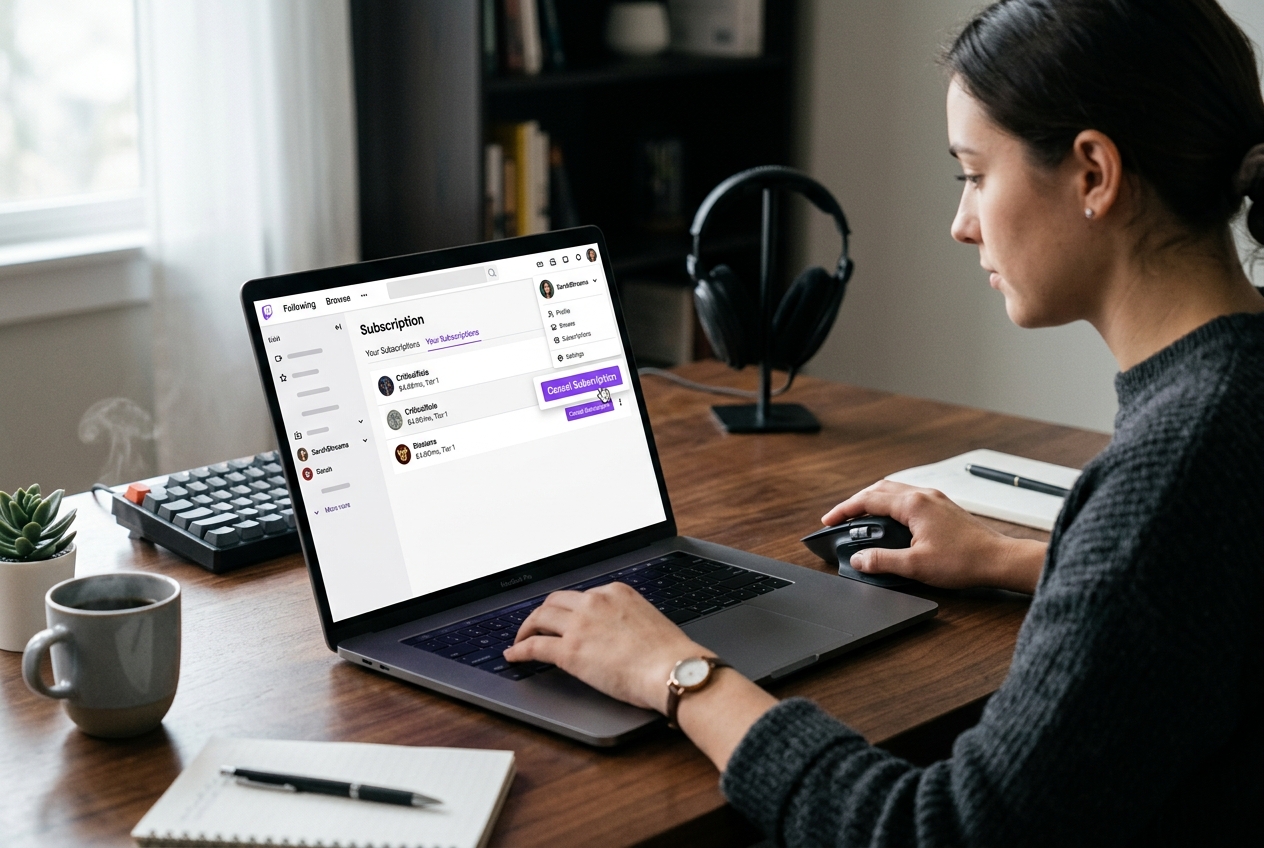
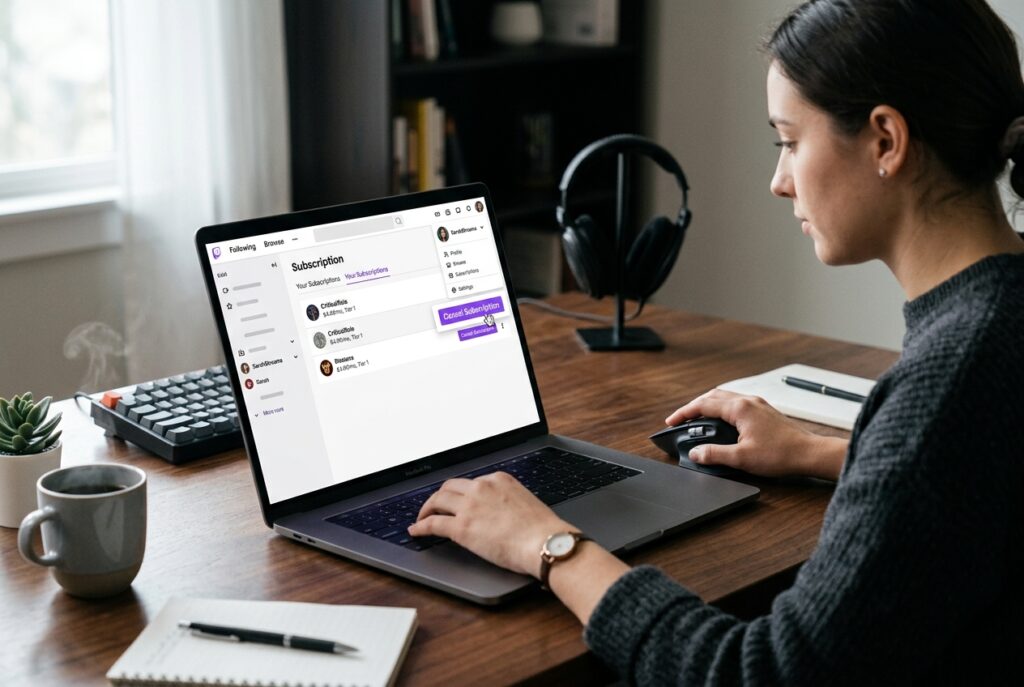
Start by logging into your Twitch account on a desktop browser. While you can technically manage some subscription settings on mobile, the desktop experience gives you the most control and the clearest view of all your active subscriptions. Navigate to the top-right corner of the screen where your profile icon sits. Click on it to open the dropdown menu.
From the dropdown, select “Subscriptions.” This takes you directly to your Subscriptions Management page where every active and expired subscription is listed. You’ll see each channel you’re currently subscribed to, along with the subscription tier, your next billing date, and the payment method being charged.
If you don’t see “Subscriptions” in the dropdown menu, try clicking on “Settings” first, then look for a subscriptions tab within your account settings. Twitch occasionally updates its interface, so the exact menu path can shift slightly between redesigns. The destination is always the same: a page that lists all your active channel subscriptions with management options for each one.
Bookmark this page if you subscribe to multiple channels. It’s the single most useful page on Twitch for managing your spending, and returning to it monthly can help you catch subscriptions you’ve forgotten about. Some users discover they’ve been paying for channels they haven’t watched in months simply because they never checked this page.
Step 2: Locating the Specific Channel Subscription
Once you’re on the Subscriptions Management page, you’ll see a list of all your active subscriptions. Each entry shows the channel name, the subscription tier, your current streak length, and the renewal date. If you only subscribe to one or two channels, finding the right one is trivial. If you subscribe to a dozen or more, you’ll need to scroll through the list.
Twitch organizes active subscriptions at the top of the page, with expired or lapsed subscriptions listed below. Focus on the active section. Each subscription entry has a small gear icon or an “Edit Subscription” link next to it. Before you click anything, confirm you’re looking at the correct channel. Double-check the channel name and the billing amount to make sure you’re canceling the right one.
This is also a good moment to review all your active subscriptions while you’re here. Many Twitch users accumulate subscriptions over time, subscribing to a new streamer during an exciting stream and then forgetting about it. If you’re canceling one subscription to save money, you might find two or three others worth canceling at the same time.
Pay attention to the renewal dates listed next to each subscription. If a renewal date is tomorrow, act now. If it’s two weeks away, you have more time, but there’s no reason to wait. Canceling early doesn’t cut off your access prematurely; you keep your benefits through the end of the billing period regardless of when you cancel.
Step 3: Selecting the Edit Subscription Options
Click the gear icon or “Edit Subscription” button next to the channel subscription you want to cancel. This opens a panel or page with several options. You’ll typically see choices to change your subscription tier, update your payment method, or cancel the subscription entirely.
The cancel option is usually labeled “Don’t Renew Subscription” or “Cancel Subscription” depending on the current version of the Twitch interface. Twitch sometimes uses softer language like “Don’t Renew” to make the action feel less permanent, but the effect is the same: your subscription will not be charged again after the current billing period ends.
Don’t be surprised if Twitch presents you with retention offers at this stage. The platform may suggest downgrading to a lower tier instead of canceling outright, or it might highlight the benefits you’ll lose. These are standard retention tactics used by every subscription service. If you’ve already decided to cancel, ignore these prompts and proceed with the cancellation.
You might also see an option to “Gift a Sub” at this stage, which is Twitch’s way of redirecting your spending rather than losing it entirely. Again, if your goal is to stop paying, skip past these suggestions. Click the option that clearly indicates you want to stop the recurring payment. The exact wording varies, but look for language about not renewing or ending the subscription.
One thing to watch for: make sure you’re actually clicking the cancel or don’t-renew option and not accidentally changing your tier. Some users have reported clicking what they thought was a cancel button only to discover they’d switched from Tier 1 to Tier 2, increasing their monthly charge. Read the options carefully before confirming anything.
Step 4: Confirming the Cancellation and Selecting a Reason
After selecting the cancellation option, Twitch asks you to confirm your decision. This is a two-step confirmation process designed to prevent accidental cancellations, though it also serves as one more opportunity for Twitch to change your mind.
You’ll be presented with a brief survey asking why you’re canceling. The options typically include reasons like “Too expensive,” “I don’t watch this channel anymore,” “I’m taking a break from Twitch,” and similar choices. Select whichever reason applies to you. This survey is optional in the sense that it doesn’t affect the cancellation, but Twitch may require you to select a reason before the confirm button becomes clickable.
After selecting a reason, click the final confirmation button. This is usually labeled “Cancel Subscription” or “Confirm.” Once you click it, the cancellation is processed immediately. You should see a confirmation message on screen indicating that your subscription will not renew and showing the date your current benefits expire.
Take a screenshot of this confirmation screen. If any billing disputes arise later, having proof that you canceled before the renewal date is invaluable. Twitch also sends a confirmation email to your registered email address, but screenshots provide an extra layer of documentation.
The entire process from clicking “Edit Subscription” to receiving confirmation takes less than a minute. The multi-step nature of it isn’t because the process is complex; it’s because Twitch wants you to reconsider at every stage. Stay focused on your goal, click through the prompts, and you’ll be done quickly.
Step 5: Verifying the Expiration Date
This final step is the one most people skip, and it’s the one that matters most. After canceling, go back to your Subscriptions Management page and verify that the subscription now shows a status change. It should display something like “Expires on [date]” rather than “Renews on [date].”
If the subscription still shows a renewal date with no indication that it’s been canceled, something went wrong. The cancellation may not have processed correctly, or you might have accidentally dismissed the confirmation dialog without completing the process. In that case, go through steps 3 and 4 again.
Check your email for the cancellation confirmation message from Twitch. This email serves as your receipt and proof of cancellation. If you don’t receive one within a few minutes, check your spam folder. Gmail users should also check the “Promotions” tab, where Twitch emails frequently end up.
Mark the expiration date on your calendar or set a reminder for the day after. On that date, log into Twitch and confirm that you no longer have subscriber badges or emotes on the channel. This final verification ensures the cancellation actually took effect and you won’t be charged going forward. It sounds excessive, but subscription services occasionally have billing glitches, and catching them early is far easier than disputing charges after the fact.
If everything checks out, you’re done. The subscription will expire on the listed date, and your payment method will not be charged again for that channel.
How to Cancel Twitch Subs on Mobile Devices
Canceling Twitch subscriptions on mobile is a different experience than desktop, and the method you need to use depends entirely on how you originally subscribed. This is where most of the confusion around canceling Twitch subs originates.
If you subscribed through the Twitch website on a desktop or mobile browser, you can cancel using the same web-based process described above, even from your phone’s browser. Just navigate to twitch.tv, log in, and access your subscription management settings. The mobile web interface isn’t as polished as the desktop version, but all the same options are available.
The complications start when you subscribed through the Twitch mobile app itself. Subscriptions purchased through the iOS or Android app are processed through Apple’s App Store or Google’s Play Store, respectively. This means Twitch doesn’t directly control the billing, and you can’t cancel these subscriptions from the Twitch website or desktop app. You have to go through the platform-specific app store to manage and cancel them.
This distinction catches people off guard constantly. They follow the desktop cancellation steps, can’t find their subscription listed, and assume something is broken. The subscription isn’t broken; it’s just managed by Apple or Google rather than Twitch directly.
Managing Subscriptions on iOS and Android Apps
On iOS, open the Settings app on your iPhone or iPad. Tap your name at the top of the screen to access your Apple ID settings. Select “Subscriptions” from the list. You’ll see all active subscriptions tied to your Apple ID, including any Twitch channel subscriptions you purchased through the Twitch iOS app. Find the Twitch subscription you want to cancel, tap on it, and select “Cancel Subscription.”
On Android, open the Google Play Store app. Tap your profile icon in the top-right corner, then select “Payments & subscriptions” followed by “Subscriptions.” Locate the Twitch subscription in the list and tap “Cancel subscription.” Google will ask you to confirm, and once you do, the subscription will stop renewing at the end of the current billing period.
The timing rules are the same as desktop cancellations. You keep your subscriber benefits until the current period expires, and you won’t be charged again after that. Both Apple and Google send confirmation emails for subscription cancellations, so watch for those as verification.
If you subscribed through the mobile app and must cancel through the app or the platform-specific app store, trying to cancel through the Twitch website simply won’t work. The subscription won’t appear in your Twitch Subscriptions Management page because Twitch isn’t handling the billing. This is the single most common reason people think their cancel button is “missing” – they’re looking in the wrong place.
Canceling via Third-Party Mobile App Stores
Beyond Apple and Google’s standard subscription management interfaces, there are a few additional considerations for mobile cancellations. If you used a family sharing plan or a different Apple ID or Google account than the one currently signed into your phone, you’ll need to sign into the correct account to see and manage the subscription.
Apple makes this particularly tricky because some users have separate Apple IDs for purchases and iCloud. If you don’t see a Twitch subscription under your current Apple ID’s subscriptions list, try signing in with any other Apple IDs you might have used. The same applies to Google accounts; if you have multiple Google accounts on your Android device, the subscription is tied to whichever account was active in the Play Store when you subscribed.
Another scenario: if you subscribed using a third-party payment service like PayPal through the Twitch website, the subscription is managed by Twitch, not by Apple or Google, even if you completed the transaction on your phone’s browser. In this case, use the desktop cancellation method through the Twitch website.
The key principle is simple: cancel through whatever platform processed your payment. Twitch website purchase? Cancel on Twitch. iOS app purchase? Cancel through Apple. Android app purchase? Cancel through Google Play. Getting this right eliminates ninety percent of cancellation headaches.
Managing Prime Gaming Subscriptions
Prime Gaming (formerly Twitch Prime) subscriptions work differently from standard paid subscriptions, and the cancellation rules reflect that. If you have an Amazon Prime or Prime Gaming membership, you get one free channel subscription per month that you can use on any Twitch partner or affiliate channel.
Here’s the critical detail: once you use your Prime Gaming sub on a channel, that specific sub cannot be canceled. It lasts for one month and then expires on its own. It does not auto-renew. You don’t need to cancel it because there’s no recurring charge associated with it. When the month ends, you get a new free sub to use on the same channel or a different one.
The confusion arises because people conflate their Prime Gaming channel sub with their Amazon Prime membership. Canceling Amazon Prime cancels your access to Prime Gaming entirely, which means you lose the free monthly Twitch sub along with all other Prime benefits (free shipping, Prime Video, etc.). If you only want to stop subscribing to a specific Twitch channel through Prime Gaming, just don’t renew the free sub next month. Let it expire and either use it elsewhere or don’t use it at all.
If you want to cancel Prime Gaming specifically without losing Amazon Prime shipping benefits, Amazon offers this option in some regions. Go to your Amazon account settings, find your Prime membership management page, and look for the option to manage Prime Gaming separately. The availability of this option varies by country and membership type.
One more thing: if you initially used a Prime Gaming sub on a channel and then converted it to a paid subscription (by choosing to continue the sub with your credit card after the free month ended), that paid subscription follows all the standard cancellation rules. You’d cancel it through Twitch’s subscription management page just like any other paid sub.
Troubleshooting Common Cancellation Issues
Even with clear steps, things go wrong. Twitch’s interface changes periodically, payment processing has occasional hiccups, and user error accounts for a significant portion of failed cancellation attempts. Here are the most common problems and their solutions.
If you complete the cancellation process but still see a “Renews on” date instead of “Expires on,” try clearing your browser cache and refreshing the page. Twitch’s interface sometimes displays cached information that hasn’t updated to reflect your cancellation. If the renewal status persists after a hard refresh, attempt the cancellation again from an incognito or private browsing window.
Payment method issues can also complicate things. If the credit card on file has expired or been replaced, Twitch may display errors when you try to modify or cancel the subscription. In most cases, you can still cancel even with an expired payment method, but if the interface won’t cooperate, contact Twitch support directly.
Twitch support can be reached through the Help section of the website. Submit a support ticket explaining that you’re unable to cancel a subscription through the normal interface. Include the channel name, your username, and the approximate date you subscribed. Support tickets typically receive responses within 24 to 48 hours, though response times vary.
What to Do if the Cancel Button is Missing
A missing cancel button is almost always caused by one of two things: either you subscribed through a mobile app store (and need to cancel through Apple or Google instead), or the subscription has already been canceled and you’re viewing the “Expires on” status without recognizing it as a successful cancellation.
Start by checking whether the subscription shows an expiration date. If it does, the cancellation already went through, and no further action is needed. The sub will simply expire on the listed date.
If there’s no expiration date and no cancel button, the subscription was likely purchased through the iOS or Android app. Head to your device’s subscription management settings (described in the mobile section above) and look for the Twitch subscription there.
In rare cases, the cancel button may be missing due to a Twitch interface bug. This happens occasionally after major site updates. If you’ve confirmed the subscription isn’t managed by Apple or Google and you still can’t find a cancel option, use a different browser or device to access the Subscriptions Management page. Chrome, Firefox, and Safari sometimes render Twitch’s interface differently, and a button that’s hidden or broken in one browser may appear normally in another.
As a last resort, contact Twitch support. Explain that the cancel option is not appearing on your Subscriptions Management page and provide as much detail as possible about the subscription in question. Support agents can manually cancel subscriptions on the backend if the user-facing interface isn’t working.
Requesting a Refund for Accidental Renewals
Twitch’s official refund policy is strict: subscriptions are generally non-refundable. If your subscription renewed because you forgot to cancel in time, Twitch is under no obligation to refund the charge. That said, refunds are occasionally granted on a case-by-case basis, especially for first-time requests.
To request a refund, go to the Twitch Help page and submit a support ticket under the “Purchases” or “Billing” category. Explain that the renewal was unintentional, provide the date of the charge, and include any relevant details (such as evidence that you attempted to cancel before the renewal date). Be polite but direct. Support agents have more discretion than the official policy suggests, and a reasonable request from a long-time user is more likely to be approved than a hostile demand.
If Twitch denies the refund, you have a couple of other options. Contact your bank or credit card company to dispute the charge. Most banks allow chargebacks for recurring charges that the customer attempted to cancel. Provide your bank with the cancellation confirmation screenshot (this is why Step 5 matters) and any communication with Twitch support.
Be aware that filing a chargeback with your bank may result in Twitch suspending or banning your account. This is standard practice across subscription platforms. If you value your Twitch account and its history, exhaust all options with Twitch support before going the chargeback route.
The best way to avoid accidental renewals entirely is to cancel subscriptions the moment you decide you no longer want them, rather than waiting until closer to the renewal date. Since canceling doesn’t immediately remove your benefits, there’s no downside to canceling early. You still enjoy the full month you’ve paid for, and you eliminate the risk of forgetting to cancel before the next charge.
Final Thoughts on Managing Your Twitch Subscriptions
Canceling a Twitch subscription takes five steps on desktop and slightly different steps on mobile, but none of it is difficult once you know where to look. The biggest pitfalls are subscribing through a mobile app and then trying to cancel on the website, forgetting about Prime Gaming’s unique rules, and waiting too long to cancel before a renewal date.
Get into the habit of reviewing your Subscriptions Management page at least once a month. Treat it like checking your bank statement. Subscriptions you forgot about add up quickly, and $4.99 here and $9.99 there can quietly drain your budget over time.
If you’re reading this because you just got charged for a subscription you didn’t want, cancel it right now before you close this tab. You’ll keep your benefits for the rest of the billing period, and you won’t be charged again. That’s the best possible outcome from a situation that started with an unwanted charge. Take the two minutes, follow the steps, and move on with your month.