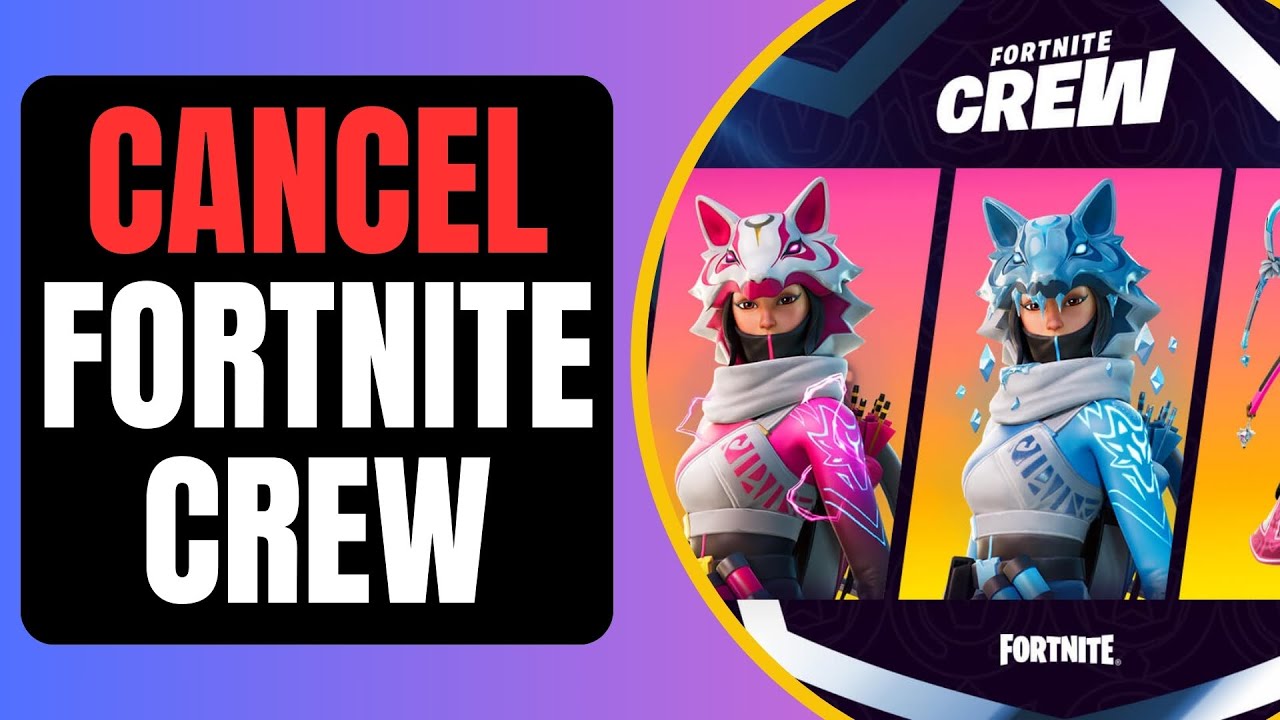

Fortnite Crew costs $11.99 per month, and that charge hits your account whether you’ve logged in recently or not. If you’re reading this, you’ve probably decided the monthly V-Bucks, Battle Pass access, and exclusive skin aren’t worth the recurring fee anymore.
Maybe you’ve moved on to a different game, or maybe you just want to take a break without bleeding money. Either way, the process for canceling your Fortnite Crew subscription isn’t as straightforward as it should be, because the cancellation method depends entirely on which platform you used to subscribe. That single detail trips up more players than anything else.
I’ve walked dozens of people through this process, and the most common mistake is trying to cancel through Epic Games when the subscription was actually purchased through PlayStation or Xbox. This guide breaks the whole thing down into five clear steps, with platform-specific instructions, so you can stop the charges and keep whatever benefits you’ve already earned through the end of your billing cycle.
Understanding Your Fortnite Crew Membership Benefits and Billing
Before you cancel anything, you need to understand exactly what you’re giving up and what you get to keep. Fortnite Crew is a monthly subscription that bundles three things: 1,000 V-Bucks deposited each billing cycle, access to the current season’s Battle Pass, and an exclusive Crew Pack skin with matching accessories. The billing date is tied to when you first subscribed, not to the start of each calendar month. This means your renewal date might fall on the 7th, the 22nd, or any other day.
The subscription auto-renews by default. Epic Games and the platform storefronts don’t send prominent reminders before charging you, so many players discover an unwanted charge only after it posts to their bank statement. If your billing cycle renews on the 15th and you cancel on the 16th, you’ve already been charged for that month and won’t get a proactive refund just for canceling. Timing matters here, and I’d recommend setting a calendar reminder at least five days before your renewal date if you’re considering canceling. That buffer gives you time to act before the charge processes.
One detail that catches people off guard: your Crew membership benefits remain active until the end of the current paid period. Canceling doesn’t immediately revoke your access. You’ll still be able to play with your Crew Pack skin, use your V-Bucks, and access the Battle Pass until the expiration date. The cancellation simply turns off auto-renewal or recurring billing to prevent future charges, which is the critical distinction.
What Happens to Your Battle Pass and V-Bucks?
This is the question I get asked the most, and the answer is reassuring. Any V-Bucks you’ve already received stay in your account permanently. They don’t expire and they don’t get clawed back when your subscription ends. If you had 2,400 V-Bucks before canceling, you’ll still have 2,400 V-Bucks after. The only thing that stops is the monthly deposit of 1,000 V-Bucks.
The Battle Pass situation is slightly more nuanced. If your Crew membership granted you the current season’s Battle Pass, you keep it for the remainder of that season even after canceling. Any progress you’ve made on the Battle Pass, including unlocked tiers, skins, and emotes, stays permanently in your locker. You won’t lose those items. However, if a new season starts after your membership lapses, you won’t automatically receive the new season’s Battle Pass. You’d need to purchase it separately with V-Bucks or resubscribe.
Crew Pack skins and their bundled accessories are yours forever. Think of them as purchases rather than rentals. Even if you cancel after one month, every Crew Pack skin you received during your subscription stays in your locker indefinitely. This is a genuine benefit, and it means there’s no urgency to keep subscribing just to retain cosmetic items.
The Difference Between Canceling and Refunding
These are two completely separate actions, and confusing them is one of the biggest mistakes players make. Canceling your subscription stops future charges. It does not reverse a charge that has already processed. If you were billed yesterday and cancel today, you won’t see that $11.99 come back to your account.
A refund, on the other hand, requires a separate request through either Epic Games Support or your platform’s refund system. Refund eligibility varies by platform and typically depends on how recently the charge occurred and whether you’ve already claimed the month’s rewards. PlayStation, for instance, has strict refund windows, and if you’ve already downloaded or used the Crew Pack content, your refund request will likely be denied. Xbox has a similar policy.
If you believe you were charged in error, such as being billed after you thought you’d already canceled, that’s a billing dispute rather than a standard refund. In those cases, your first step should be contacting the platform where the charge originated, not Epic Games directly. Keep screenshots of any cancellation confirmations you received, because proving you canceled before the billing date is the fastest way to resolve a disputed charge.
Step 1: Identify Your Purchasing Platform
This is the step that determines everything else. Your Fortnite Crew subscription is managed by whichever platform processed the original purchase, not by Epic Games universally. If you subscribed while playing on your PlayStation, Sony handles the billing. If you subscribed on your Xbox, Microsoft handles it. The same logic applies to Nintendo Switch, PC through the Epic Games Store, and Android devices.
You can cancel your Fortnite Crew subscription through the platform where you initially subscribed, and only through that platform. This is a hard rule. Even if you play Fortnite on multiple devices, the cancellation must happen on the original purchasing platform. Playing on your PC doesn’t mean you can cancel a subscription that was started on your PlayStation through the Epic Games Launcher.
How do you figure out which platform holds your subscription? Check your email for the original confirmation. Search for “Fortnite Crew” or “Epic Games” in your inbox, and the sender or receipt details will tell you which storefront processed the payment. Alternatively, check your bank or credit card statement. The charge descriptor will usually include “Sony,” “Microsoft,” “Nintendo,” “Epic,” or “Google Play,” which points you to the right platform.
If you still can’t tell, log into Fortnite on each platform you use and check the Crew tab in the Item Shop. The platform that shows your active subscription details and renewal date is the one managing your billing. Don’t waste time trying to cancel on the wrong platform, because you simply won’t find the option there.
One more thing: removing your payment method from your Epic Games account does not cancel your subscription. This is a common misconception. The billing agreement exists between you and the platform, and it persists even if you delete your saved card. You must explicitly cancel through the subscription management settings.
Step 2: Accessing Platform-Specific Subscription Settings
Each platform buries subscription management in a slightly different place, and none of them make it particularly obvious. The instructions below are current and specific, but keep in mind that console manufacturers occasionally reorganize their settings menus during system updates. If a menu name has changed slightly, look for the closest equivalent.
Canceling on PlayStation (PS4/PS5)
On PS5, the path is straightforward once you know where to look. From the home screen, go to Settings, then Users and Accounts, then Account, then Payment and Subscriptions. Under that menu, select Subscriptions, and you’ll see a list of all active subscriptions tied to your PlayStation account. Find Fortnite and select it, then choose the option to turn off auto-renew through the Game and App Services section.
On PS4, the process is slightly different. Navigate to Settings, then Account Management, then Account Information, then PlayStation Subscriptions. You’ll find your Fortnite Crew listing there. Select it and turn off automatic renewal.
You can also manage this through a web browser. Go to the PlayStation Store website, sign in, click your profile icon, and select Subscription Management. This is actually my preferred method because the web interface is cleaner and less buried than the console menus. After turning off auto-renew, Sony will send a confirmation email. Save that email. Screenshot it. Store it somewhere you won’t lose it. That confirmation is your proof if a billing dispute arises later.
Managing Xbox and Microsoft Store Subscriptions
Xbox subscriptions are managed through your Microsoft account, which means you can cancel from your console, a web browser, or the Xbox mobile app. The web method is fastest: go to account.microsoft.com, sign in, and click on Services & Subscriptions. Find the Fortnite Crew entry and select Manage, then choose Cancel or Turn Off Recurring Billing.
On your Xbox console, press the Xbox button to open the guide, go to Profile & System, then Settings, then Account, then Subscriptions. Your active subscriptions will appear here.
A specific scenario worth mentioning: if you upgrade to Xbox Game Pass Ultimate after having a paid Crew subscription, Microsoft prevents double-billing by incorporating the Crew benefits into your Game Pass plan. This can create confusion about where the Crew subscription actually lives. If you’re in this situation, manage the cancellation through your Game Pass Ultimate subscription settings rather than looking for a standalone Fortnite Crew entry.
Microsoft sometimes presents retention offers during the cancellation flow, asking if you’d like to pause or switch to a different plan. You can skip through these screens. Don’t let them slow you down if you’ve already decided to cancel.
Navigating the Nintendo Switch eShop
Nintendo’s subscription management is the most unintuitive of all the platforms. From the Switch home screen, open the Nintendo eShop. Select your profile icon in the upper right corner. Scroll down and look for “Nintendo eShop Menu” or your account settings. From there, find the option for “Your Subscriptions” or “Recurring Payments.”
If you can’t locate it on the console, use the Nintendo website instead. Sign into your Nintendo Account at accounts.nintendo.com, go to Shop Menu, then find your active subscriptions. The Fortnite Crew listing should appear with an option to turn off automatic renewal.
Nintendo’s system can be slow to update. After canceling, it might take a few minutes for the status change to reflect in your account. Don’t panic if the subscription still shows as active immediately after canceling. Check back in an hour, and the status should update. As with every other platform, screenshot your cancellation confirmation page before navigating away.
Epic Games Launcher and PC Instructions
If you subscribed directly through the Epic Games Store on PC, you’ll manage the cancellation through your Epic Games account. Open the Epic Games Launcher, click your profile name in the lower left corner, and go to Settings. Alternatively, log into epicgames.com in a web browser and navigate to your account settings.
Once in your account, look for the Subscriptions section. Your Fortnite Crew membership will appear here with its renewal date and payment method. Select it and choose to cancel or disable auto-renewal. Epic will ask you to confirm, and you’ll receive an email confirmation afterward.
The web browser method tends to be more reliable than the launcher for this. I’ve seen cases where the launcher doesn’t display the Subscriptions section properly, especially on older versions. If you don’t see it, update your launcher first or just use the website. The website always shows the full account management options.
Mobile Cancellations for Android and Samsung
Fortnite Crew on Android is billed through the Samsung Galaxy Store or through Epic’s direct payment system, depending on how you installed the game. If you installed Fortnite through the Samsung Galaxy Store, open the Galaxy Store app, tap the menu icon, go to My Page, and then find your subscriptions. Cancel the Fortnite Crew recurring payment from there.
If you installed Fortnite directly from the Epic Games website on your Android device, you’ll need to manage the subscription through your Epic Games account, following the same steps outlined in the PC section above.
Here’s a critical warning for Android users: Google Play is not involved in Fortnite billing because Fortnite isn’t distributed through the Google Play Store. Don’t go searching through your Google Play subscriptions for Fortnite Crew, because it won’t be there. This is a common source of confusion, and I’ve seen players waste significant time looking in the wrong place.
After canceling on any mobile platform, verify the cancellation by logging into Fortnite and checking the Crew tab. The status should reflect your cancellation within a few minutes.
Step 3: Locating the Fortnite Crew Management Tab
Beyond the platform-level subscription settings, Fortnite itself has an in-game Crew management area that can help you verify your subscription status and sometimes initiate cancellation. Open Fortnite and navigate to the Item Shop. Look for the Fortnite Crew tab, which is usually displayed prominently with the current month’s Crew Pack skin.
Inside the Crew tab, you’ll see details about your membership, including the next billing date and what platform is managing your subscription. If you’re an active subscriber, the tab will show your current benefits and renewal information. If you’ve already canceled through your platform, this tab should reflect the change and display the date when your benefits will expire.
Some players report that the in-game Crew tab includes a direct link or prompt to manage the subscription, which redirects you to the appropriate platform’s subscription settings. This can be a useful shortcut if you’re still unsure which platform holds your billing. The redirect will point you to the correct storefront automatically.
Don’t rely solely on the in-game tab for cancellation, though. The actual billing relationship is between you and the platform storefront, so always confirm through the platform’s own subscription management page. Think of the in-game tab as a status check, not the primary cancellation tool.
If you’re on console, you might need to use the console’s built-in browser or a separate device to complete the cancellation. The in-game redirect sometimes opens a web page that’s difficult to interact with using a controller. Having a phone or computer nearby makes this smoother.
Step 4: Confirming the Cancellation Request
Every platform will ask you to confirm your cancellation at least once, and some will try multiple times to keep you subscribed. This is standard practice for subscription services, and you should expect to click through one or two retention screens before the cancellation actually processes.
On PlayStation, you’ll see a confirmation dialog after selecting “Turn Off Auto-Renew.” Confirm it, and you’re done. Xbox often presents a multi-step flow that includes an offer to pause the subscription or switch billing frequency. Click through these until you reach the final confirmation. Nintendo keeps it relatively simple with a single confirmation prompt.
The Epic Games website may show you what you’ll lose by canceling, including the monthly V-Bucks and upcoming Crew Pack. This is informational, not a trick, but it can make you second-guess your decision if you’re on the fence. If you’ve decided to cancel, stay the course and confirm.
After confirming, you should receive an email from the platform acknowledging the cancellation. This email is your most important piece of documentation. If you don’t receive one within 30 minutes, check your spam folder. If it’s not there either, go back to the platform’s subscription settings and verify that the status has actually changed. I’ve encountered situations where the confirmation button appeared to work but the cancellation didn’t process on the backend, resulting in another charge the following month.
Take a screenshot of the confirmation screen and the email. Save both. If you’re ever charged after canceling, these screenshots are your fastest path to a successful dispute resolution. Without proof of cancellation, you’re stuck in a he-said-she-said situation with customer support.
Step 5: Verifying Your Status and Access Period
The final step is verification, and skipping it is the single biggest mistake people make. After you’ve gone through the cancellation flow and received your confirmation, log back into Fortnite and check the Crew tab in the Item Shop. You should see a rejoin crew button and a message indicating when your membership will become inactive. If you see this, the cancellation was successful.
The message will include a specific date when your benefits expire. Until that date, everything works as normal: your V-Bucks are yours, your Battle Pass is active, and your Crew Pack skins remain in your locker. After the expiration date, you’ll lose the monthly V-Bucks deposit and won’t receive future Crew Packs, but everything you’ve already earned stays.
Also verify through your platform’s subscription management page. The Fortnite Crew entry should show a status like “Canceled” or “Will not renew” along with the expiration date. If it still shows as “Active” with a pending renewal, the cancellation didn’t go through, and you need to repeat the process.
I recommend checking one more time about three days before your original renewal date would have hit. This final check catches the rare edge cases where a cancellation reverts or doesn’t fully process. It takes 30 seconds and can save you $11.99.
If you use PayPal as your payment method on any platform, check your PayPal account separately. PayPal sometimes maintains its own billing agreement that persists even after you cancel through the platform. Log into PayPal, go to Settings, then Payments, then Manage Automatic Payments. If you see an active agreement with the platform or Epic Games, cancel it there too. This double-cancellation approach eliminates any possibility of being charged again.
Troubleshooting Common Cancellation Issues
Even with clear instructions, things go wrong. Platform updates change menu locations, accounts have unusual configurations, and sometimes the system just doesn’t cooperate. Here are the most common problems and their fixes.
If you’re trying to cancel but the platform says you don’t have an active subscription, you’re probably logged into the wrong account. This happens frequently with players who have multiple PlayStation or Xbox profiles. Verify that you’re signed into the exact account that originally purchased the Fortnite Crew membership. Check the email address associated with the account against the one that received the original purchase confirmation.
Another common issue: you canceled successfully, but you’re still being charged. This almost always means one of two things. Either the cancellation didn’t fully process (which is why verification in Step 5 is so critical), or you have a separate billing agreement through a payment processor like PayPal that’s still active. Check both the platform and any third-party payment services.
If your subscription was purchased by someone else, such as a parent or family member, the cancellation must be done from their account. You can’t cancel a subscription that’s billed to a different account, even if it grants benefits to your Fortnite profile. This is a frequent issue with family accounts on PlayStation and Xbox.
Missing ‘Cancel’ Button Solutions
The most frustrating problem is when the cancel button simply doesn’t appear. On PlayStation, this sometimes happens when the subscription is in a “grace period” after a failed payment. Sony may be retrying the charge, and during that retry window, the cancellation option disappears temporarily. Wait 24 to 48 hours and check again.
On Xbox, a missing cancel option can indicate that the subscription is bundled with another service, such as Game Pass Ultimate. In that case, you won’t find a standalone Fortnite Crew cancellation because the billing is wrapped into the larger subscription. You’d need to manage it through the Game Pass settings or contact Microsoft support directly.
On the Epic Games website, if the Subscriptions section doesn’t appear in your account settings, try clearing your browser cache or using a different browser. The Epic Games site occasionally has display issues that hide certain account sections. An incognito or private browsing window often resolves this.
If none of these solutions work, the nuclear option is to contact your bank or credit card company and ask them to block future charges from the specific merchant. This should be a last resort because it can create complications with your platform account, potentially leading to account restrictions. But if you’ve exhausted every other avenue and charges keep coming, a payment block protects your wallet while you sort things out with support.
Contacting Epic Games Support for Billing Errors
When platform-level troubleshooting fails, Epic Games Support is your next stop. Go to epicgames.com/help and submit a support ticket. Choose the category related to billing or subscriptions. In your ticket, include your Epic Games display name, the email address associated with your account, the platform where you subscribed, your most recent billing date, and any screenshots of cancellation confirmations or error messages.
Be specific in your request. Don’t just say “cancel my subscription.” Explain what you’ve already tried, what went wrong, and what outcome you’re looking for. Support agents handle thousands of tickets, and the more detail you provide upfront, the faster they can resolve your issue.
Response times vary. During major Fortnite events or season launches, the support queue gets backed up and responses can take three to five business days. During quieter periods, you might hear back within 24 to 48 hours. If you haven’t received a response within five business days, follow up on the same ticket rather than creating a new one. Creating duplicate tickets can actually slow down the process because agents may work on them separately.
For billing errors specifically, such as being charged after a confirmed cancellation, include the transaction ID from your bank statement and the screenshot of your cancellation confirmation. This combination of evidence usually results in a refund being processed within one to two billing cycles. If Epic Games can’t resolve a platform-specific billing issue, they’ll direct you to the platform’s own support team, which is why having all your documentation ready saves time.
If you’re a minor or the account belongs to a child, a parent or guardian may need to submit the support request. Epic Games has policies around account management for minors that can affect how billing disputes are handled. Include a note about this in your ticket if it applies.
Your Fortnite Crew cancellation doesn’t need to be permanent. Many players cancel during months when the Crew Pack skin doesn’t interest them, then resubscribe when a new pack catches their eye. The process for resubscribing is much simpler than canceling: just visit the Crew tab in the Item Shop and purchase again. Your previous Crew Pack skins and V-Bucks history won’t be affected by the gap in membership.
The key takeaway from this entire process is that canceling Fortnite Crew means stopping future charges, not losing what you’ve already earned. Identify your platform, find the subscription settings, turn off auto-renew, confirm the cancellation, and verify the status change both on the platform and in-game. Do all five steps, save your confirmation proof, and you’re protected against unwanted charges going forward.