
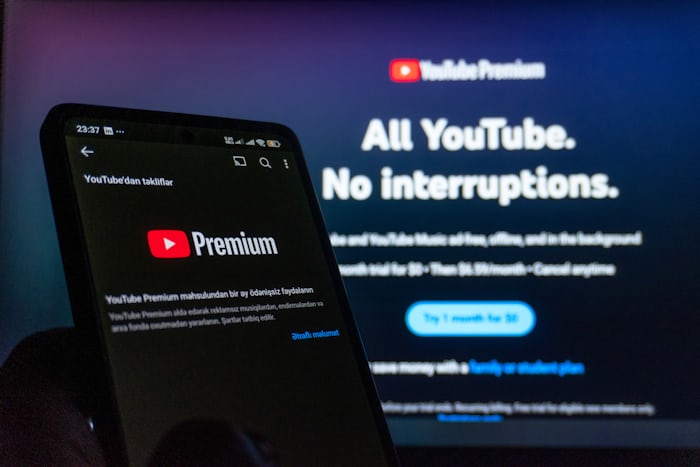
Many people subscribe to YouTube Premium to enjoy ad-free videos, background playback, and offline downloads on YouTube. However, there are times when users decide to cancel their subscription.
Maybe the service is no longer needed, the monthly fee feels unnecessary, or the free trial is about to end. Whatever the reason, canceling YouTube Premium is actually a simple process once you know where to look.
This guide explains how to cancel YouTube Premium step-by-step, including how to cancel on Android devices and iPhones. Also read on How to Cancel Streaming Subscriptions (Netflix, Disney+, Prime Video & Hulu)
What You Should Know Before Cancelling YouTube Premium
Before canceling your subscription, there are a few things you should understand.
1. Your Benefits Continue Until the Billing Cycle Ends
When you cancel YouTube Premium, you will still enjoy premium features until the current billing period expires.
This means if your subscription renews on the 30th and you cancel on the 10th, you can still use the service until the 30th.
2. You Will Not Be Charged Again
Once cancellation is confirmed, automatic billing stops. You will not be charged for the next month.
3. You Can Always Subscribe Again
Canceling does not delete your account. You can re-subscribe to YouTube Premium anytime through your account settings.
4. Premium Features Will Stop
After your subscription expires, you will lose features like:
- Ad-free viewing
- Background playback
- Video downloads
- Access to premium-exclusive content
How to Cancel YouTube Subscriptions on Android
If you subscribed to YouTube Premium using an Android device, you can cancel directly inside the YouTube app.
Follow these simple steps:
Step 1: Open the YouTube App
Launch the YouTube application on your Android phone or tablet.
Step 2: Tap Your Profile Picture
In the top-right corner of the screen, tap your profile icon.
Step 3: Go to “Purchases and Memberships”
Scroll through the menu and select Purchases and Memberships.
Step 4: Select YouTube Premium
You will see your active subscription listed under memberships.
Tap YouTube Premium.
Step 5: Tap “Deactivate”
Look for the Deactivate option.
Step 6: Choose “Continue to Cancel”
You may see options to pause your membership. If you want to cancel completely, choose Continue to Cancel.
Step 7: Confirm Cancellation
Follow the final confirmation prompts.
Once completed, your subscription will be cancelled and automatic billing will stop.
How to Cancel YouTube Premium on iPhone
If you subscribed to YouTube Premium using an iPhone, the process might go through your Apple subscription settings.
This happens because payments on iOS are sometimes handled through Apple’s App Store subscription system.
Here is how to cancel it.
Step 1: Open the Settings App
On your iPhone, open the Settings application.
Step 2: Tap Your Apple ID
At the top of the settings screen, tap your name.
Step 3: Select “Subscriptions”
Inside the Apple ID settings, tap Subscriptions.
Step 4: Find YouTube Premium
Scroll through your subscriptions and select YouTube Premium.
Step 5: Tap “Cancel Subscription”
Tap the Cancel Subscription option.
Step 6: Confirm Your Decision
Follow the prompts to confirm cancellation.
After confirmation, the subscription will remain active until the current billing cycle ends.
How to Cancel YouTube Premium on a Computer
You can also cancel YouTube Premium using a web browser.
Follow these steps:
- Go to the YouTube website
- Sign in to your Google account
- Click your profile picture in the top corner
- Select Purchases and Memberships
- Find YouTube Premium
- Click Manage Membership
- Select Deactivate
- Click Continue to Cancel
- Confirm the cancellation
Once done, your membership will stop renewing automatically.
How to Cancel YouTube Premium Free Trial
Many users search this topic because they signed up for the free trial and do not want to be charged.
Canceling a free trial works the same way as canceling a paid subscription.
Simply follow the steps mentioned earlier for Android, iPhone, or computer.
Important Tip
Make sure you cancel before the trial period ends. If you cancel after the trial expires, the system may charge the first monthly fee.
What Happens After You Cancel YouTube Premium
Canceling YouTube Premium does not immediately remove your access.
Here is what typically happens.
1. Your Membership Remains Active Temporarily
You can still enjoy premium benefits until the end of the billing period.
2. Ads Will Return
After the membership expires, advertisements will appear again when watching videos.
3. Downloads Will Be Removed
Videos downloaded for offline viewing may no longer be available.
4. Background Playback Stops
Videos will stop playing when you close the app.
Common Problems When Cancelling YouTube Premium
Sometimes users experience issues while trying to cancel subscriptions.
Below are common problems and solutions.
1. Cannot Find the Cancel Option
Make sure you are signed into the same Google account used to purchase the subscription.
2. Subscription Was Purchased Through Apple
If you subscribed through iPhone, cancellation must happen inside Apple subscriptions settings, not inside the YouTube app.
3. Subscription Purchased Through a Mobile Carrier
Some subscriptions are billed through mobile carriers. In that case, cancellation may need to be done through your carrier account.
4. App Is Outdated
Updating the YouTube app can sometimes fix missing options or settings.
Reasons People Cancel YouTube Premium
Although YouTube Premium offers useful features, many people cancel their subscriptions for different reasons.
Common reasons include:
- Trying to reduce monthly expenses
- Not watching enough videos to justify the cost
- Switching to other entertainment platforms
- Finishing the free trial
Canceling a subscription is a normal decision and does not affect your regular YouTube account.
Frequently Asked Questions
1. Can I cancel YouTube Premium anytime?
Yes. You can cancel your subscription at any time. The membership will remain active until the billing cycle ends.
2. Will I get a refund after canceling?
Most subscriptions do not offer refunds for the remaining period. However, you will still keep access until the billing cycle finishes.
3. Can I pause YouTube Premium instead of canceling?
Yes. Some users may see a pause membership option instead of canceling immediately.
4. Can I subscribe again later?
Yes. You can subscribe again anytime through your account settings.

Pingback: How to Cancel a Spotify Premium Subscription - Howtocancellab
Pingback: How to Cancel an Audible Membership in 5 Steps - Howtocancellab
Pingback: How to Cancel Your PureGym Membership in 3 Steps - Howtocancellab
Pingback: How to Cancel a Fortnite Crew Subscription in 5 Steps - Howtocancellab
Pingback: Simple Steps to Cancel Your Scentbird Subscription - How to Cancel Lab
Pingback: How to Cancel a ReelShort Subscription in 5 Steps - How to Cancel Lab
Pingback: How to Cancel Your LinkedIn Premium Subscription - How to Cancel Lab