
Whether you’re looking to cut costs, take a break from streaming, or you’ve simply finished binge-watching your favorite shows, canceling your Hulu subscription should be straightforward. The process varies depending on how you originally signed up, which is where most people get stuck.
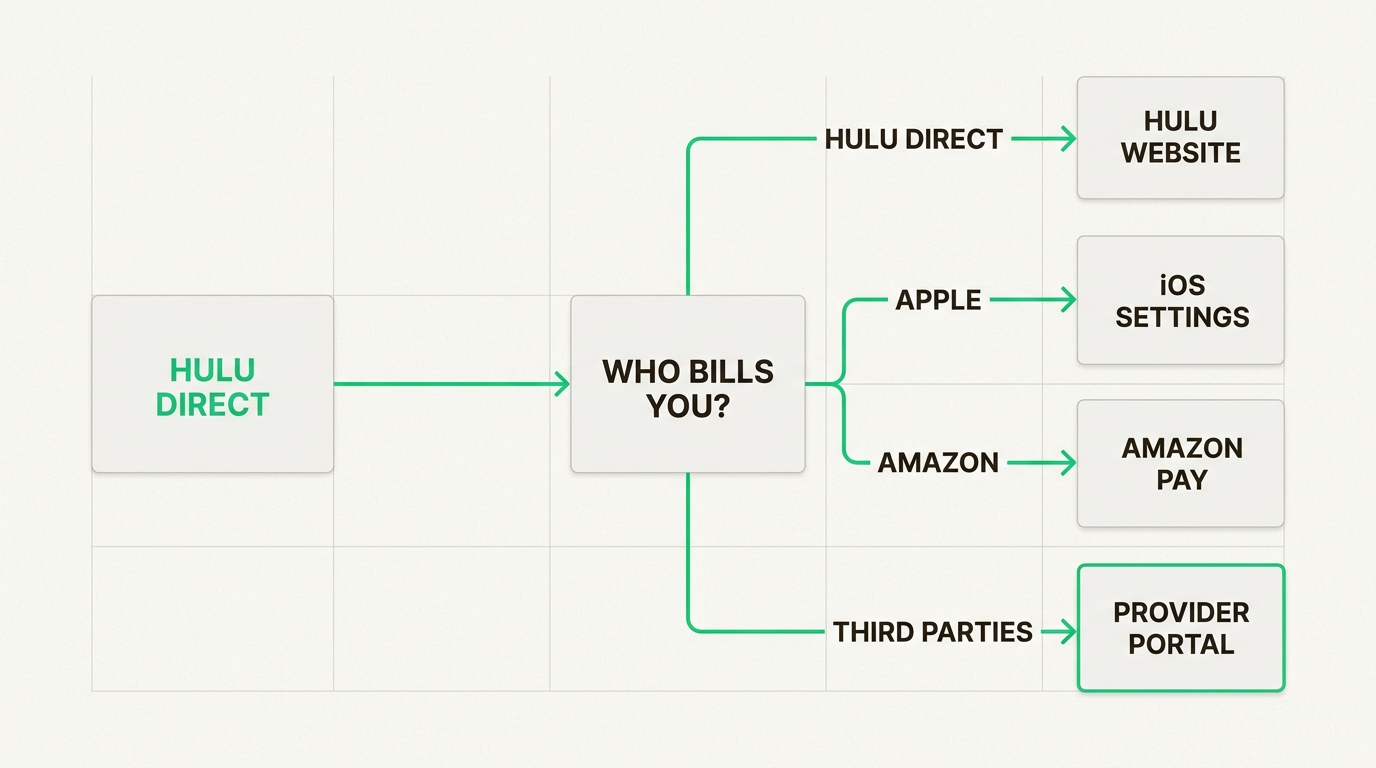
Here’s the short version: if you pay Hulu directly, you can cancel through their website. If you signed up through Apple, Amazon, or your phone carrier, you’ll need to cancel through that provider instead. The good news? You’ll keep access to Hulu until the end of your current billing period, so you won’t lose out on days you’ve already paid for.
Let’s break down exactly how to cancel Hulu no matter how you subscribed.
How to cancel Hulu on the web
If you’re billed directly by Hulu, this is the simplest cancellation method. You can do it from any computer or mobile browser.
- Go to your Account page. Visit secure.hulu.com and log in with your credentials.
- Find the Cancel option. Under the “Your Subscription” section, look for the Cancel button.
- Handle the pause offer. Hulu may present you with the option to pause your subscription instead. If you want to fully cancel, select “Continue to Cancel.”
- Confirm the cancellation. Click “Cancel Subscription” to finalize the process.
- Check your email. You should receive a confirmation email within minutes. Keep this for your records.
After completing these steps, your Account page should display a message saying “Your subscription will be canceled.” You’ll continue to have access until your billing cycle ends, but you won’t be charged again.
Source: Hulu Help Center
How to cancel Hulu on mobile devices
The mobile cancellation process depends entirely on whether you’re using Android or iOS. This is where many users get confused.
Canceling on Android
If you have an Android device, you can cancel directly through the Hulu app:
- Open the Hulu app and tap the Account icon (silhouette shape) at the bottom right.
- Tap “Account” at the top of the screen.
- Scroll down and tap “Cancel” next to your subscription.
- Tap “Continue to Cancel” when prompted.
- Select a reason for canceling (any option works).
- Tap “Continue to Cancel” again.
- Tap “Yes, Cancel Subscription” to confirm.
The entire process happens within the app, making it relatively straightforward.
Canceling on iPhone or iPad
Here’s where it gets tricky. You cannot cancel Hulu through the iOS app. Apple requires all subscription management to go through their system.
You have two options:
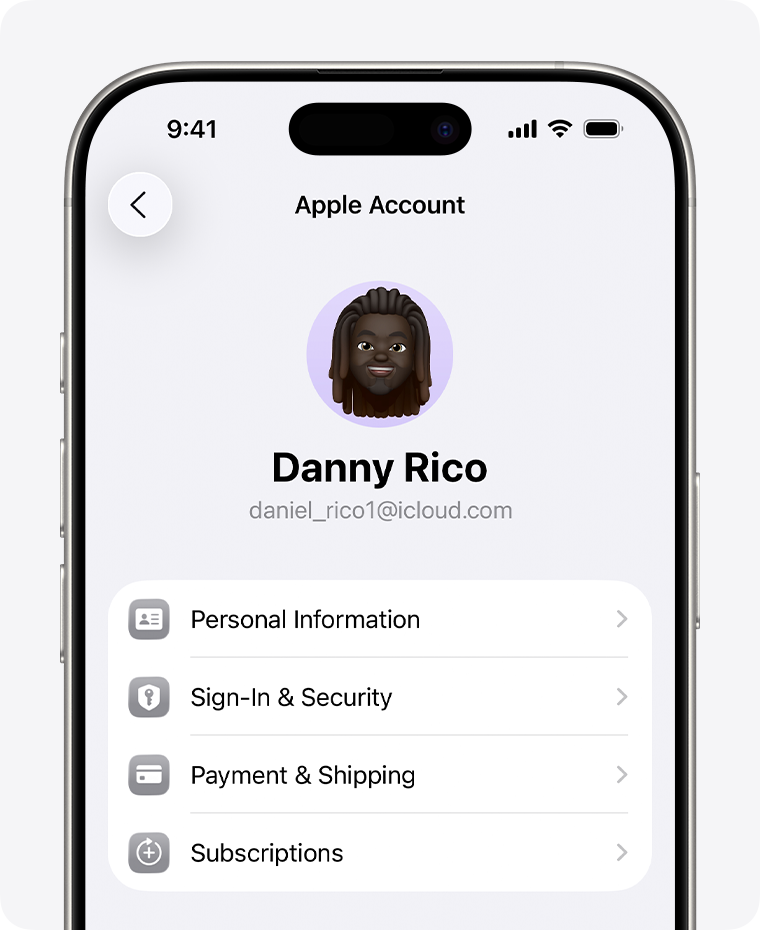
Option 1: Use your iPhone Settings
- Open the Settings app.
- Tap your name at the top.
- Tap “Subscriptions.”
- Find and tap “Hulu.”
- Tap “Cancel Subscription.”
Option 2: Use a web browser Open Safari or Chrome on your iPhone and go to hulu.com/account. Follow the web cancellation steps outlined above.
The web browser method works regardless of how you originally signed up, making it a reliable fallback.
Source: Apple Support
How to cancel Hulu if billed through a third party
If your Hulu Account page shows a billing party other than Hulu itself, you’ll need to cancel through that provider. Here’s how to handle each major scenario.
Amazon-billed subscriptions
New subscribers can no longer sign up through Amazon as of October 2025, but existing subscribers continue to be billed this way.
To cancel:
- Go to Amazon Pay or your Amazon account’s subscription management section
- Find Hulu in your active subscriptions
- Select “Manage” and then “Cancel”
Important limitations: Amazon-billed subscribers cannot switch plans, add Live TV, or add premium add-ons while maintaining Amazon billing. To access these features, you’d need to cancel your Amazon-billed subscription and resubscribe directly through Hulu after your billing cycle ends.
Source: Hulu Help Center – Amazon
Apple/iTunes-billed subscriptions
Like Amazon, new signups through Apple are no longer available, but existing subscribers continue under this billing method.
To cancel:
- On iPhone/iPad: Settings → Apple ID → Subscriptions → Hulu → Cancel Subscription
- On Mac: App Store → Account Settings → Subscriptions → Manage → Hulu → Cancel
- On web: Visit account.apple.com and manage subscriptions
Available plans: Apple-billed subscribers can only choose between Hulu (With Ads) and Hulu (No Ads). Live TV and add-ons require direct Hulu billing.
Source: Hulu Help Center – Apple
Roku-billed subscriptions
Roku-billed subscribers have more flexibility than Amazon or Apple subscribers.
To cancel via Roku device:
- From the Roku home screen, highlight the Hulu channel
- Press the * button on your remote
- Select “Manage subscription”
- Choose “Cancel subscription”
You can also cancel through my.roku.com or directly on hulu.com.
What’s available: Roku-billed subscribers can access Hulu + Live TV and premium add-ons on supported Roku models.
Source: Hulu Help Center – Roku
Spotify-billed subscriptions
Some Spotify Premium plans include Hulu as a bundled perk. If you’re in this group:
- You must cancel through your Spotify account settings
- The process varies depending on your specific Spotify plan
- Check your Spotify account page for subscription management options
Carrier-billed subscriptions (T-Mobile, Verizon)
Several phone carriers offer Hulu as part of their plans:
- T-Mobile: Many plans include Hulu (With Ads). Manage through your T-Mobile account or the T-Mobile app.
- Verizon: Various unlimited plans bundle Disney+ and Hulu. Cancel through your Verizon account.
These are often “included” subscriptions, so you may not be able to cancel Hulu separately without changing your phone plan.
Disney Bundle subscribers
The Disney Bundle (Disney+, Hulu, ESPN+) adds complexity because you could be billed by either Disney or Hulu depending on where you originally signed up.
To determine where to cancel:
- Check your Hulu Account page’s Payment Information section
- If it says “Disney,” cancel at disneyplus.com/account
- If it says “Hulu,” cancel at hulu.com/account
Important bundle note: If you had existing Disney+ or ESPN+ subscriptions before joining the bundle, those original subscriptions continue separately after you cancel the bundle. You’ll be billed for them at their regular prices unless you cancel those individually too.
Source: Hulu Help Center – Disney
Troubleshooting: When Hulu won’t let you cancel
Sometimes the cancellation process doesn’t go smoothly. Here are solutions to the most common problems.
“There’s no Cancel button on my Account page” This almost always means you’re billed through a third party. Check the Payment Information section on your Account page. If it shows Apple, Amazon, Roku, or a carrier, you need to cancel through that provider instead.
“I canceled but I’m still being charged” Frist, verify you received a cancellation confirmation email. If you did, check if you have multiple Hulu accounts (different email addresses) or multiple profiles under one account. If you share your subscription with family members, someone may have reactivated it. Still having issues? Contact Hulu support with your billing details.
“I can’t access my Account page” Try these steps in order:
- Use a different browser (Chrome instead of Safari, for example)
- Clear your browser cache and cookies
- Reset your Hulu password
- Try accessing from an incognito/private browsing window
“I’m confused about my Disney Bundle” Bundle cancellations must happen at the correct provider. Check your original signup confirmation email, which should indicate whether you signed up through Disney+ or Hulu. When in doubt, check your Hulu Account page’s Payment Information section.
“I canceled during a free trial and lost access immediately” This is expected behavior for Hulu + Live TV free trials, which end immediately upon cancellation. Regular Hulu free trials continue until the trial period ends even after cancellation.
If you encounter technical issues that persist after trying these solutions, contact Hulu support directly for assistance.
What happens after you cancel Hulu
Understanding the post-cancellation timeline helps set proper expectations.
Immediate effects:
- You’ll receive a confirmation email within minutes
- Your Account page will show “Your subscription will be canceled”
- No further charges will occur
Access timeline:
- Regular Hulu subscriptions: Access continues until the end of your current billing cycle
- Hulu + Live TV free trials: Access ends immediately
- Regular free trials: Access continues until the trial period ends
Account preservation:
- Your profiles, watch history, and preferences are saved for 12 months
- Add-ons (HBO Max, Showtime, etc.) cancel automatically with your base subscription
- You can reactivate anytime by logging back in and resubscribing
Financial considerations:
- Hulu does not issue partial refunds
- If you cancel mid-cycle, you keep access until the period ends but don’t get money back
- Reactivation starts a new billing cycle at current pricing
Alternatives to canceling your Hulu subscription
If you’re canceling due to cost concerns or temporary disuse, consider these alternatives first.
Pause your subscription. Hulu-billed subscribers (and Amazon or Roku-billed subscribers) can pause for up to 12 weeks. Your account stays active, your profiles are preserved, and you pay nothing during the pause. The subscription automatically resumes after your chosen duration.
Downgrade your plan. If you’re on Hulu (No Ads) or Hulu + Live TV, consider switching to the ad-supported base plan. It’s significantly cheaper and gives you access to the same content library.
Remove add-ons. Premium add-ons like HBO Max, Showtime, and STARZ can add $10-15 per month each. You can cancel add-ons individually without losing your base Hulu subscription.
Evaluate the Disney Bundle. Depending on your current setup, the Disney Bundle (Disney+, Hulu, ESPN+) might actually save you money compared to subscribing to services separately. Conversely, if you don’t use Disney+ or ESPN+, unbundling could reduce costs.
Check for included subscriptions. Many phone plans and credit cards now include streaming subscriptions. You might already have access to Hulu through T-Mobile, Verizon, or a credit card perk without realizing it.
Take control of your streaming subscriptions today
Canceling Hulu doesn’t have to be complicated. The key is knowing who bills you: if it’s Hulu directly, cancel on their website. If it’s Apple, Amazon, or your phone carrier, cancel through that provider instead. Either way, you’ll keep access until your billing cycle ends, giving you time to finish that series you’ve been watching.
Managing multiple streaming subscriptions can feel overwhelming. If you’re looking to streamline your monthly expenses, check out our guides for canceling Netflix, Disney+, Amazon Prime, and other popular services. Taking control of your subscriptions starts with understanding your options.
Frequently Asked Questions
Can I cancel Hulu anytime without penalties?
Yes, you can cancel Hulu at any time without cancellation fees. You’ll continue to have access until the end of your current billing period, and you won’t be charged again after that.
How do I know if I’m billed by Hulu or a third party for my subscription?
Log into your Hulu Account page and check the Payment Information section. It will clearly state whether you’re billed by Hulu, Apple, Amazon, Disney, or another provider.
Will I get a refund if I cancel Hulu in the middle of my billing cycle?
No, Hulu does not provide partial refunds. When you cancel Hulu mid-cycle, you’ll keep access until your billing period ends, but you won’t receive money back for unused days.
Can I pause my Hulu subscription instead of canceling it completely?
Yes, if you’re billed directly by Hulu (or through Amazon or Roku), you can pause your subscription for up to 12 weeks. This stops billing temporarily while preserving your profiles and watch history.
What happens to my Disney+ and ESPN+ if I cancel my Disney Bundle?
If you cancel a Disney Bundle, what happens to Disney+ and ESPN+ depends on your original setup. If you had existing subscriptions before bundling, those continue separately at their regular prices. If you only had the bundle, those services will also end.
Why can’t I find the Cancel button on my Hulu Account page?
If you don’t see a Cancel button, you’re likely billed through a third party like Apple, Amazon, or your phone carrier. Check your Payment Information section to confirm your billing provider, then cancel through that service instead.
How long does Hulu keep my account data after I cancel?
Hulu preserves your profiles, watch history, and preferences for 12 months after cancellation. If you resubscribe within that timeframe, everything will be restored exactly as you left it.



Pingback: 5 Simple Steps to Cancel Spectrum Internet - Howtocancellab
Pingback: How to Cancel NFL Sunday Ticket in 4 Easy Steps - How to Cancel Lab
Pingback: How to Cancel a Bid on eBay Correctly - How to Cancel Lab