

If you signed up for Amazon Music during a free trial, grabbed it as part of a Prime bundle, or just wanted to test out the Unlimited tier, there’s a good chance you’ve wondered how to cancel Amazon Music when the time comes. Maybe you’ve switched to Spotify or Apple Music. Maybe you realized you weren’t using it enough to justify the monthly charge. Or maybe you just want to trim your subscription spending – a completely reasonable move when the average household is juggling six or more recurring digital services.
Whatever your reason, the cancellation process should be simple. And it mostly is, once you know where to look. The catch is that Amazon buries subscription management a few clicks deeper than you’d expect, and the steps differ depending on whether you signed up through Amazon’s website, the iOS App Store, or Google Play. I’ve walked through every path, and this guide covers all of them so you can get it done in minutes, not hours.
One quick note before we get started: if you’re on a free trial, the clock started the moment you signed up, not when you first played a song. I’d recommend setting a reminder for 24 to 48 hours before your trial ends so you don’t get hit with an unexpected charge.
Understanding Your Amazon Music Subscription Options
Before you cancel anything, it helps to know exactly what you’re paying for and what you’d be giving up. Amazon has made its music offerings more confusing over the years by layering different tiers on top of each other, and a lot of people aren’t entirely sure which version they have.
Amazon Music comes in three flavors. There’s the free, ad-supported tier that anyone can use. There’s Amazon Music Prime, which is bundled with your Prime membership. And there’s Amazon Music Unlimited, which is the full-featured, premium streaming service competing directly with Spotify Premium and Apple Music.
The service has grown significantly over the past few years. Amazon Music now has over 80 million users worldwide, which puts it firmly in third place behind Spotify and Apple Music. With an 11.1% share of the global music streaming market, it’s not a niche product – but it’s also not for everyone.
Amazon Music Free vs. Unlimited Features
The free tier of Amazon Music gives you access to a limited selection of playlists and stations. You’ll hear ads, you can’t pick specific songs on demand, and the audio quality is capped at a lower bitrate. It’s fine for background listening, but it’s not a replacement for a paid streaming service.
Amazon Music Prime, included with your Prime membership, recently got an upgrade. You can now listen to the full catalog of over 100 million songs, but only in shuffle mode for most content. You get a small selection of “All-Access Playlists” where you can play songs on demand, but the experience feels limited compared to what Spotify or Apple Music offer at similar price points.
Amazon Music Unlimited is the full package: on-demand access to every song, HD and Ultra HD audio quality, spatial audio with Dolby Atmos, offline downloads, and unlimited skips. Prime members pay $10.99 per month or $109 per year for an individual plan. If you’re not a Prime member, the individual plan runs $11.99 per month. There’s also a family plan covering up to six users at $19.99 per month or $199 per year.
Understanding these differences matters because canceling Unlimited doesn’t mean you lose all music access. If you’re a Prime member, you’ll still have Amazon Music Prime. If you’re not, you’ll drop down to the free, ad-supported tier. Neither is great, but at least you won’t be staring at a completely empty app.
Why You Might Want to Stop Amazon Music Unlimited Auto-Renewal
The most common reason I see people cancel is simple: they’re already paying for another streaming service. Running Spotify and Amazon Music Unlimited simultaneously is burning $20 or more per month on music alone, and most people only actively use one of them.
Another frequent trigger is the end of a promotional period. Amazon regularly offers three-month trials of Unlimited for $0.99 or even free. When that trial ends and the full $10.99 or $11.99 monthly charge kicks in, a lot of people experience sticker shock on their credit card statement.
Some users also cancel because the Amazon Music app itself frustrates them. The interface has improved over the years, but it still lags behind Spotify’s recommendation engine and Apple Music’s integration with the Apple ecosystem. If you’re an iPhone user especially, the experience can feel like a second-class citizen compared to Apple Music.
There’s also the “subscription audit” crowd, and I count myself among them. Every few months, it’s worth looking at your recurring charges and asking whether each one is delivering enough value. If you haven’t opened Amazon Music in three weeks, that’s your answer. Stopping the auto-renewal is the financially responsible move.
Step 1: Access Your Amazon Account Settings
The first step to canceling your Amazon Music subscription is getting to the right page in your Amazon account. This sounds obvious, but Amazon has dozens of settings pages, and the music subscription isn’t where most people expect it to be.
Start by going to amazon.com on a desktop or mobile browser. I recommend using a browser rather than the Amazon Music app for this process because the app sometimes redirects you in circles or doesn’t surface the cancellation option directly. Log in with the email address and password associated with your Amazon account.
Here’s a gotcha that trips people up more often than you’d think: make sure you’re logged into the correct Amazon marketplace. If you’ve ever shopped on Amazon UK (amazon.co.uk), Amazon Canada (amazon.ca), or another international version, your browser might default to that marketplace. Your music subscription is tied to the specific marketplace where you signed up. If you’re based in the US but somehow logged into amazon.co.uk, you won’t see your Unlimited subscription in your account settings. Check the URL in your browser bar to confirm you’re on the right site.
Once you’re logged in, hover over or tap “Account & Lists” in the top-right corner of the page. From the dropdown menu, select “Your Account.” This takes you to the main account dashboard where you can manage orders, payment methods, addresses, and – most importantly for our purposes – your subscriptions.
If you have multiple Amazon accounts (one personal, one shared with family, etc.), double-check which email address you used to subscribe to Amazon Music Unlimited. I’ve seen people spend 20 minutes trying to cancel a subscription that doesn’t exist on the account they’re logged into, only to realize they signed up with a different email.
How to Manage Digital Subscriptions in Your Amazon Account
From your Account page, look for the section labeled “Memberships & Subscriptions.” On desktop, it’s usually in the middle of the page. On mobile browsers, you might need to scroll down a bit. Click or tap on it.
This page is your central hub for managing digital subscriptions tied to your Amazon account. You’ll see everything here: Prime membership, Kindle Unlimited, Audible, Amazon Music Unlimited, and any channel subscriptions you’ve added through Prime Video.
A direct shortcut that saves time: type amazon.com/music/settings into your browser’s address bar. This takes you straight to the Amazon Music subscription management page without clicking through multiple menus. Bookmark this URL if you manage multiple Amazon subscriptions regularly.
On this page, you’ll see your current Amazon Music plan, the renewal date, the price you’re paying, and the payment method on file. Take a screenshot of this information before you proceed. I’m serious about this – having a record of your subscription details and renewal date protects you if something goes wrong during cancellation or if you see an unexpected charge later.
You’ll also notice that Amazon shows you any promotional pricing you might be on. If you’re still in a discounted trial period, the page will display when the trial ends and what the regular price will be. This is useful information to have before you make your final decision.
Step 2: Navigate to the Amazon Music Settings Page
Once you’re in the Memberships & Subscriptions section, find your Amazon Music Unlimited subscription in the list. It should be clearly labeled with the plan type (Individual, Family, or Single Device) and your next billing date.
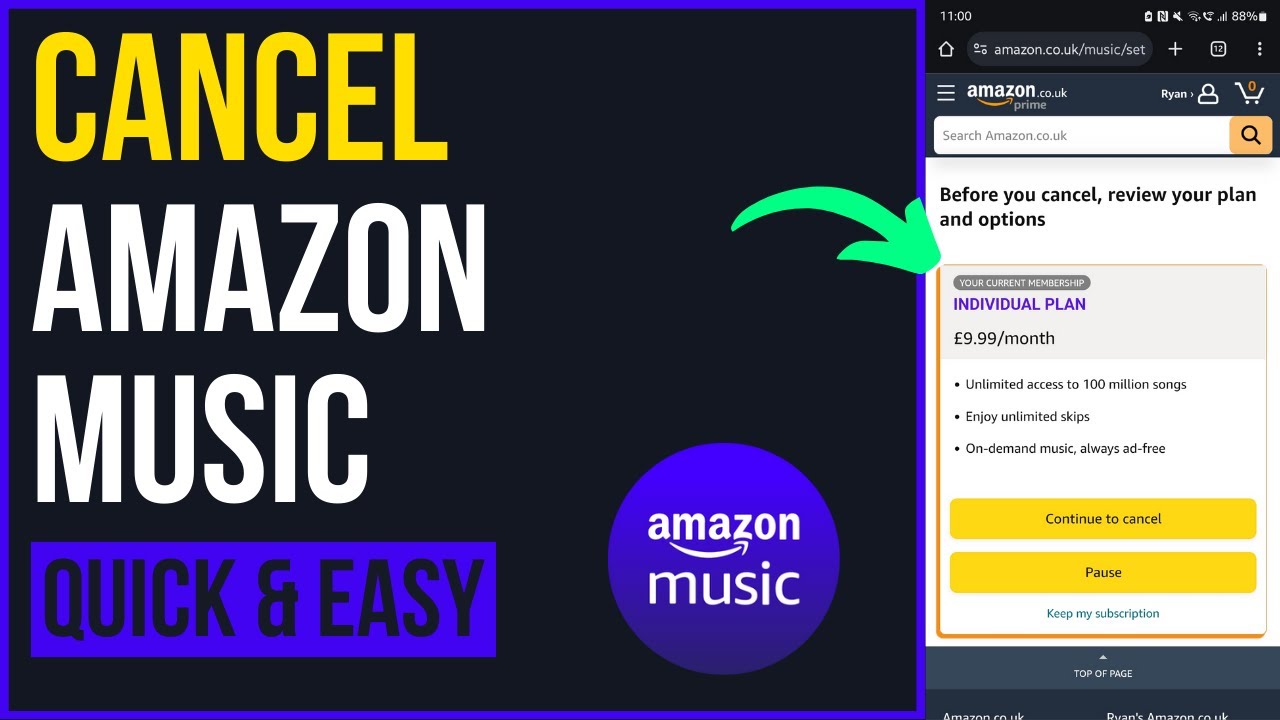
Click on the “Amazon Music Unlimited” entry to expand its details. You’ll see options like “Cancel subscription,” “Switch plans,” and “Edit payment method.” Amazon sometimes also shows you a “Manage” button that takes you to a dedicated Amazon Music settings page.
If you don’t see Amazon Music Unlimited listed here, one of a few things might be happening. First, you might have subscribed through the iOS App Store or Google Play Store rather than directly through Amazon. In that case, Amazon can’t manage the subscription – you’ll need to cancel through Apple or Google (I’ll cover both methods later in this guide). Second, you might be on Amazon Music Prime, which is bundled with your Prime membership and doesn’t appear as a separate subscription. You can’t cancel Music Prime independently; it’s part of Prime itself.
For those who signed up directly through Amazon’s website or app, everything should be visible on this page. The interface might try to show you a “downgrade” option before the cancellation button. Amazon sometimes offers to switch you to a cheaper plan or a different billing cycle before letting you fully cancel. You can ignore these offers if you’ve made up your mind.
I’ve noticed that Amazon occasionally redesigns this page, so the exact button labels might differ slightly from what I’ve described. The core flow remains the same: Account > Memberships & Subscriptions > Amazon Music Unlimited > Cancel. If you get lost, Amazon’s search bar at the top of the page will accept queries like “cancel music subscription” and point you in the right direction.
Step 3: Select the Subscription You Wish to End
After clicking the cancel option, Amazon presents you with a confirmation screen that shows exactly what you’ll lose. This is where the service makes its last pitch to keep you, and the screen is designed to make you hesitate.
You’ll typically see a summary of your benefits: access to 100 million songs, HD audio, offline downloads, ad-free listening. Amazon may also show you how many songs you’ve downloaded, how many playlists you’ve created, and other usage statistics meant to remind you of the value you’re giving up.
At this stage, Amazon often presents retention offers. These might include a discounted rate for the next few months, a free month extension, or a switch to an annual plan at a lower effective monthly cost. I’ve seen offers as generous as three months at half price. If you’re canceling purely for financial reasons and you do use the service, it’s worth considering these offers. But if you’ve genuinely moved on to another platform, don’t let a temporary discount keep you paying for something you won’t use.
Look for the specific option that says “Cancel” or “Cancel subscription” rather than “Pause” or “Switch plan.” Amazon has introduced a pause feature that suspends your subscription for one to three months. Pausing can be useful if you’re traveling or just want a break, but it’s not the same as canceling. Your subscription will automatically resume after the pause period ends, and you’ll start getting charged again.
Select the cancellation option and prepare for one more screen. Amazon will ask you to confirm your choice and may ask why you’re leaving. This feedback step is optional but can influence what retention offer appears next.
Step 4: Confirm Your Cancellation and Provide Feedback
The confirmation screen is the final gate. Amazon will show you the exact date your access expires – typically the end of your current billing period. If you paid for the month on March 5th, for example, you’ll retain access until April 4th. Amazon does not offer prorated refunds for partial months on the Unlimited plan, so you’ve already paid for that remaining time and should use it.
You’ll see a dropdown or set of radio buttons asking why you’re canceling. Options usually include “too expensive,” “I don’t use it enough,” “I prefer another service,” “technical issues,” and “other.” Picking a reason is technically optional, but selecting one helps you move through the process faster. Some users report that choosing “too expensive” triggers a better retention offer than other options.
After selecting your reason (or skipping it), click the final “Confirm Cancellation” button. This is the point of no return. Once confirmed, Amazon will process your cancellation and display a confirmation message on screen.
Take a screenshot of this confirmation screen. I can’t stress this enough. The screenshot should show the cancellation confirmation, the date your access ends, and any reference number or confirmation ID Amazon provides. Save this screenshot somewhere you won’t lose it, like your email or a cloud storage folder.
Amazon will also send a confirmation email to the address on your account. Check your inbox (and spam folder) for this email within a few minutes of canceling. If you don’t receive it within an hour, log back into your account and verify that the cancellation actually went through. I’ve heard from a handful of people who thought they canceled but accidentally clicked “Go Back” instead of “Confirm” on the final screen.
One more piece of financial advice: monitor your bank or credit card statement for at least one full billing cycle after cancellation. If you see a charge from Amazon Music after your access was supposed to end, contact Amazon customer service immediately. You can reach them at 1-888-280-4331 or through the “Contact Us” chat feature on the Amazon website.
Step 5: Verify Your Cancellation Status
Don’t just assume the cancellation worked. Go back to your Memberships & Subscriptions page and confirm that your Amazon Music Unlimited subscription now shows a status like “Canceled” or “Ending on [date]” rather than “Active.”
If the subscription still shows as active, try refreshing the page or logging out and back in. Amazon’s systems sometimes take a few minutes to update. If it’s been more than 30 minutes and the status hasn’t changed, you’ll want to contact customer support.
The Memberships & Subscriptions page should now display your end date clearly. You can continue using Amazon Music Unlimited until that date. After it passes, your account will automatically downgrade to either Amazon Music Prime (if you’re a Prime member) or the free, ad-supported tier.
I also recommend checking the Amazon Music app on your phone or tablet. Open the app, go to Settings, and look for your subscription status. It should reflect the cancellation. If the app still shows you as an Unlimited subscriber days after your access was supposed to end, force-close the app and reopen it, or uninstall and reinstall it to clear any cached account data.
Keep that confirmation email and screenshot for at least 60 days. If any billing disputes arise, these documents are your proof that you canceled on a specific date.
How to Cancel Amazon Music on iPhone and Android
If you subscribed to Amazon Music Unlimited through the Amazon website, the steps above cover you. But a significant number of people sign up through the App Store on iPhone or the Google Play Store on Android. If you did, Amazon literally cannot cancel your subscription for you – the billing relationship is with Apple or Google, not Amazon directly.
This is one of the most common points of confusion. People contact Amazon support asking to cancel, and Amazon tells them they can’t help because the subscription was purchased through a third-party app store. It’s frustrating, but it’s how Apple and Google’s billing systems work.
Here’s how to tell where you subscribed: go to your Amazon Memberships & Subscriptions page. If your Amazon Music Unlimited subscription doesn’t appear there at all, you almost certainly subscribed through the App Store or Google Play. You can also check your Apple or Google purchase history to confirm.
Canceling via the iOS App Store
On your iPhone or iPad, open the Settings app (the gear icon on your home screen, not the Amazon Music app). Tap your name at the top of the screen to access your Apple ID settings. Then tap “Subscriptions.”
You’ll see a list of all active and expired subscriptions tied to your Apple ID. Find Amazon Music Unlimited in the list and tap on it. You’ll see your renewal date and price. Tap “Cancel Subscription” and confirm when prompted.
Apple will let you keep access until the end of your current billing period, just like canceling through Amazon directly. You won’t get a prorated refund for the remaining days.
A quick heads-up: Apple’s subscription management screen sometimes takes a moment to load. If you see a spinning wheel, give it 30 seconds. Also, if you have Screen Time restrictions enabled on your device, you may need to enter your Screen Time passcode to access subscription settings.
After canceling, you should receive a confirmation email from Apple. Save it. And yes, check your next credit card statement to make sure Apple stops billing you.
Managing Subscriptions via Google Play Store
On Android, open the Google Play Store app. Tap your profile icon in the top-right corner, then tap “Payments & subscriptions,” followed by “Subscriptions.”
Find Amazon Music Unlimited in your subscription list. Tap on it, then tap “Cancel subscription.” Google will ask you why you’re canceling (sound familiar?) and then confirm the cancellation.
Like Apple, Google will let you use the service until your current billing period ends. No prorated refunds here either.
One Android-specific issue I’ve seen: if you have multiple Google accounts on your phone, make sure you’re viewing subscriptions for the correct account. The Play Store defaults to whichever Google account you used most recently, which might not be the one tied to your Amazon Music subscription. Tap your profile icon and switch accounts if needed.
After confirming, take a screenshot and watch for a confirmation email from Google Play. Monitor your payment method for one billing cycle to verify no further charges appear.
What Happens After You Cancel Your Subscription?
This is the part most guides skip, and it’s the part that actually matters to most people. You’ve hit the cancel button – now what?
The short answer: you keep access until your current billing period ends, and then your experience changes significantly. The specifics depend on whether you’re a Prime member and what content you’ve accumulated during your Unlimited subscription.
Your account doesn’t just disappear. Amazon transitions you to a lower tier automatically. If you have an active Prime membership, you’ll land on Amazon Music Prime with its shuffle-mode listening and limited on-demand playlists. If you’re not a Prime member, you’ll drop to the free tier with ads and very limited functionality.
Can I Still Listen to Music After Canceling?
Yes, but with major limitations. Once your Unlimited access expires, you lose on-demand playback of the full catalog. You lose HD and Ultra HD audio quality. You lose offline downloads – they’re gone. Any songs you downloaded for offline listening will become unplayable once your subscription lapses.
Let me be blunt about this: all that downloaded content on your device? It becomes inaccessible. Amazon uses DRM (Digital Rights Management) on all streamed and downloaded content, so those files are locked to your subscription status. You can’t work around this by putting your phone in airplane mode or any other trick. Once the subscription ends and the app checks your account status, those downloads are gone.
If you’ve purchased individual songs or albums through the Amazon Music store (not through the streaming subscription), those purchases remain yours permanently. Purchased music lives in your Amazon Music library regardless of your subscription status. This distinction between purchased and streamed content is critical.
Accessing Your Playlists and Downloaded Content
Your playlists technically survive cancellation, but they become mostly useless. The playlist structure remains in your account, but any songs that were available only through Unlimited will show as unavailable. If a playlist had 50 songs and 48 of them were Unlimited-only tracks, you’ll see a playlist with 48 grayed-out entries and 2 playable songs (assuming those 2 were from the Prime catalog or purchased).
If you’ve built playlists you really care about, I’d suggest writing down the song titles and artists before you cancel. You can recreate those playlists on whatever service you switch to. Apps like Soundiiz and TuneMyMusic can transfer playlists between streaming services automatically for a small fee, and they work with Amazon Music.
Your listening history and preferences are retained in your Amazon account. If you ever resubscribe, your recommendations, recently played lists, and playlist library will be waiting for you. Amazon doesn’t delete this data when you cancel.
One more thing worth knowing: Amazon occasionally sends “come back” offers to former subscribers. I’ve seen discounts ranging from one free month to three months at $4.99/month. If you think you might resubscribe eventually, canceling and waiting for one of these offers can save you real money. These offers typically arrive via email within 30 to 90 days of cancellation.
Troubleshooting Common Cancellation Issues
Even a straightforward process like this can hit snags. Here are the most common problems I’ve encountered and how to fix them.
The “I can’t find my subscription” problem is almost always caused by one of three things: you’re logged into the wrong Amazon account, you’re on the wrong Amazon marketplace (amazon.com vs. amazon.co.uk vs. amazon.ca), or you subscribed through Apple or Google rather than Amazon directly. Check all three before contacting support.
If you see a “Cancel” button but it’s grayed out or unresponsive, try a different browser. Amazon’s website occasionally has JavaScript issues with certain browser extensions, particularly ad blockers. Disable your ad blocker temporarily, or try the process in an incognito/private browsing window.
Some users on family plans find they can’t cancel because they’re not the plan owner. Only the person who originally set up the family plan can cancel it. If your partner or family member started the subscription, they’ll need to be the one to cancel. You can, however, remove yourself from a family plan without the owner’s involvement by going to your Amazon Household settings.
If you canceled but are still being charged, check whether you might have two separate subscriptions. This happens more often than you’d think – someone subscribes through Amazon’s website, forgets about it, and then subscribes again through the iOS App Store months later. You’d be paying twice without realizing it. Check both your Amazon Memberships & Subscriptions page and your Apple/Google subscription lists.
For billing disputes after cancellation, Amazon’s customer service is generally responsive. Call 1-888-280-4331 or use the live chat feature on the Amazon website. Have your cancellation confirmation screenshot ready. In most cases, Amazon will refund charges that occurred after a confirmed cancellation without much pushback.
If you’re canceling during a free trial and want to make absolutely sure you won’t be charged, cancel immediately after signing up. You’ll still get the full trial period – Amazon doesn’t cut your access short if you cancel early during a trial. This is the safest approach if you just want to test the service without risking a charge.
Finally, if you’re considering alternatives after canceling, the major competitors are worth comparing. Spotify Premium costs $11.99/month and has the best recommendation algorithm. Apple Music is $10.99/month and integrates perfectly with iPhones and HomePods. YouTube Music Premium at $13.99/month includes ad-free YouTube. Tidal at $10.99/month focuses on high-fidelity audio. Each has strengths depending on what you prioritize – spend 15 minutes with each service’s free tier before committing.
Canceling a subscription should never be harder than signing up for one. The process for ending your Amazon Music membership takes about five minutes once you know the right path, whether that’s through Amazon’s website, the App Store, or Google Play. Take your screenshots, watch your bank statements, and don’t hesitate to contact support if anything looks off. Your money, your choice.


Pingback: How to Cancel Your Grammarly Subscription in 5 Steps - How to Cancel Lab