
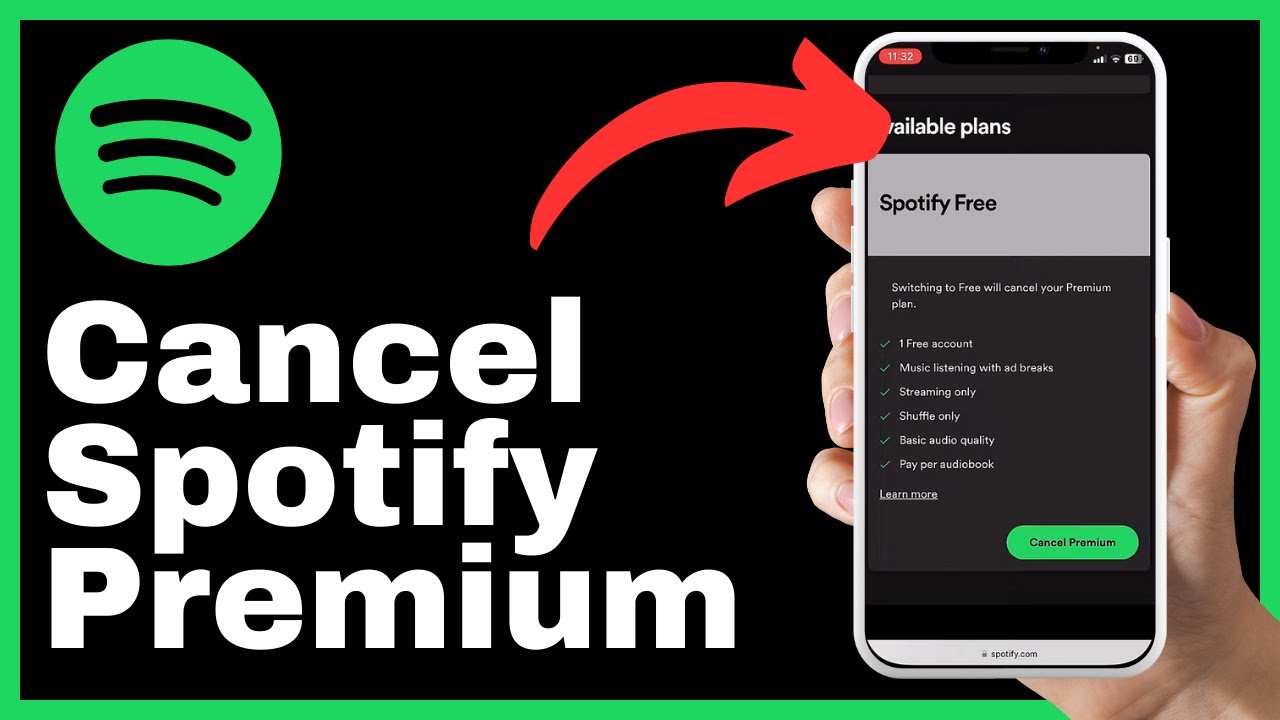

Spotify Premium has become one of those monthly charges that quietly drains your bank account while you barely notice. At $12.99 per month for individual plans in the US, that’s over $155 annually for a service you might not be using as much as you once did.
Maybe you’ve switched to a competitor, found yourself listening less, or simply decided to cut back on subscription spending. Whatever your reason, figuring out how to cancel Spotify Premium isn’t as straightforward as you’d hope.
Here’s what trips most people up: the cancellation process depends entirely on how you originally signed up. Subscribed through Apple? You can’t cancel on Spotify’s website. Signed up through your mobile carrier? The Spotify app won’t help you. And if you’re hoping to cancel through the mobile app itself, you’re out of luck regardless of your billing source.
This guide walks you through every cancellation method based on your specific situation. You’ll learn how to identify your billing source, navigate the actual cancellation steps for each platform, understand what happens to your playlists and downloads afterward, and troubleshoot the most common issues that block people from successfully ending their subscription.
By the end, you’ll know exactly which steps apply to you and how to execute them without accidentally keeping your subscription active for another billing cycle.
Preparing to Cancel Your Spotify Premium Plan
Before clicking any buttons, you need to know two things: who’s actually billing you and what you’re entitled to get back. Skipping this step is the number one reason people think they’ve cancelled but keep getting charged.
Identifying Your Billing Source
Your billing source determines everything about your cancellation process. Spotify doesn’t make this obvious, but there are four main ways people pay for Premium:
Direct through Spotify: You signed up on spotify.com or through the desktop app and entered your payment details directly. This is the simplest scenario.
Through Apple: If you subscribed using your iPhone and confirmed with Face ID, Touch ID, or your Apple ID password, Apple handles your billing. Spotify never sees your payment information.
Through Google Play: Similar to Apple, if you subscribed on an Android device and paid through the Google Play Store, Google manages your subscription.
Through a third-party partner: Some mobile carriers and internet providers bundle Spotify Premium with their plans. If you got Spotify through T-Mobile, Verizon, or a similar company, they control your subscription.
To check your billing source, log into your account at spotify.com and navigate to your subscription page. Look for the payment method section. If it shows your credit card details, you’re billed directly. If it mentions Apple, Google, or a partner company, that’s who you need to contact. As one support resource notes, if there’s no option to cancel your plan directly, your subscription may be managed via a partner company, and contact information should be available on your account page.
Understanding the Spotify Refund Policy After Cancellation
Spotify’s refund policy is stricter than most streaming services. The company offers a 14-day cooling-off period for new subscriptions, but there’s a significant catch: you may be eligible for a refund within 14 days of purchase, but this right is revoked if you use Spotify during that period. Essentially, if you’ve streamed even one song, you’ve waived your refund rights.
For audiobook top-ups specifically, you can request a refund within 7 days of payment if no listening time was consumed. This applies to the audiobook hours add-on, not your main Premium subscription.
What about partial month refunds? Spotify doesn’t prorate. If you cancel on day three of your billing cycle, you won’t get those remaining 27 days refunded. However, your Premium features remain active until the end of your current billing period. This is why timing matters: cancel a day or two before your next charge to maximize your remaining access while ensuring you don’t get billed again.
How to Cancel Through the Spotify Website
If you pay Spotify directly, this is your path. The website is the only place where direct subscribers can cancel, and the process takes about two minutes once you know where to look.
Accessing Your Account Overview
Start by opening a web browser on any device and going to spotify.com. Log in with your credentials. Once you’re in, click your profile icon in the top-right corner and select “Account” from the dropdown menu.
You’ll land on your Account Overview page. This dashboard shows your current plan, payment method, and billing date. Scroll down to find the section labeled “Your plan” or “Manage your plan.” This is where you’ll see your subscription details and the options to modify or cancel.
One common frustration: the mobile apps don’t show these options. You cannot cancel your Spotify subscription through any of the service’s applications on iOS, Android, MacOS, or Windows. The website is your only option for direct cancellations.
Steps to Stop Automatic Renewal on Spotify
Once you’re on your subscription management page, look for a link that says “Change plan” or “Cancel plan.” Click it, and Spotify will present you with alternatives before letting you leave.
Expect to see offers like discounted rates, plan downgrades, or the option to pause your subscription instead of canceling outright. These retention tactics are standard, but you can skip past them if you’re committed to canceling.
Select “Cancel Premium” when prompted. Spotify will ask why you’re leaving through a brief survey. Answer or skip this step. Finally, confirm your cancellation by clicking the confirmation button.
After completing these steps, you should see a message confirming that your subscription will end on a specific date. This date will be the last day of your current billing period. Take a screenshot of this confirmation for your records.
Confirming Your Change to Spotify Free
Don’t assume the cancellation went through just because you clicked the button. Return to your Account Overview page and check your subscription status. It should now show that your Premium subscription is set to expire on a certain date, after which you’ll be moved to Spotify Free.
You should also receive a confirmation email within a few minutes. Check your inbox and spam folder. If you don’t receive anything within an hour, log back in and verify your subscription status again.
Keep this confirmation email for at least one full billing cycle. If you get charged after your cancellation date, this email serves as proof that you completed the process correctly.
Managing Subscriptions on the Spotify Mobile App
The mobile app experience around cancellation frustrates countless users. Here’s what you’re actually dealing with and how to work around it.
Limitations of the Android and iOS Apps
Neither the iOS nor Android Spotify app includes a cancellation option. You can change your playback settings, manage your library, and adjust your profile, but subscription management is deliberately excluded from the mobile experience.
This isn’t a bug or oversight. Spotify routes mobile cancellations through the web because Apple and Google take a cut of in-app subscription payments. By handling subscriptions through their website, Spotify maintains more control over the process and avoids platform fees on direct subscribers.
The practical impact: if you’re trying to cancel while away from a computer, you’ll need to use your phone’s web browser instead of the app.
Using Mobile Web Browsers to Cancel
Open Safari, Chrome, or whatever browser you prefer on your phone. Navigate to spotify.com and log in. The mobile website functions identically to the desktop version for subscription management purposes.
Tap your profile icon, select “Account,” and follow the same steps outlined in the website cancellation section above. The interface will be formatted for your smaller screen, but all the same options appear.
One tip: request the desktop version of the site if the mobile layout seems confusing. On Safari, tap the “AA” icon in the address bar and select “Request Desktop Website.” On Chrome, tap the three-dot menu and select “Desktop site.” This gives you the full-sized interface, which some people find easier to navigate.
Canceling Spotify Through Third-Party Services
When someone else manages your billing, Spotify’s website can’t help you. You need to go directly to the source.
How to Cancel Spotify Through Apple ID Settings
If you subscribed through your iPhone and Apple handles your billing, follow these steps:
Open the Settings app on your iPhone or iPad. Tap your name at the top to access your Apple ID settings. Select “Subscriptions” from the list. Find Spotify in your active subscriptions and tap it. Select “Cancel Subscription” and confirm when prompted.
Alternatively, open the App Store, tap your profile icon, select “Subscriptions,” and manage Spotify from there. The process is identical.
You can also manage Apple subscriptions through a Mac or PC by opening iTunes or the Apple Music app, going to Account settings, and selecting “Manage Subscriptions.”
Apple sends a confirmation email after cancellation. Your Premium access continues until the end of your current billing period, just like direct cancellations.
Managing Subscriptions via Google Play Store
For Android users who subscribed through Google Play:
Open the Google Play Store app. Tap your profile icon in the top-right corner. Select “Payments & subscriptions,” then “Subscriptions.” Find Spotify Premium in your list and tap it. Select “Cancel subscription” and follow the prompts.
You can also manage this through play.google.com on any web browser. Sign in with your Google account, navigate to the subscriptions section, and cancel from there.
Google’s confirmation process mirrors Apple’s. You’ll receive an email, and your Premium features remain active through your paid period.
Canceling Through Internet or Mobile Service Providers
Carrier-bundled subscriptions require contacting your provider directly. If you receive Spotify Premium through T-Mobile, Verizon, Sprint, or another carrier, their customer service handles cancellations.
Start by logging into your carrier’s website or app and looking for an “Add-ons” or “Services” section. Some carriers let you remove Spotify from your plan through self-service portals. Others require a phone call or chat with customer support.
Internet providers like Comcast or AT&T sometimes bundle Spotify with TV or internet packages. Check your account details with these providers if you’re unsure whether your Spotify is part of a bundle.
When contacting support, have your account information ready. Ask specifically about removing the Spotify Premium add-on and confirm whether this affects any promotional pricing on your main plan.
What Happens After Your Premium Subscription Ends
The transition from Premium to Free isn’t as dramatic as some people fear, but there are real changes you should prepare for.
What Happens to Downloaded Playlists When Premium Ends
Downloaded music disappears immediately when your Premium subscription ends. Spotify removes offline access the moment you switch to the Free tier. Those playlists you downloaded for flights, commutes, or gym sessions will require streaming instead.
The playlists themselves remain in your library. You don’t lose the curation work you’ve done. You simply can’t access those songs without an internet connection anymore.
If you have important playlists you want to preserve outside Spotify, consider using a playlist export tool before canceling. Several third-party services can convert your Spotify playlists to text files or transfer them to other streaming platforms.
Impact on Saved Library and Algorithm Preferences
Your saved songs, albums, artists, and playlists remain intact on the Free tier. Spotify doesn’t delete your library when you downgrade.
Your algorithmic preferences also survive. The recommendations engine remembers what you like, your Discover Weekly continues generating, and your listening history stays accessible. The algorithm doesn’t reset when you cancel Premium.
What does change: audio quality drops from up to 320 kbps to 160 kbps on desktop and 128 kbps on mobile. You’ll hear ads between songs. You lose the ability to skip unlimited tracks on mobile, though desktop skipping remains unrestricted. On-demand playback on mobile becomes shuffle-only for most content.
If you want to completely remove your data from Spotify rather than just downgrading, you can delete your account entirely via spotify.com/account under the Security and privacy section. This is permanent and removes all your playlists, followers, and listening history.
Troubleshooting Common Cancellation Issues
Even with clear instructions, things go wrong. Here are the most common problems and how to solve them.
No “Cancel Plan” option appears: This almost always means you’re billed through a third party. Check your Account Overview for mentions of Apple, Google, or a partner company. Contact that company directly to cancel.
The website won’t load properly: Clear your browser cache and cookies, then try again. If problems persist, try a different browser or device. Some browser extensions interfere with Spotify’s website functionality.
You cancelled but got charged anyway: Check whether you cancelled before or after your billing date. If you cancelled after, that charge was already processed. If you have confirmation of cancellation before the charge date, contact Spotify support with your documentation.
Family plan complications: If you’re the plan manager for a Spotify Family subscription, canceling ends Premium access for all family members. Notify them before canceling. If you’re a family member but not the manager, you can’t cancel the plan. You can only leave the family group, which ends your Premium access but doesn’t affect others.
Pausing instead of canceling: Spotify offers a pause option that suspends your subscription for up to three months. If you selected “Pause” instead of “Cancel,” your subscription will resume automatically. Check your Account Overview to verify your actual status.
Still seeing Premium features after cancellation: Your Premium access continues through your paid period. This isn’t an error. The change to Free happens on the date shown in your cancellation confirmation.
For persistent issues, Spotify’s support team can be reached through their help pages at support.spotify.com. Have your account email, cancellation confirmation, and any relevant screenshots ready when you contact them.
Making Your Final Decision
Canceling Spotify Premium comes down to executing the right steps for your specific billing situation. Direct subscribers use the website. Apple subscribers use Apple’s settings. Google Play subscribers use the Play Store. Carrier customers contact their provider.
Whatever your path, remember these key points: identify your billing source before attempting to cancel, time your cancellation a day or two before your next charge to maximize remaining access, save your confirmation email as proof, and verify the cancellation went through by checking your account status.
If you’re not ready to fully cancel, consider pausing your subscription or exploring Spotify’s cheaper plans like Duo or the discounted Student tier. Some competitors like YouTube Music, Apple Music, or Amazon Music offer free trial periods that let you test alternatives before committing.
Your playlists and preferences will wait for you if you ever decide to return. Spotify makes resubscribing easy, sometimes suspiciously easy, so the door remains open either way.



Pingback: How to Cancel Your Amazon Music Subscription in 5 Steps - Howtocancellab
Pingback: How to Cancel a Ryze Subscription in 3 Simple Steps - Howtocancellab
Pingback: How to Cancel a Patreon Membership in 4 Steps - How to Cancel Lab
Pingback: How to Cancel Your Grammarly Subscription in 5 Steps - How to Cancel Lab