
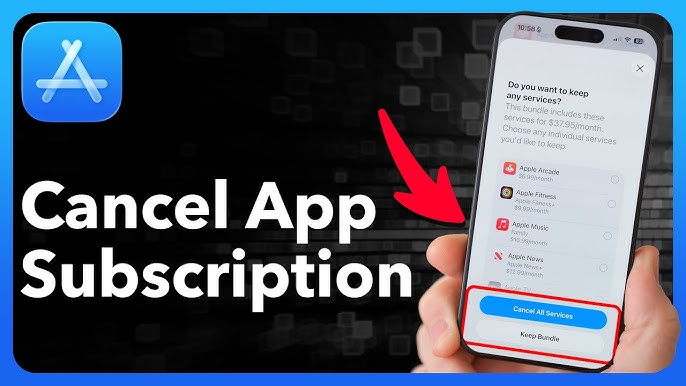

The Quick Start Guide to Managing iOS Subscriptions
That streaming service you signed up for during a free trial three months ago? It’s still quietly draining $14.99 from your account every month. The meditation app you used twice in January? Another $9.99 gone. If you’ve ever scrolled through your bank statement and wondered where all these recurring charges came from, you’re not alone.
App subscriptions generated $45.6 billion in 2023, with American users accounting for more than half that revenue. Apple now has over one billion paid subscriptions running across its platforms, which means there’s a good chance you’re contributing more to that number than you realize.
The good news: learning how to cancel subscriptions on iPhone takes about two minutes once you know where to look. The bad news: Apple doesn’t exactly make it obvious. The subscription management screen is buried several taps deep, and some apps use third-party billing that bypasses Apple’s system entirely. I’ve helped friends and family members discover they were paying for apps they deleted years ago, fitness programs they never opened, and cloud storage they forgot they upgraded.
This guide walks you through the exact steps to find every subscription tied to your Apple ID, cancel the ones you don’t want, and avoid getting charged for services you’ve already forgotten about. Before you start, grab your iPhone and pull up your Settings app. You might want to have your credit card statement handy too, because you’re probably about to discover at least one charge you didn’t know existed.
Step 1: Accessing Your Apple ID Settings
The subscription management process starts in a place most people rarely visit: your Apple ID settings. Open the Settings app on your iPhone and tap your name at the very top of the screen. This is the banner that shows your name and profile picture, sitting above everything else including Airplane Mode and Wi-Fi.
Once you tap your name, you’ll see your Apple ID overview page. This screen contains everything tied to your account: iCloud settings, Find My, Media & Purchases, and the subscriptions we’re hunting for. Take a moment to verify you’re signed into the correct Apple ID, especially if you share devices with family members or have multiple accounts. Subscriptions are tied to specific Apple IDs, not to devices, so if you’re signed into the wrong account, you won’t see the subscriptions you’re looking for.
If you’ve enabled Screen Time restrictions or have parental controls active, you might need to enter a passcode to access certain account settings. This is a common stumbling block for parents who set up restrictions and forgot the code, or for anyone who inherited a device from someone else. The Apple ID page should load without issues for most users, showing your email address and the various services connected to your account.
One thing worth checking while you’re here: tap “Media & Purchases” and confirm your payment method is current. Expired credit cards can cause subscription lapses that some apps interpret as cancellations, but others will simply retry the charge when you update your payment info, potentially billing you for months you thought you’d skipped.
Step 2: Navigating to the Subscriptions Menu
From your Apple ID page, scroll down until you see “Subscriptions” listed among the options. It typically appears below iCloud and above Media & Purchases, though Apple occasionally shuffles menu items with iOS updates. Tap “Subscriptions” and wait a moment for the list to load.
The Subscriptions menu displays every active and recently expired subscription tied to your Apple ID. Active subscriptions appear at the top with their renewal dates clearly visible. You’ll see the app name, the subscription tier you’re paying for, and when your next billing date falls. Below active subscriptions, you’ll find expired ones, which can be useful for tracking services you’ve already cancelled or free trials that lapsed without converting.
This is often where the surprises happen. Games account for 31% of subscription apps on the App Store, followed by education apps at 13% and utilities at 7%. That puzzle game your kid downloaded might have a premium tier running. The language learning app you tried for a week could still be active. The photo editing tool you replaced with something better? Check if it’s still billing you.
Take a screenshot of this list before making any changes. This gives you a record of what you were paying for and when, which becomes useful if you need to dispute charges or simply want to track your subscription spending over time. I recommend doing this audit every few months, because new subscriptions have a way of accumulating without notice.
Step 3: Selecting the Service to Cancel
Tap on any subscription you want to manage. The detail screen shows your current plan, what you’re paying, and when the next charge will hit your account. You’ll also see any alternative plans the app offers, which is where things get interesting.
Some apps display multiple subscription tiers on this screen, and you can switch between them without fully canceling. If you’re paying $19.99 monthly for a premium tier but only using basic features, you might find a $4.99 option that covers what you actually need. This downgrade happens immediately for some apps, while others wait until your current billing period ends.
Look for the “Cancel Subscription” button at the bottom of the screen. On some subscriptions, this button says “Cancel Free Trial” if you’re still in a trial period. Either way, tapping it begins the cancellation process. Apple will show you a confirmation screen explaining what you’ll lose access to and when your current subscription period ends.
Here’s something that surprises many users: canceling doesn’t immediately cut off your access. If you cancel a monthly subscription with two weeks left in your billing cycle, you keep access for those two weeks. You’ve already paid for that time. The cancellation simply prevents the next automatic renewal from processing.
How to Stop Auto-Renewal on iOS Apps
The auto-renewal mechanism is how subscription apps generate consistent revenue, and it’s why app subscription retention sits at 20% for monthly plans and 41% for annual ones. Apps are betting you’ll forget to cancel before the trial ends or that you’ll simply accept the recurring charge as part of your monthly expenses.
Stopping auto-renewal is the same process as canceling: tap the subscription, scroll to the bottom, and select “Cancel Subscription” or “Cancel Free Trial.” The key difference is timing. If you stop auto-renewal during a free trial, you lose access immediately when the trial ends. If you stop it during a paid period, you retain access until that period expires.
Set a calendar reminder for two days before any free trial ends. This gives you time to evaluate whether the app is worth paying for and to cancel if it isn’t, without accidentally letting the trial convert to a paid subscription. I’ve seen people charged for annual plans they never intended to buy simply because they forgot about a seven-day trial.
Viewing Expired Subscriptions on iPhone
Scroll past your active subscriptions to find the expired section. These are subscriptions that have ended, either because you canceled them, because your payment failed, or because the app itself discontinued the subscription option.
Expired subscriptions remain visible for reference, showing when they ended and what you were paying. This history proves useful when you’re trying to remember which apps you’ve already tried and rejected, or when you’re checking whether a particular service was worth the money. Some expired subscriptions can be reactivated directly from this screen if you change your mind.
Review your expired subscriptions periodically to ensure nothing reactivated without your knowledge. While rare, some users report subscriptions restarting after iOS updates or when payment methods are updated. Having a mental inventory of what should be expired helps you catch any discrepancies quickly.
Step 4: Confirming Your Cancellation
After tapping “Cancel Subscription,” Apple presents a confirmation dialog. This screen summarizes what you’re canceling and confirms the date your access ends. Tap “Confirm” to finalize the cancellation.
You should receive an email from Apple confirming the cancellation. Check your inbox and spam folder for this confirmation, and save it somewhere accessible. This email serves as proof if you’re ever charged after canceling, and it documents exactly when you took action. Take a screenshot of the subscription screen showing the canceled status as additional documentation.
Some apps present a retention offer at this stage. You might see a discount of 40-60% off your current rate, an extended free trial, or a downgrade to a cheaper tier. Evaluate these offers honestly. If you’re canceling because you don’t use the app, a discount doesn’t change that. If you’re canceling because of price, a significant discount might make the service worthwhile again.
After confirming, return to the main Subscriptions screen and verify the subscription now shows a future end date rather than a renewal date. The status should indicate it will expire rather than renew. This final verification ensures the cancellation processed correctly and that you won’t face unexpected charges next month.
How to Find Hidden Apple Subscriptions
Not every subscription shows up in your Apple ID settings. Some apps bill through their own payment systems, bypassing Apple entirely. These hidden subscriptions won’t appear in your Subscriptions menu, making them harder to track and cancel.
Streaming services like Netflix and Spotify often handle their own billing, especially if you signed up through their websites rather than through the App Store. The same applies to many productivity tools, dating apps, and fitness platforms. If you can’t find a subscription you know you’re paying for, it’s probably billing you directly rather than through Apple.
Checking for Third-Party Billing Services
Start by reviewing your credit card and bank statements for the past three months. Look for recurring charges from app developers, payment processors like Stripe or PayPal, or company names you don’t immediately recognize. Many apps bill under their parent company’s name rather than the app name itself, which makes identification tricky.
Once you identify a third-party subscription, you’ll need to cancel it through that service directly. Log into the app or website and navigate to account settings, billing, or subscription management. The exact location varies by service, but most apps place subscription controls under “Account,” “Settings,” or “Membership.”
Contact customer support if you can’t find cancellation options. Some services deliberately obscure the cancellation process, requiring you to email support or call a phone number. Document your cancellation request in writing whenever possible, keeping copies of emails and chat transcripts.
Reviewing Email Receipts for Unlisted Charges
Search your email inbox for terms like “receipt,” “subscription,” “renewal,” “billing,” and “payment.” This search surfaces confirmation emails from services you might have forgotten about. Sort results by date to see the most recent charges first.
Pay attention to sender addresses. Legitimate subscription receipts come from official company domains, not generic email providers. If you find receipts from services you don’t recognize, research the company before clicking any links in the email. Phishing emails often disguise themselves as subscription notices.
Create an email folder specifically for subscription receipts. Moving all billing confirmations to one location makes future audits faster and helps you maintain a complete picture of your recurring expenses. This folder becomes your reference point for tracking what you’re paying for across all platforms.
Cancel App Store Subscriptions on Mac or iPad
Your Apple ID subscriptions sync across all your devices, so you can manage them from any Apple device signed into the same account. This flexibility proves useful when your iPhone isn’t handy or when you prefer working on a larger screen.
Using System Settings on macOS
On a Mac running macOS Ventura or later, open System Settings from the Apple menu. Click your name at the top of the sidebar to access Apple ID settings, then select “Media & Purchases.” Click “Manage” next to Subscriptions to view your active and expired subscriptions.
The Mac interface displays the same information as your iPhone: subscription names, billing amounts, renewal dates, and cancellation options. Click any subscription to see details and access the cancel button. The process mirrors the iPhone experience almost exactly.
For Macs running older macOS versions, open the App Store app instead. Click your name in the bottom left corner, then select “View Information.” Scroll to the Subscriptions section and click “Manage.” This older method still works but requires a few extra steps compared to the streamlined System Settings approach.
Managing Subscriptions via iPadOS Settings
The iPad process is identical to the iPhone. Open Settings, tap your name at the top, and select “Subscriptions.” The larger iPad screen displays more information at once, making it easier to review multiple subscriptions without scrolling.
iPadOS subscription management includes the same features: viewing active and expired subscriptions, changing plans, and canceling services. Any changes you make sync immediately to your other Apple devices. Cancel a subscription on your iPad, and it’s canceled everywhere.
Family Sharing adds complexity to subscription management on iPad. If you’re the family organizer, you might see subscriptions from family members’ accounts. Each person manages their own subscriptions, but shared subscriptions like Apple One appear under the organizer’s account.
How to Request a Refund for Accidental Apple Purchases
Apple processes refund requests through its Report a Problem website at reportaproblem.apple.com. Sign in with your Apple ID and you’ll see a list of recent purchases. Find the charge you want to dispute and click “Report a Problem” next to it.
Select the reason that best describes your situation. Options include accidental purchases, purchases made by children, subscriptions you didn’t intend to sign up for, and services that didn’t work as expected. Provide specific details about what happened and why you’re requesting a refund.
Apple reviews refund requests individually, typically responding within 48 hours. Approval isn’t guaranteed, especially for subscriptions you’ve used extensively or purchases made long ago. However, Apple tends to approve first-time requests and clear cases of accidental purchases. The company has shifted its focus to recurring subscriptions for financial stability, but it still maintains customer-friendly refund policies.
Check your credit card statement for at least two billing cycles after requesting a refund. Refunds typically process within five to seven business days, but some take longer depending on your bank. If you don’t see the refund after two weeks, contact Apple Support with your case number.
As a documented last resort, you can dispute the charge directly with your credit card company. This should only happen after Apple denies a legitimate refund request. Chargebacks can result in your Apple ID being flagged or restricted, so exhaust Apple’s refund process first.
What Happens After You Cancel a Subscription
Your access continues until the current billing period ends. If you cancel a monthly subscription on the 15th and your billing date is the 28th, you have nearly two weeks of remaining access. Annual subscriptions might leave you with months of service after canceling, depending on when you act.
Downloaded content behaves differently across apps. Some apps let you keep downloaded music, videos, or documents even after your subscription ends. Others revoke access to everything, including content you downloaded while subscribed. Check the app’s terms of service or help documentation to understand what happens to your data.
Cloud-stored files deserve immediate attention. Download anything stored in the app’s cloud before or immediately after canceling. Some apps delete cloud data within days of subscription expiration, while others retain it for 30 to 90 days. Don’t assume your files will wait for you to resubscribe.
Your subscription history remains visible in your Apple ID settings indefinitely. You can resubscribe to any canceled service by tapping it and selecting a plan. Some apps offer “win-back” discounts to returning subscribers, so check for special offers before resubscribing at full price.
Apple’s services revenue hit $26.3 billion in Q1 FY25, a 14% year-over-year increase. That growth comes from subscriptions like the ones you’re now equipped to manage. Taking control of your recurring charges isn’t just about saving money on individual apps. It’s about being intentional with where your money goes each month.
Set a recurring calendar reminder to audit your subscriptions quarterly. Spending habits change, apps you loved become irrelevant, and new charges sneak in without notice. A fifteen-minute review every few months keeps your subscription list lean and your budget under control. The process gets faster each time, and the savings add up considerably over a year of mindful subscription management.


Pingback: How to Cancel an Uber One Membership in 5 Steps - Howtocancellab
Pingback: How to Cancel Your AT&T Internet in 5 Steps - Howtocancellab
Pingback: How to Cancel a DashPass Membership in 4 Steps - Howtocancellab
Pingback: How to Cancel Snapchat Plus: A Step-by-Step Guide - Howtocancellab
Pingback: How to Cancel a BeenVerified Subscription: 4 Easy Steps - Howtocancellab
Pingback: How to Cancel a Patreon Membership in 4 Steps - How to Cancel Lab
Pingback: How to Cancel Your Grammarly Subscription in 5 Steps - How to Cancel Lab
Pingback: Step-by-Step Guide: How to Cancel an Experian Membership - How to Cancel Lab
Pingback: How to Cancel a PlayStation Plus Subscription: 3 Easy Steps - How to Cancel Lab
Pingback: How to Cancel a Twitch Subscription in 5 Steps - How to Cancel Lab
Pingback: How to Cancel a ReelShort Subscription in 5 Steps - How to Cancel Lab
Pingback: How to Cancel a Cirkul Subscription in 4 Easy Steps - How to Cancel Lab
Pingback: How to Cancel Your ShortMax Subscription in 5 Steps - How to Cancel Lab
Pingback: How to Cancel Factor Meals in 5 Easy Steps - How to Cancel Lab