
Canceling a streaming subscription should take about two minutes. With Starz, it can take significantly longer if you don’t know where you originally signed up. The service is sold through so many different platforms – Apple, Amazon, Google, Roku, and its own website – that the biggest hurdle isn’t the cancellation itself but figuring out which company is actually billing you.
I’ve walked dozens of people through this process, and the mistake nearly everyone makes is going straight to the Starz app or website when their subscription is actually managed somewhere else entirely. This guide breaks the process into five clear steps, covering every major platform so you can cancel your Starz subscription quickly regardless of how you signed up.
One critical rule before you start: you must cancel through the same platform where you originally subscribed. Trying to cancel through Starz directly when you subscribed through Apple, for example, won’t work. That single detail trips up more people than anything else. Get that right, and the rest is straightforward.
Understanding Your Starz Subscription Source
The first thing you need to do – before clicking any cancel buttons – is figure out who is actually charging you for Starz. This sounds obvious, but it’s the number one reason people get stuck. Starz is available as a standalone subscription through its own website and app, but it’s also sold as an add-on channel through Apple TV+, Amazon Prime Video, Google Play, Roku, and several cable providers. Each of these platforms handles billing independently, meaning Starz itself often has no ability to cancel a subscription that was initiated through a third party.
Check your bank or credit card statement first. Look at the charge description. If it says “APPLE.COM/BILL,” your subscription is through Apple. If it reads “AMAZON PRIME” or “AMZN Digital,” you subscribed through Amazon. A charge from “GOOGLE*STARZ” points to Google Play. And if the charge simply says “STARZ” or “Lionsgate,” you likely subscribed directly through the Starz website or app.
If your statement doesn’t make things clear, open the Starz app on whatever device you use most. Go to your account settings and look for subscription details. The app will sometimes tell you which platform manages your subscription. If you see a message saying “Your subscription is managed by Apple” or a similar note referencing another provider, that’s your answer.
Identifying Billing Through Third-Party Platforms
Third-party billing is the default for most Starz subscribers because people typically sign up through whatever device they’re using at the time. If you grabbed Starz while browsing your iPhone, Apple is your billing provider. If you added it as a channel while watching something on your Fire TV Stick, Amazon handles the subscription.
Here’s how to check each major platform quickly:
- Apple: Open Settings on your iPhone or iPad, tap your name at the top, select Subscriptions, and look for Starz in the list.
- Google Play: Open the Google Play Store app, tap your profile icon, select Payments & subscriptions, then Subscriptions.
- Amazon: Go to amazon.com, hover over Account & Lists, click Memberships & Subscriptions, and look under Prime Video Channels.
- Roku: Visit my.roku.com, sign in, and check under Manage Your Subscriptions.
If Starz doesn’t appear on any of these platforms, you almost certainly subscribed directly through Starz. The process of elimination works well here. Don’t waste time contacting Starz support until you’ve checked every platform where you have an account.
Direct Subscriptions via the Starz Website
A direct subscription means you signed up at starz.com and entered your payment information there. This is actually the simplest scenario for cancellation because you have full control through your Starz account without involving a middleman.
You’ll know you have a direct subscription if you can log into starz.com, navigate to your account settings, and see your payment method and billing details displayed. Direct subscribers will see options to update their credit card, change their plan, and – most importantly – cancel their subscription right from the account page.
One thing to note: if you signed up for Starz through a cable or satellite TV provider like Comcast, DirecTV, or Spectrum, you’ll need to contact that provider directly. These aren’t handled through the Starz website at all. Call your cable company’s customer service line and ask them to remove the Starz add-on from your package. The Starz website and app can’t touch those subscriptions.
Step 1: Cancel Directly via the Starz Website
If you confirmed that your subscription is billed directly by Starz, this is the fastest path to cancellation. The entire process takes less than two minutes from your computer or phone browser.
Start by going to starz.com and logging into your account. Use the email address and password you created when you first subscribed. If you’ve forgotten your password, use the reset option – it sends a link to your registered email within a few minutes. Once you’re logged in, look for your profile icon or name, usually located in the upper-right corner of the page. Click it, and select Account from the dropdown menu.
On the account page, you’ll see your subscription details, including your current plan, billing date, and payment method. There should be a clearly labeled option to cancel your subscription. Click it. Starz will likely present you with a retention offer – a discounted rate or a free month to keep you around. If you’re set on canceling, decline the offer and confirm your cancellation.
After confirming, you should see a message on screen stating that your subscription has been canceled. Your access to Starz content continues until the end of your current billing period. So if you paid on the 5th and cancel on the 20th, you still have access until the next 5th. You won’t receive a prorated refund for the remaining days, but you also won’t lose immediate access.
Make sure you cancel at least 24 hours before your renewal date to avoid being charged for another billing cycle. If you cancel the same day your subscription renews, the charge may have already processed. Timing matters here, so don’t wait until the last minute.
One more thing: if you subscribed through the Starz app on a smart TV or streaming device but entered your payment info directly into Starz (not through the device’s app store), you should still be able to cancel through the website. The app and website share the same account system for direct subscribers.
Step 2: Manage Subscriptions on Apple Devices
Apple makes subscription management relatively consistent across its devices, but the steps differ slightly between iPhone, iPad, and Mac. If you subscribed to Starz through the Apple TV app, the App Store, or any prompt on an Apple device that used your Apple ID for payment, then Apple is your billing provider and you need to cancel through Apple’s system.
This is one of the most common scenarios I see. People sign up for a free trial of Starz on their iPhone, forget about it, and then wonder why they’re being charged months later by Apple. The subscription lives in your Apple ID settings, not in the Starz app itself. Deleting the Starz app from your device does not cancel the subscription. That’s a mistake people make constantly, and it results in continued charges until you properly cancel through Apple.
Canceling on iPhone and iPad
The process is nearly identical on both devices since they run the same operating system.
- Open the Settings app on your iPhone or iPad.
- Tap your name at the very top of the screen to access your Apple ID settings.
- Tap Subscriptions. You’ll see a list of all active and expired subscriptions tied to your Apple ID.
- Find Starz in the list and tap it.
- Tap Cancel Subscription (or Cancel Free Trial if you’re still in a trial period).
- Confirm the cancellation when prompted.
After canceling, the subscription status will change to show an expiration date. You’ll retain access to Starz until that date. Apple sends a confirmation email to the address associated with your Apple ID, so check your inbox to verify everything went through.
If Starz doesn’t appear in your subscription list, it means you didn’t subscribe through Apple. Go back to the earlier section and check other platforms.
Using Mac App Store Settings
On a Mac, the path is slightly different but leads to the same subscription management page.
Open the App Store on your Mac. Click your name or profile icon in the bottom-left corner of the sidebar. Then click Account Settings at the top of the window. You may need to sign in with your Apple ID. Scroll down to the Subscriptions section and click Manage. Find Starz, click Edit, and then click Cancel Subscription.
Alternatively, you can go to the Apple menu, select System Settings (or System Preferences on older macOS versions), click your Apple ID, and then select Media & Purchases followed by Manage Subscriptions. This route works even if you don’t use the App Store regularly.
The Mac method is useful if you don’t have your iPhone handy or if you prefer managing account settings on a larger screen. The result is the same: your Starz subscription through Apple gets canceled, and you keep access through the end of your paid period.
Step 3: Terminate Starz via Google Play Store
Google Play is the billing provider if you subscribed to Starz through an Android phone, Android tablet, or Chromebook. Similar to Apple, the subscription is tied to your Google account, not to the Starz app. Uninstalling the app won’t stop the charges.
Here’s the step-by-step process:
- Open the Google Play Store app on your Android device.
- Tap your profile icon in the upper-right corner.
- Select Payments & subscriptions from the menu.
- Tap Subscriptions.
- Find the Starz subscription and tap it.
- Tap Cancel subscription.
- Follow the prompts and confirm.
If you prefer to handle this from a computer, go to play.google.com, sign in with the same Google account, click your profile icon, select Payments & subscriptions, then Subscriptions. The web interface works just as well and can be easier to read on a larger screen.
Google will ask you to select a reason for canceling. Pick whichever option applies – it doesn’t affect the cancellation. After confirming, you’ll see the date when your access ends. Google also sends an email confirmation.
One thing to watch for: if you have multiple Google accounts, make sure you’re signed into the one that holds the Starz subscription. People with separate personal and work Google accounts sometimes check the wrong one and assume Starz isn’t there. Check each account if you’re not sure.
The timing rule applies here too. Cancel well before your renewal date. Google processes renewals up to 24 hours early in some cases, so giving yourself a buffer of a couple of days is smart if you’re close to your billing date. Getting charged for an unwanted month because you were a few hours late is an avoidable frustration.
Step 4: Remove Starz from Amazon Prime and Roku
Amazon and Roku are two of the most popular platforms for subscribing to Starz as an add-on channel. Both have their own subscription management systems, and neither allows cancellation through the Starz app or website. You have to go through the platform where you subscribed.
Managing Amazon Prime Video Channels
If you added Starz as a Prime Video Channel, Amazon handles all billing. You don’t even need a separate Starz login in this case – your Amazon credentials are everything.
To cancel:
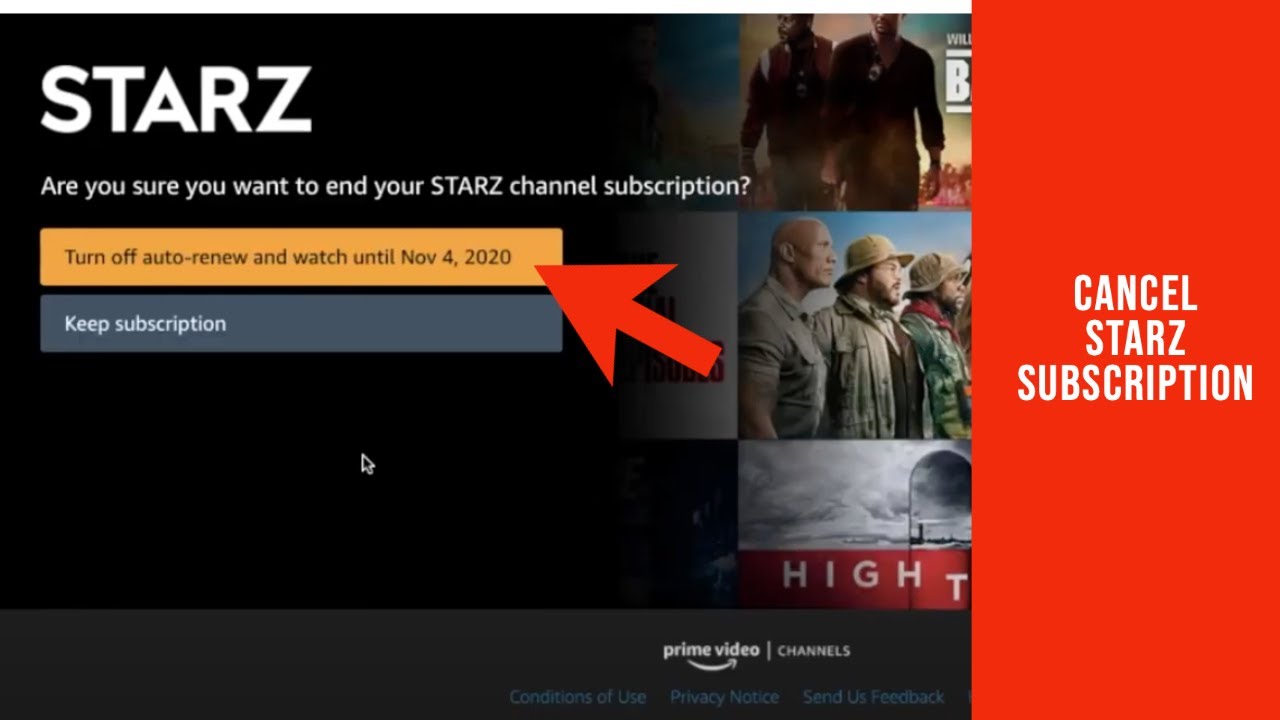
- Go to amazon.com on a computer or open the Amazon app.
- Hover over (or tap) Account & Lists.
- Select Memberships & Subscriptions.
- Find Prime Video Channels in the list.
- Locate Starz and click Cancel Channel.
- Confirm the cancellation.
Amazon will show you when your access expires. Like other platforms, you keep watching until the end of your current billing cycle. Amazon occasionally offers a discounted rate to retain you – something like $2.99/month for three months. If you’re canceling because of cost, this might be worth considering. If you’re canceling because you simply don’t watch, skip the offer and confirm.
A common point of confusion: canceling the Starz channel does not cancel your Amazon Prime membership. These are separate subscriptions. You’re only removing the Starz add-on. Your Prime benefits, including Prime Video’s base library, remain unaffected.
If you can’t find the Memberships & Subscriptions page, try going directly to amazon.com/gp/video/subscriptions. This URL takes you straight to your Prime Video channel subscriptions.
Using the Roku Account Dashboard
Roku subscriptions are managed through your Roku account on the web, not through the Roku device itself. This catches people off guard because they expect to find cancellation options somewhere in the Roku interface on their TV.
Here’s what to do:
- Open a web browser and go to my.roku.com.
- Sign in with your Roku account credentials.
- Click Manage Your Subscriptions (or a similarly labeled link under your account settings).
- Find the Starz subscription.
- Click Unsubscribe or Cancel.
- Confirm.
Roku sends a confirmation email, and your access continues through the end of the billing period. If you don’t remember your Roku account login, check the email address associated with your Roku device. You can find this on the Roku itself by going to Settings, then System, then About.
Some Roku users get confused because they have both a Roku account and a separate Starz account. If you subscribed through Roku, only the Roku account dashboard can process the cancellation. Your Starz account credentials are irrelevant for billing purposes in this scenario.
Step 5: Verify Cancellation and Check Access
Canceling is only half the job. Verifying that the cancellation actually went through is just as important. I’ve seen cases where people thought they canceled, only to discover months later that the subscription was still active because they didn’t complete the final confirmation step or because a technical glitch prevented the cancellation from processing.
Take two minutes after canceling to confirm everything is in order. This small step can save you from unexpected charges down the road.
Locating the Confirmation Email
Every platform sends a cancellation confirmation email. Check the inbox associated with the account you used to cancel. For Apple subscriptions, check the email tied to your Apple ID. For Google, check your Gmail. For Amazon, check the email on your Amazon account.
If you don’t see a confirmation email within an hour, check your spam and promotions folders. Gmail in particular tends to route subscription-related emails into the Promotions tab, where they’re easy to miss. If there’s still nothing after checking those folders, log back into the platform and verify the subscription status directly. It should show as “Canceled” or “Expires on [date].”
Save or screenshot the confirmation email. If you’re ever charged after canceling, this is your proof. Disputing a charge with your bank or credit card company is much easier when you have documentation showing the cancellation date and confirmation.
Accessing Content Until the Billing Cycle Ends
A canceled Starz subscription doesn’t mean instant loss of access. Every platform honors your remaining paid time. If your billing cycle runs from the 10th to the 10th and you cancel on the 22nd, you still have access until the 10th of the following month.
This is worth keeping in mind if you’re in the middle of a series. There’s no reason to rush through the last few episodes before canceling. Cancel first, then finish watching at your own pace during the remaining days.
Once the billing period ends, your access stops completely. You won’t be able to stream any Starz content, and any downloaded episodes (if the platform supports offline viewing) will become unavailable. There’s no grace period after expiration.
If you change your mind before the access period ends, most platforms allow you to resubscribe. Some even let you “undo” the cancellation and resume the subscription without any gap. But once the period expires, resubscribing starts a new billing cycle at the current rate, which may be higher than what you were previously paying if there’s been a price increase.
Troubleshooting Common Cancellation Issues
Most cancellations go smoothly, but there are a few situations that trip people up. Knowing what to do when something goes wrong saves you from unnecessary stress and continued charges.
What to Do If You Don’t See a Cancel Button
This happens more often than you’d expect, and the reason is almost always the same: you’re looking in the wrong place. If you’re in the Starz app and can’t find a cancel option, it’s because your subscription is managed by a third-party platform. The Starz app itself often cannot cancel subscriptions that were initiated through Apple, Google, Amazon, or Roku.
Go back to your bank statement and identify the billing source. Then follow the appropriate steps for that platform as outlined in the sections above.
There’s another scenario where the cancel button seems missing: expired or already-canceled subscriptions. If you previously canceled but your access hasn’t ended yet, the platform may show the subscription as “Expires on [date]” without a cancel button because there’s nothing left to cancel. Check the status carefully before assuming something is wrong.
On rare occasions, a platform’s interface changes after an update, and the cancel option moves to a different location. If you’re on an Apple device and can’t find the Subscriptions menu where it used to be, try searching “Subscriptions” in the Settings app’s search bar. Google Play and Amazon occasionally reorganize their menus too, but a quick search within the app or website usually gets you there.
If you’ve tried everything and genuinely cannot find the cancellation option, contact the platform’s support team. Apple, Google, Amazon, and Roku all have customer service channels that can process cancellations on your behalf. Don’t contact Starz for a third-party subscription issue – they’ll just redirect you to the billing platform.
Contacting Starz Customer Support
For direct subscribers who run into problems, Starz has a dedicated support team that can help. You can reach Starz customer support by phone at +1-877-917-1758. This is the most reliable method for resolving cancellation issues that can’t be handled through the website.
Before calling, have the following ready:
- The email address associated with your Starz account
- The last four digits of the payment method on file
- Your billing date and the amount you’ve been charged
- Any error messages or screenshots of issues you encountered while trying to cancel online
Phone support can process the cancellation for you directly, and they’ll provide verbal confirmation along with a follow-up email. If you prefer not to call, Starz also offers support through their help center at support.starz.com, where you can submit a request or use the chat feature if it’s available.
One thing I’ll say plainly: if you’re being charged and you’ve already canceled, don’t wait. Call immediately. The longer you wait, the more billing cycles accumulate, and while most platforms will refund one erroneous charge, getting multiple months refunded becomes harder. Act fast, have your documentation ready, and be direct about what happened.
For third-party subscriptions, Starz support has limited ability to help. They can confirm whether you have a direct account with them, but they cannot cancel or modify subscriptions managed by Apple, Google, Amazon, or Roku. If Starz support tells you they don’t see an active subscription under your email, that’s a strong indicator your billing is through another platform.
Wrapping Up Your Cancellation
Knowing how to cancel a Starz subscription comes down to one key principle: cancel through the same platform where you signed up. Skip this rule and you’ll waste time clicking around the wrong menus.
Whether your subscription runs through the Starz website, Apple, Google Play, Amazon, or Roku, the steps are simple once you’re in the right place. Cancel early – at least a day before renewal – to avoid an extra charge, verify the cancellation with a confirmation email, and enjoy your remaining access until the billing period ends.
If anything goes sideways, Starz phone support at +1-877-917-1758 is your best resource for direct subscriptions, and each third-party platform has its own support team ready to assist. Don’t let a forgotten subscription quietly drain your account month after month. Take five minutes, follow the steps, and you’re done.