Canceling a PlayStation Plus subscription sounds like it should take thirty seconds, but Sony doesn’t exactly make it obvious. Menus are buried, options are labeled in confusing ways, and the process differs depending on whether you’re using a console, a web browser, or the mobile app.
If you’ve been searching for a clear answer on how to cancel PlayStation Plus, you’re not alone: thousands of subscribers every month run into the same frustration. Maybe the price hike finally pushed you over the edge, or maybe you’re just not gaming enough to justify the recurring charge.
Whatever your reason, this guide walks you through the exact steps on every platform, explains what happens to your games and saves after cancellation, and covers the refund process most people don’t even know exists. Three steps. That’s all it takes when you know where to look.
Before You Cancel: Things to Know About PS Plus
Pulling the trigger on cancellation without understanding the consequences is a mistake I see people make constantly. They cancel, lose access to a library of games mid-playthrough, and then scramble to re-subscribe at a higher tier just to get their saves back. Spend five minutes understanding what you’re giving up and how the cancellation timeline actually works before you touch any settings.
PS Plus isn’t just an online multiplayer pass anymore. Sony restructured the service into three tiers: Essential, Extra, and Premium. Each tier bundles different perks, and the things you lose upon cancellation depend on which tier you’re subscribed to. Essential subscribers lose online multiplayer access and their monthly claimed games become locked. Extra subscribers lose all of that plus the entire Game Catalog. Premium subscribers lose everything, including classic game streaming and time-limited trials.
The financial side matters too. PS Plus Essential costs $9.99 per month or $79.99 annually, while PS Plus Extra runs $15 per month. Those numbers add up over a year, and if you’re not using the service regularly, that money is better spent elsewhere.
Access to Monthly Games and Cloud Saves
Here’s the part that catches most people off guard: every “free” monthly game you’ve claimed through PS Plus becomes unplayable the moment your subscription lapses. You don’t lose ownership in the technical sense. The licenses remain tied to your account. But they’re locked behind an active subscription, so you can’t launch them until you re-subscribe.
Cloud saves are a separate concern. PS Plus Essential and above includes cloud storage for game saves, and if you’ve been relying on that instead of local storage, your save data sits on Sony’s servers. Sony doesn’t delete cloud saves immediately after cancellation, but there’s no official guarantee on how long they’re retained. I’ve seen reports of saves lasting months after a lapsed subscription, but I’ve also seen people lose everything. The safe move is to download your cloud saves to your console’s local storage before you cancel. On PS5, go to Settings, then Saved Data and Game/App Settings, then Saved Data (PS5) or Saved Data (PS4), and select Cloud Storage. From there, download everything to Console Storage.
If you have hundreds of claimed games accumulated over years of PS Plus membership, that library represents real value. Canceling means all of it goes dark. Think about whether you’re done with those games permanently or just taking a break. A break might mean letting the subscription expire naturally rather than canceling outright, which brings us to the next critical distinction.
Subscription Expiration vs. Immediate Termination
This is where Sony’s terminology gets confusing, and where most guides get it wrong. Canceling PS Plus does not immediately end your subscription. What it does is turn off auto-renewal. You keep full access to every PS Plus benefit until your current billing period ends.
Say you paid for an annual subscription on March 1st. If you cancel on June 15th, you still have PS Plus access through the following February 28th. You’ve already paid for that time, and Sony doesn’t take it away. The cancellation just prevents the next charge from hitting your payment method.
This is actually the ideal approach for most people. Cancel now, enjoy the remaining time you’ve already paid for, and avoid an unexpected renewal charge months from now when you’ve forgotten about it. There’s no penalty for canceling early in your billing cycle versus late. The outcome is identical: access continues until the paid period ends, then it stops.
The only scenario where your access ends immediately is if you request a refund, which I’ll cover later. A standard cancellation through the steps below simply disables auto-renew. Keep this distinction in mind as you work through the process, because the confirmation screens will reference “turning off auto-renewal” rather than “canceling,” and that wording trips people up.
Step 1: Cancel via Your PlayStation 5 or PS4 Console
The most straightforward method is canceling directly from your console. You don’t need a computer, a phone, or a web browser. Everything happens within the system menus, though Sony has buried the subscription management options deep enough that finding them without guidance is genuinely annoying.
Both the PS5 and PS4 support cancellation, but the menu paths differ between the two consoles. The PS5 interface was redesigned from scratch, so if you’re used to the PS4’s XMB-style menus, the PS5 layout will feel unfamiliar. I’ll walk through both consoles separately.
One prerequisite: make sure you’re signed into the PSN account that holds the PS Plus subscription. If your household has multiple accounts on the same console, only the account that purchased the subscription can manage it. Other accounts on the console might benefit from PS Plus through console sharing, but they can’t modify the subscription itself.
Navigating the PS5 Users and Accounts Menu
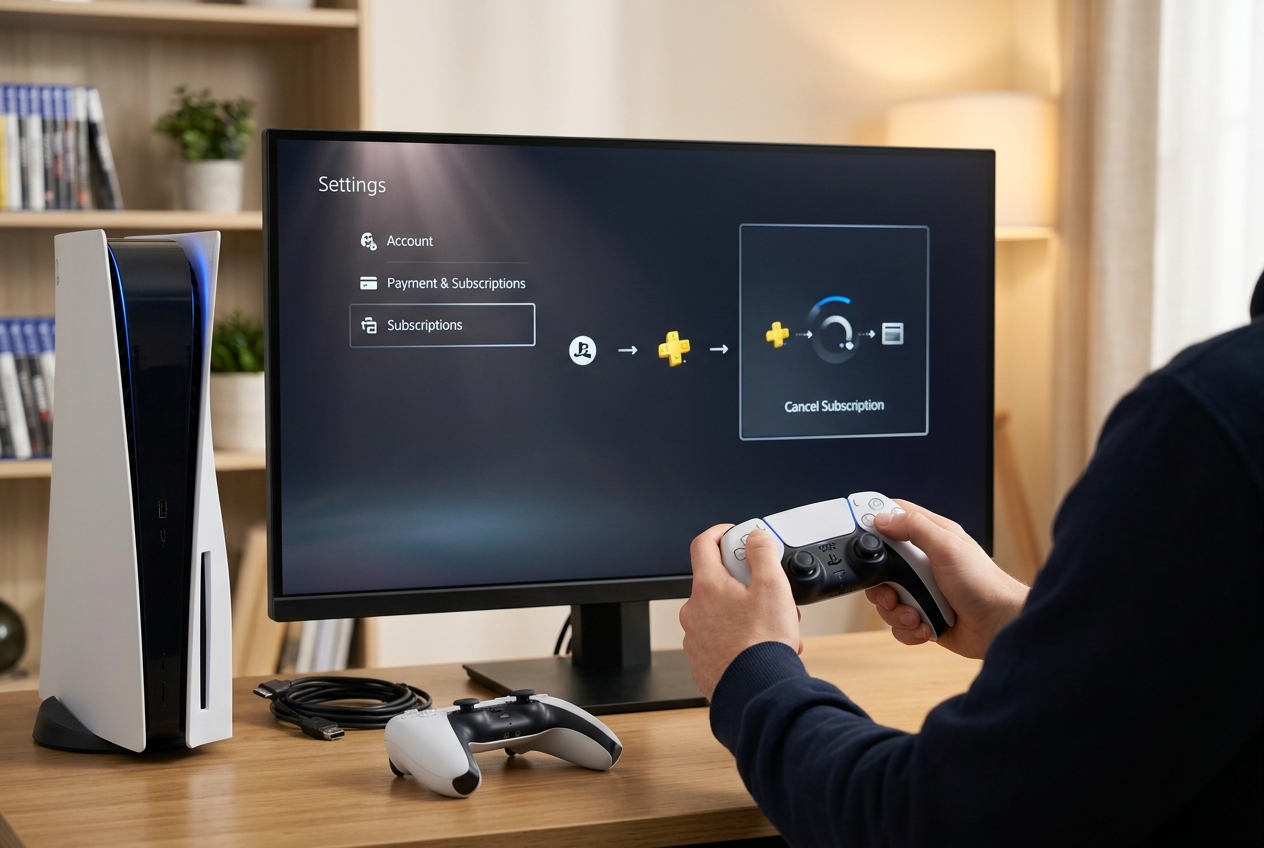
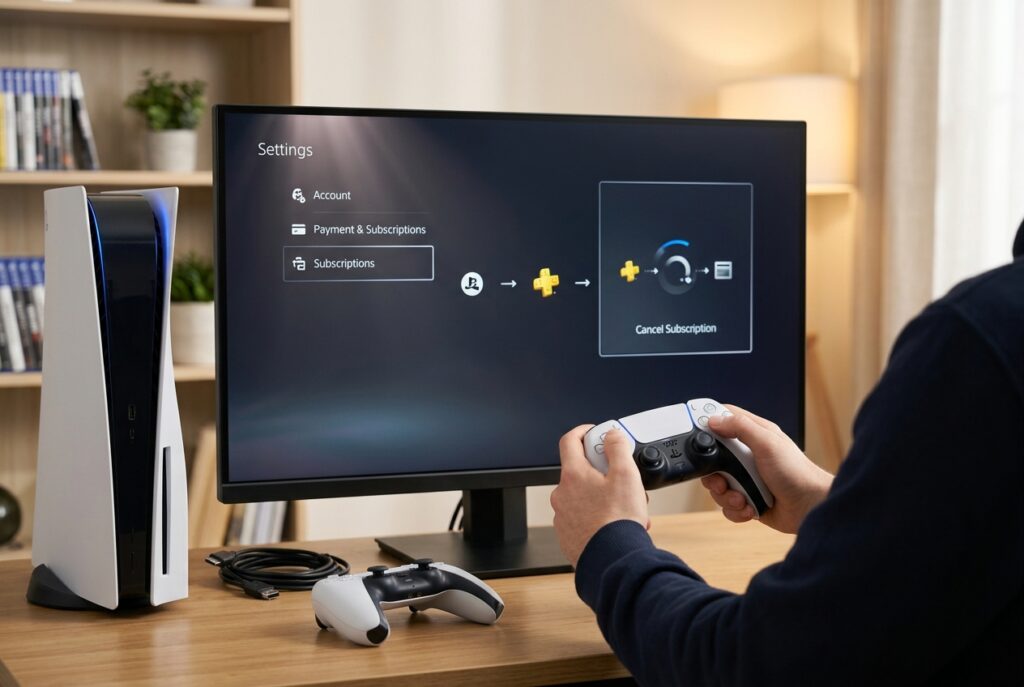
On your PS5, start from the home screen and press the gear icon in the top-right corner to open Settings. From there, select Users and Accounts. This section handles everything related to your PSN profile, payment methods, and subscriptions.
Inside Users and Accounts, choose Account, then Payment and Subscriptions. You’ll see a list that includes options like Payment Methods, Purchase History, and Subscriptions. Select Subscriptions.
Here’s where you’ll see your active PS Plus plan listed with its tier (Essential, Extra, or Premium), the renewal date, and the price. Select PlayStation Plus, and you’ll be taken to a management screen. Look for the option that says something like “Turn Off Auto-Renew.” The exact wording has changed slightly with firmware updates, but it’s always phrased around auto-renewal rather than “cancel.”
Select Turn Off Auto-Renew, confirm your choice on the next screen, and you’re done. The system will show you the date your current access expires. Write that date down or screenshot it. You’ll want it later to verify everything processed correctly.
A common hiccup: if you subscribed through a prepaid card or a code from a retailer, the Turn Off Auto-Renew option might not appear because there’s no recurring payment to disable. In that case, your subscription simply expires when the prepaid period ends, and no action is needed. I’ll address other edge cases in the troubleshooting section.
Managing Subscriptions on PS4 Settings
The PS4 process is similar in concept but different in navigation. From the PS4 home screen, scroll up to the top menu bar and go to Settings (the toolbox icon on the far right). Select Account Management, then Account Information, then PlayStation Subscriptions.
You’ll see your active PS Plus subscription listed. Select it, and the system will show your current plan details, including the renewal date and price. Choose Turn Off Auto-Renew, confirm the action, and the system will process the change.
On PS4, the menus can be sluggish, especially on older hardware. Don’t panic if there’s a delay after confirming. Give it a few seconds to process. If the system kicks you back to the previous menu without confirming, try again. Occasionally the PS4 needs a second attempt to register the change.
One PS4-specific issue: if your console hasn’t been updated in a while, the subscription management screens might look different from what you see in current screenshots online. Sony periodically updates the PS4 system software, and the menu labels shift slightly. If you can’t find “PlayStation Subscriptions” under Account Information, check under Services List instead. Both paths lead to the same destination.
After completing the cancellation on PS4, verify by going back to PlayStation Subscriptions. Your PS Plus entry should now show the expiration date without any mention of an upcoming renewal charge. If it still shows a renewal date with a price, the cancellation didn’t take, and you need to repeat the process.
Step 2: Cancel Using a Web Browser on PC or Mobile
Not everyone has their console powered on and ready to go when they decide to cancel. Maybe you’re at work, on your phone, or your PlayStation is in storage. The web browser method works from any device with internet access and is actually faster than the console method once you know the URL.
This approach goes through Sony’s account management portal, which is separate from the PlayStation Store. The account management site handles billing, subscriptions, security settings, and profile information. It’s the same backend system the console accesses, just presented through a web interface.
You’ll need your PSN sign-in credentials: the email address and password tied to your PlayStation Network account. If you’ve forgotten your password, reset it before attempting this. Sony’s password reset process sends a link to your registered email, and it usually arrives within a minute or two.
Accessing Sony Account Management Online
Open any web browser and go to the Sony account management page. The direct URL is https://account.sonyentertainmentnetwork.com, though searching “PlayStation account management” will also get you there. Sign in with your PSN email and password. If you have two-factor authentication enabled (and you should), you’ll need to enter the verification code sent to your phone or authenticator app.
Once logged in, you’ll see a dashboard with several tabs or sections. Look for Subscription on the left-hand menu. Click it, and your active PS Plus subscription will appear with all the relevant details: tier, renewal date, payment method, and price.
The interface is clean but minimal. Sony doesn’t clutter this page with upsells or retention offers the way some streaming services do. Your subscription info is displayed plainly, and the management options are right there.
If you’re doing this on a mobile browser, the site is responsive but can feel cramped on smaller screens. Pinch to zoom if the buttons are too small to tap accurately. The mobile version has the same functionality as the desktop version, so nothing is missing. You just might need to scroll more.
Turning Off Auto-Renew in Subscription Settings
On the Subscription page, click on your PS Plus plan. You’ll see a toggle or button labeled Turn Off Auto-Renew. Click it, and Sony will present a confirmation screen explaining what happens: your subscription continues until the current period ends, then it stops. No more charges.
Confirm the action, and the page will update to reflect the change. Your subscription status should now indicate that auto-renewal is off, and it will display the date your access expires.
Here’s a tip most guides skip: after turning off auto-renew through the web portal, clear your browser’s cache or log out and log back in, then check the subscription page again. I’ve seen rare cases where the page appears to process the change but doesn’t actually save it on the backend. A fresh page load confirms whether the change stuck.
Sony sometimes displays a retention offer when you attempt to cancel through the web portal. This might be a discounted renewal price or a free month. If the offer appeals to you, great. If not, decline it and proceed with the cancellation. These offers are inconsistent and not available to every subscriber, so don’t count on seeing one.
The web browser method is the one I recommend for most people. It’s platform-agnostic, faster than navigating console menus, and gives you a clear visual confirmation that the change was applied. Bookmark the account management page for future reference, because you’ll need it anytime you want to update payment methods or manage other Sony subscriptions.
Step 3: Confirming Your Cancellation and Finalizing
You’ve turned off auto-renew through your console or the web portal. The process should be done, right? Technically, yes. But I’ve heard from enough people who thought they canceled only to get charged again that I consider verification a non-optional step. Spend two minutes confirming, and save yourself the headache of disputing a charge with your bank later.
Sony’s systems are generally reliable, but glitches happen. Network timeouts, session expirations, and browser issues can all prevent a cancellation from fully processing even when the screen appears to confirm it. Treat the confirmation step as the actual final step, not an afterthought.
Checking for the Confirmation Email
After canceling, Sony sends a confirmation email to the address associated with your PSN account. This email typically arrives within a few minutes, though it can take up to an hour during peak times. Check your inbox, and if you don’t see it, check your spam and promotions folders. Gmail in particular likes to filter Sony emails into the Promotions tab.
The email will state that your auto-renewal has been turned off and will list the date your current subscription expires. Save this email. Screenshot it. Forward it to yourself. If Sony charges you after the expiration date, this email is your proof that you canceled, and it makes disputing the charge with your bank or with Sony’s support team dramatically easier.
If you don’t receive a confirmation email within a few hours, something may have gone wrong. Go back to the account management portal or your console’s subscription settings and check the status. If it still shows auto-renew as active, repeat the cancellation process. There’s no harm in attempting it multiple times.
Verifying Status in the PlayStation App
The PlayStation App on iOS and Android provides another way to verify your cancellation. Open the app, tap your profile icon, go to Settings, then Subscriptions. Your PS Plus entry should show the expiration date and indicate that auto-renewal is off.
The app pulls data from the same backend as the web portal and console, so if the cancellation shows as processed here, you can be confident it went through. The app also sends push notifications for subscription-related changes, so you might see a notification confirming the cancellation before you even check manually.
One thing the app doesn’t let you do reliably is initiate the cancellation itself. While some users report success canceling through the app, the interface for managing subscriptions within the app has been inconsistent across updates. I recommend using the console or web browser to cancel and using the app solely for verification.
If all three sources: the confirmation email, the web portal, and the PlayStation App: show your auto-renewal as disabled, you’re done. Your PS Plus access continues until the expiration date, and no further charges will be applied.
Troubleshooting Common Cancellation Issues
Not every cancellation goes smoothly. Sony’s system has quirks, and certain subscription types create situations where the standard cancellation steps don’t apply. Here are the two most common problems and how to handle them.
What to Do if the Cancel Button is Missing
If you follow the steps above and can’t find the Turn Off Auto-Renew option, there are a few possible explanations. The most common is that your subscription was purchased using a prepaid code rather than a credit card or PayPal. Prepaid subscriptions don’t have auto-renewal enabled in the first place, so there’s nothing to turn off. Your subscription simply expires when the prepaid period ends.
Another possibility is that your subscription is being managed through a different account. On consoles with multiple users, it’s easy to lose track of which account holds the PS Plus subscription. Log into each account on the console and check the subscription status for each one.
If neither of those applies, the issue might be a system-side glitch. Sony’s account management servers occasionally have hiccups that prevent certain options from appearing. Try again in a few hours, or use a different method (web browser instead of console, or vice versa). If the problem persists for more than 24 hours, contact PlayStation Support directly. Their live chat is usually faster than phone support and can manually process the cancellation on their end.
A less common but real scenario: if your account has an active suspension or if there’s a pending payment issue (like a declined card), Sony may restrict access to subscription management until the issue is resolved. Check your payment methods and account standing before assuming the system is broken.
Handling Subscriptions Through Third-Party Retailers
If you purchased PS Plus through a third-party retailer like Amazon, Best Buy, or CDKeys, the subscription was activated via a prepaid code. These subscriptions don’t auto-renew through Sony’s system, so you won’t find a Turn Off Auto-Renew option in your PlayStation settings. The subscription simply ends when the time runs out.
The exception is if you bought the subscription through a third-party platform that handles its own recurring billing. For example, if you subscribed to PS Plus through a promotion that set up recurring payments through Amazon, you’d need to cancel the recurring charge through Amazon’s subscription management, not through Sony. Check your Amazon account (or whichever retailer you used) for active subscriptions if you’re being charged and can’t find the option to cancel on Sony’s end.
This is a frustrating edge case because Sony’s support team can’t help you cancel a subscription billed by a third party. They’ll tell you to contact the retailer directly, which is the correct answer even though it feels like a runaround. The retailer controls the billing, so the retailer is the only one who can stop it.
If you’re unsure where the charges are coming from, check your bank or credit card statement. The merchant name on the charge will tell you whether Sony or a third party is billing you. Sony charges appear as “Sony Network Entertainment” or similar. If the charge comes from Amazon, Best Buy, or another retailer, that’s where you need to go.
How to Request a Refund for PlayStation Plus
Most people don’t realize they can get a refund on PS Plus, but Sony does have a cancellation and refund policy. You can request a refund within 14 days from the initial transaction date of your subscription purchase, even if you’ve used the service during that window.
Here’s the catch: if you request a refund, your access ends immediately. This is different from a standard cancellation, where you keep access until the billing period expires. A refund means Sony takes back the service and returns your money. You lose access to online multiplayer, your claimed monthly games get locked, and any Game Catalog titles (for Extra and Premium subscribers) become unplayable right away.
To request a refund, contact PlayStation Support through their website or live chat. You cannot process a refund through the console or the account management portal. It requires a human on Sony’s end to review and approve the request. Have your transaction ID ready (found in your purchase history on the web portal) and explain that you’d like a refund under the 14-day policy.
The 14-day window is firm. If you’re on day 15, Sony will deny the request. There’s no flexibility here, and escalating to a supervisor won’t change the outcome. The policy is clearly stated in their terms, and support agents follow it to the letter.
For annual subscribers, the refund amount is prorated based on how much of the subscription period has elapsed, minus the cost of any PS Plus benefits you used. If you claimed free monthly games or accessed the Game Catalog, Sony may deduct the value of those benefits from your refund. The exact calculation isn’t always transparent, so the refund amount might be less than you expect.
Some subscribers on Reddit have taken the approach of canceling subscriptions to signal that pricing increases won’t be tolerated, treating it as a consumer statement. Whether or not you share that sentiment, knowing the refund policy gives you options. If you’re within 14 days and genuinely unhappy with the service, there’s no reason not to request your money back.
One more thing: if Sony denies your refund request and you believe you’re within the policy window, escalate through their formal complaint process. Document everything: the purchase date, the cancellation request date, and any chat transcripts. In the EU and UK, consumer protection laws may provide additional refund rights beyond Sony’s stated policy, so check your local regulations if you’re outside the US.
Canceling your PS Plus subscription takes three steps regardless of the platform you use: find the subscription settings, turn off auto-renew, and verify the confirmation. The entire process takes under five minutes once you know where to look, and the biggest mistake you can make is skipping the verification step.
Download your cloud saves before your access expires, save the confirmation email, and double-check your status in the PlayStation App. If you’re within 14 days of your purchase, consider requesting a refund for an immediate end to the subscription and a return of your payment. Your gaming budget is yours to control, and no subscription should keep charging you after you’ve decided to walk away.