
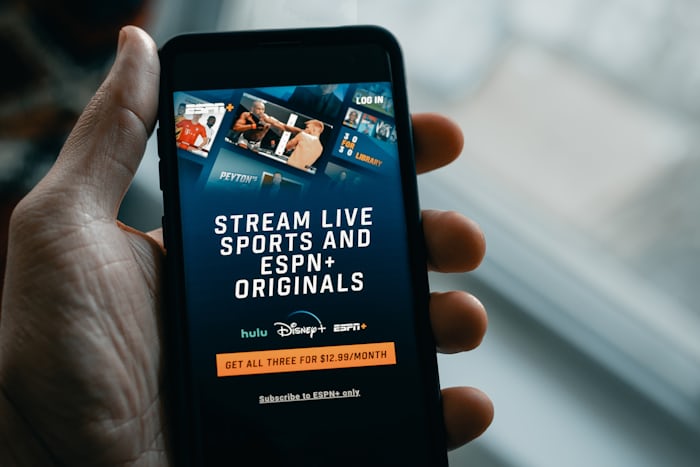
Streaming services have become part of everyday entertainment. Platforms like Netflix, Disney+, Amazon Prime Video, and Hulu offer thousands of movies, TV shows, and documentaries.
However, many people subscribe to multiple services and later realize they no longer need them. Maybe the free trial ended, you want to save money, or you simply don’t use the platform anymore.
If you are trying to cancel a streaming subscription, the process can sometimes feel confusing. Different platforms use different cancellation methods depending on how you subscribed.
In this guide, you will learn:
- How to cancel Netflix
- How to cancel Disney+
- How to cancel Amazon Prime Video
- How to cancel Hulu subscription
- Important things to know before canceling
- Tips to avoid being charged again
Things to Know Before Canceling a Streaming Subscription
Before canceling your subscription, there are a few important things you should understand.
1. Cancellation Does Not Always End Access Immediately
Most streaming platforms allow you to continue watching until the end of your billing cycle.
For example, if your subscription renews on the 30th of the month and you cancel on the 10th, you will still have access until the 30th.
2. Deleting the App Does NOT Cancel Your Subscription
Many users think uninstalling the app cancels the service. Unfortunately, that is not true. If you subscribed through:
- Google Play
- Apple App Store
- Amazon
- Website
You must cancel through the same platform.
3. Some Subscriptions Are Managed by Third Parties
Your streaming subscription may be billed through:
- Apple
- Cable providers
- Mobile carriers
In this case, you must cancel through the billing provider, not the streaming app itself.
How to Cancel Netflix Subscription
Netflix is one of the most popular streaming platforms worldwide. If you no longer want to continue your subscription, you can cancel it in just a few steps.
Steps to Cancel Netflix
- Visit the Netflix website.
- Log in to your account.
- Click your profile icon.
- Select Account.
- Click Cancel Membership.
- Confirm your cancellation.
Once canceled, your account will remain active until the current billing period ends.
Read the full guide here:
How to Cancel Netflix Subscription (Step-by-Step Guide)
How to Cancel Disney+ Subscription
Disney+ offers movies and shows from Disney, Marvel, Pixar, Star Wars, and National Geographic. But if you decide to stop using the service, canceling is simple.
Steps to Cancel Disney+
- Go to the Disney+ website.
- Sign in to your account.
- Click your profile icon.
- Select Account.
- Choose your subscription.
- Click Cancel Subscription.
After cancellation, you will still have access until the end of the billing period.
Detailed instructions:
How to Cancel Disney+ Subscription (Step-by-Step Guide)
How to Cancel Amazon Prime Video
Amazon Prime Video is included with an Amazon Prime membership, but it can also be subscribed to separately in some regions.
If you want to cancel it, the process depends on whether you subscribed to Prime membership or Prime Video only.
Steps to Cancel Amazon Prime Video
- Visit the Amazon website.
- Log in to your account.
- Go to Accounts & Lists.
- Click Memberships & Subscriptions.
- Select Prime Video.
- Click Cancel Subscription.
Your access will remain until the current billing cycle expires.
Full guide:
How to Cancel Amazon Prime Video (Complete Step-by-Step Guide)
How to Cancel Hulu Subscription
Hulu is another popular streaming service, especially in the United States. The cancellation process can vary depending on whether you subscribed through the Hulu website, Apple, or another provider.
Steps to Cancel Hulu Subscription
- Visit the Hulu website.
- Log in to your account.
- Click your profile icon.
- Select Account.
- Find your subscription.
- Click Cancel Subscription.
Once canceled, you will still have access until your billing cycle ends.
Read the full tutorial:
How to Cancel Hulu Subscription (Step-by-Step Guide)
Common Problems When Cancelling Streaming Subscriptions
Sometimes users experience problems while canceling their subscriptions. Here are common issues and how to solve them.
1. Cannot Find the Cancel Button
If you cannot see the cancel option, it may mean your subscription is billed through:
- Apple
- Google Play
- Roku
- Cable providers
You must cancel through those platforms.
2. Still Being Charged After Cancellation
If you continue to be charged, check:
- Whether the cancellation was confirmed
- Whether another account is subscribed
- Whether you canceled through the correct billing provider
3. Forgotten Account Details
If you forgot your login details, use the password recovery option on the platform.
Tips to Avoid Unwanted Subscription Charges
To avoid paying for services you no longer use, follow these simple tips:
Set Subscription Reminders
Add a reminder to your phone calendar before the billing date.
Review Subscriptions Monthly
Check all your active subscriptions regularly.
Cancel Free Trials Early
Many streaming services offer free trials that automatically convert into paid subscriptions. Cancel before the trial ends if you do not want to continue.
Frequently Asked Questions
1. Can I cancel a streaming subscription anytime?
Yes. Most streaming services allow you to cancel at any time. However, you usually keep access until the end of the billing cycle.
2. Will I get a refund after canceling?
Most streaming platforms do not provide refunds for partial billing periods.
3. Can I restart my subscription later?
Yes. Most platforms allow you to reactivate your account anytime.
4. What happens to my watch history after cancellation?
Your watch history and preferences are usually saved if you return later using the same account.

Pingback: How to Cancel YouTube Premium (Step-by-Step Guide) - Howtocancellab
Pingback: How to Cancel Hulu Subscription (A Step-by-Step Guide) - Howtocancellab
Pingback: How to Cancel Amazon Prime Video, Prime Membership, and Channels (Step-by-Step Guide) - Howtocancellab
Pingback: How to Cancel Disney+: Step-by-Step Guide for Every Device - Howtocancellab
Pingback: How to Cancel Netflix Subscription (A Complete Step-by-Step Guide) - Howtocancellab
Pingback: How to Cancel Disney Plus: A Step-by-Step Guide - Howtocancellab
Pingback: How to Cancel Your Paramount Plus Subscription - Howtocancellab
Pingback: How to Cancel Your Adobe Subscription in 5 Steps - Howtocancellab
Pingback: How to Cancel Your Peacock Subscription in 5 Steps - Howtocancellab
Pingback: How to Cancel Subscriptions on Your iPhone: 4 Easy Steps - Howtocancellab
Pingback: How to Cancel Your Apple TV Subscription a Step-by-Step Guide - Howtocancellab
Pingback: How to Cancel Fubo: Easy Steps for Every Device - Howtocancellab
Pingback: How to Cancel Your DAZN Subscription: 4 Simple Steps - Howtocancellab
Pingback: How to Cancel a Crunchyroll Subscription in 5 Steps - Howtocancellab
Pingback: How to Cancel Your HBO Max Subscription in 5 Steps - Howtocancellab
Pingback: How to Cancel a Starz Subscription in 5 Steps - How to Cancel Lab
Pingback: How to Cancel a Patreon Membership in 4 Steps - How to Cancel Lab
Pingback: How to Cancel Your Grammarly Subscription in 5 Steps - How to Cancel Lab
Pingback: How to Cancel NFL Sunday Ticket in 4 Easy Steps - How to Cancel Lab
Pingback: How to Cancel a Twitch Subscription in 5 Steps - How to Cancel Lab