
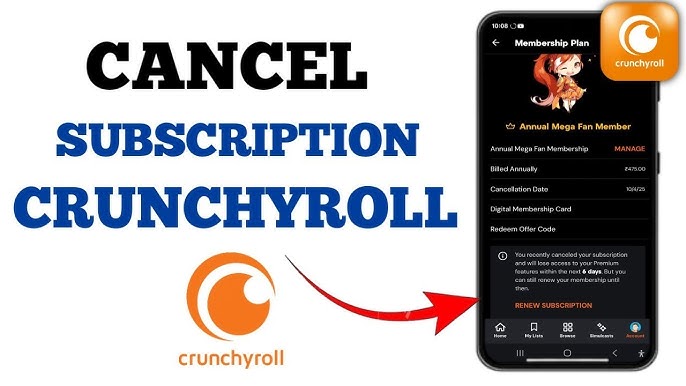

Crunchyroll is one of those streaming services that earns fierce loyalty from its user base. The platform has captured over $1 billion in customer spending with 15 million subscribers as of mid-2024, and its Mega Fan tier holds roughly 90% of its members. But loyalty doesn’t mean everyone stays forever.
Maybe you’ve finished the series you signed up for, your budget is tightening, or you’re frustrated by app issues. Whatever the reason, figuring out how to cancel a Crunchyroll subscription shouldn’t require a detective’s instinct, yet the process trips people up more often than you’d expect.
The biggest source of confusion? Where you originally subscribed determines where you need to cancel. If you signed up through Apple, Google Play, Roku, or Amazon, canceling on Crunchyroll’s website won’t actually stop your billing. That single misunderstanding accounts for most of the “I canceled but I’m still being charged” complaints flooding Reddit and support forums.
This guide walks through every cancellation path, platform by platform, and covers refund eligibility, account deletion, and the most common problems people run into along the way.
Understanding Your Crunchyroll Membership and Billing Cycle
Before you cancel anything, you need to know exactly what you’re paying for and who is processing your payment. Crunchyroll currently offers three premium tiers: Fan, Mega Fan, and Ultimate Fan. Each tier bills either monthly or annually, and the billing date is set based on when you first subscribed, not the first of the month or any standardized cycle.
This matters because canceling mid-cycle doesn’t immediately cut off your access. Crunchyroll lets you keep watching until the end of your current paid period. If you’re billed on the 15th and cancel on the 3rd, you still have 12 days of premium access remaining. There’s no prorated refund for those unused days on monthly plans, so timing your cancellation close to your renewal date makes financial sense if you want to squeeze every bit of value out of what you’ve already paid.
Annual subscribers face a different calculation. If you’re eight months into a yearly plan, you’re forfeiting four months of prepaid service by canceling. Crunchyroll does not issue partial refunds for annual plans that have been active beyond a short window (more on refund eligibility later). Know your billing cycle date and plan type before you start clicking buttons.
Locating Your Premium Billing Settings
Finding your billing details on Crunchyroll’s website is straightforward, but the mobile app makes it slightly harder. On desktop, log in and click your profile icon in the top-right corner. Select “Settings” from the dropdown, then look for the “Subscription” or “Premium Membership” section. This page shows your current plan tier, your next billing date, and the payment method on file.
On the mobile app, the path is similar but the layout shifts. Tap your profile icon, go to “Settings,” and scroll to find subscription details. Here’s the catch: if you subscribed through Google Play or the App Store, the Crunchyroll app may show your plan tier but won’t display a “Cancel” button. It will redirect you to manage your subscription through the respective app store. This is not a bug; it’s by design.
Take a screenshot of this billing page before you do anything. Capture your plan name, billing date, and payment method. This screenshot becomes your proof if a billing dispute arises later. I cannot stress this enough: documentation protects you.
Identifying Your Payment Method (Web vs. Third-Party)
This is the single most important step in the entire cancellation process, and skipping it is the number one reason people get charged after they think they’ve canceled. There are five possible billing sources for a Crunchyroll subscription:
- Crunchyroll.com directly – you signed up on the website and entered your credit card or PayPal
- Apple App Store – you subscribed through the iOS app
- Google Play Store – you subscribed through the Android app
- Amazon – you subscribed through Amazon Appstore or Fire TV
- Roku – you subscribed through the Roku Channel Store
Each of these billing sources operates independently. Canceling on Crunchyroll’s website only works if Crunchyroll is your billing source. If Apple is processing your payment, you must cancel through Apple. If Roku is your billing source, you must cancel through Roku. There is no cross-platform cancellation.
Not sure where you signed up? Check your email for the original subscription confirmation. Search for “Crunchyroll” in your inbox and look at the sender. If the receipt came from Apple, Google, Amazon, or Roku, that’s your billing source. You can also check your credit card or bank statement: the charge description usually indicates the billing party.
If you used PayPal to subscribe directly on Crunchyroll’s site, you should also check for an active billing agreement inside your PayPal account. Even after canceling on Crunchyroll, an orphaned PayPal billing agreement can sometimes cause issues. Log into PayPal, go to Settings, then Payments, then Manage Automatic Payments, and confirm that Crunchyroll is listed as “Inactive” after you cancel.
How to Cancel Crunchyroll on a Web Browser in 5 Steps
If you subscribed directly through Crunchyroll’s website, this is your cancellation path. The process is designed to be simple, but Crunchyroll includes retention prompts along the way that can confuse people into thinking they’ve canceled when they haven’t actually completed the process. Follow every step through to the confirmation email.
Step 1: Log In and Access Account Settings
Open a desktop browser and go to crunchyroll.com. While you can technically do this on a mobile browser, the desktop version is more reliable and displays all options clearly. Some users have reported that mobile browsers occasionally fail to load the cancellation confirmation page properly, so use a laptop or desktop computer if possible.
Click your profile avatar in the upper-right corner of the page. From the dropdown menu, select “Settings.” This takes you to your account management dashboard. If you have multiple Crunchyroll accounts (perhaps one you created with a different email during a free trial), make sure you’re logged into the correct one. Check the email address displayed on the settings page to confirm.
Step 2: Navigate to the Membership Plan Page
Inside Settings, look for the section labeled “Subscription” or “Premium Membership Plan.” Click on it. This page displays your current tier (Fan, Mega Fan, or Ultimate Fan), your billing frequency (monthly or annual), and your next renewal date.
You should see a link or button that says “Cancel Membership” or “Cancel Subscription.” If you don’t see this option, it likely means your subscription is billed through a third party like Apple or Google. In that case, skip to the relevant section of this guide for your platform. Do not assume the option is hidden somewhere else on the Crunchyroll site: if it’s not on this page, Crunchyroll is not your billing source.
Step 3: Initiate the Cancellation Request
Click the “Cancel Membership” button. Crunchyroll will present you with a retention screen. This typically includes a reminder of what you’ll lose (offline viewing, ad-free experience, simultaneous streams) and may offer a discounted rate or a free month to keep you subscribed.
This is where many people accidentally bail out. They see the offer, click “Keep My Subscription” thinking they’ll decide later, and then forget about it. If you want to cancel, ignore the retention offer entirely. Look for the option that says “Continue to Cancel” or “I Still Want to Cancel.” It’s usually smaller text or a less prominent button, positioned below the flashy retention offer. Click it.
Crunchyroll’s retention strategy is effective: their loyalty programs have reduced churn by roughly 12% over two years, with average subscriber tenure exceeding 30 months. The retention screen is part of that strategy. Don’t let it derail you if you’ve made your decision.
Step 4: Confirm Your Choice and Stop Auto-Renewal
After clicking past the retention offer, you’ll reach the actual cancellation confirmation page. This page asks you to confirm that you want to stop auto-renewal on your account. You may also be asked to select a reason for leaving from a dropdown menu. Pick whatever applies; it doesn’t affect the cancellation.
Click the final “Confirm Cancellation” or “Cancel Subscription” button. The page should update to show that your membership will remain active until your current billing period ends but will not renew. If the page still shows an active, auto-renewing subscription after you click confirm, something went wrong. Clear your browser cache, try again, or switch to a different browser.
Take a screenshot of this confirmation page immediately. This is your primary proof of cancellation. If you’re ever charged after this date, this screenshot is what you’ll submit to your bank or Crunchyroll support to dispute the charge.
Step 5: Verify Your Status via Confirmation Email
Within a few minutes, Crunchyroll should send a confirmation email to the address associated with your account. Check your inbox (and your spam/junk folder) for an email with a subject line referencing your subscription cancellation or membership change.
If you don’t receive this email within 24 hours, log back into Crunchyroll and check your subscription status on the settings page. It should show that your plan is set to expire on a specific date with no renewal scheduled. If it still shows an active, renewing subscription, contact Crunchyroll support immediately through their help center.
Save this confirmation email. Don’t delete it, don’t archive it in some folder you’ll never check again. Keep it accessible for at least 60 days. Billing errors happen, and this email is your fastest path to resolution if one occurs.
Canceling Crunchyroll on Roku and Apple TV
If you signed up for Crunchyroll through your Roku device or Apple TV, the cancellation process bypasses Crunchyroll’s website entirely. You need to cancel through the platform that handles your billing. This confuses a lot of people who try to cancel a Crunchyroll membership on Roku or Apple TV by going to crunchyroll.com, only to find there’s no cancel button.
Managing Subscriptions via Roku Channel Store
Roku processes Crunchyroll subscriptions through its own Channel Store billing system. To cancel:
- Press the Home button on your Roku remote
- Scroll to “Streaming Channels” and select it
- Find Crunchyroll in your channel list: you can search for it or browse your installed channels
- Highlight the Crunchyroll channel and press the Star (*) button on your remote
- Select “Manage Subscription” from the options menu
- Choose “Cancel Subscription” and confirm
After confirming, Roku will display a message indicating when your access expires. You’ll also receive a confirmation email from Roku (not Crunchyroll) at the email address tied to your Roku account.
If you can’t find the “Manage Subscription” option, try accessing your Roku account through a web browser instead. Go to my.roku.com, sign in, click “Manage Your Subscriptions,” find Crunchyroll in the list, and cancel from there. The web interface sometimes works when the on-device menu doesn’t display the option correctly.
One important detail: canceling through Roku does not delete your Crunchyroll account. It only stops the billing. Your Crunchyroll profile, watchlist, and viewing history remain intact. If you want to permanently delete your Crunchyroll account, that’s a separate process covered later in this guide.
Using Apple ID Settings for Apple TV Users
Apple TV subscriptions are managed through your Apple ID, not through the Crunchyroll app or website. Here’s the process:
On your Apple TV, go to Settings, then Users & Accounts, then select your account, then Subscriptions. Find Crunchyroll in the list and select “Cancel Subscription.”
If you prefer to cancel from your iPhone or iPad, open the Settings app, tap your name at the top, tap “Subscriptions,” find Crunchyroll, and tap “Cancel Subscription.” You can also manage this through the App Store app by tapping your profile icon, then “Subscriptions.”
Apple sends a confirmation to your Apple ID email. The cancellation takes effect at the end of your current billing period. Apple will not issue a prorated refund for the remaining days in your billing cycle, though they do have a separate refund request process (reportaproblem.apple.com) for certain situations.
A common mistake: some people remove the Crunchyroll app from their Apple TV thinking that uninstalling the app cancels the subscription. It does not. Deleting an app has zero effect on billing. You must cancel through your Apple ID subscription settings.
Managing Mobile Subscriptions via Google Play and iOS
Mobile subscriptions through Google Play and iOS follow their own cancellation workflows, and neither one can be handled on Crunchyroll’s website.
For Google Play (Android), open the Google Play Store app. Tap your profile icon in the top-right corner, then tap “Payments & Subscriptions,” then “Subscriptions.” Find Crunchyroll and tap “Cancel Subscription.” Google will ask why you’re leaving and may show a retention offer. Tap through to confirm the cancellation. Google sends a confirmation email to your Gmail address.
You can also manage this at play.google.com/store/account/subscriptions from any browser. This web method is often faster and avoids the occasional lag in the mobile app’s subscription management screen.
For iOS (if you subscribed through the iPhone app rather than Apple TV), the process is identical to the Apple TV method described above. Open Settings, tap your name, tap Subscriptions, find Crunchyroll, cancel. The Apple ecosystem treats all devices under your Apple ID the same way, so it doesn’t matter whether you subscribed on an iPhone, iPad, or Apple TV: the cancellation path is always through Apple ID settings.
A critical warning for Google Play users: if you subscribed using a Google account that’s different from your primary Gmail, make sure you’re signed into the correct Google account in the Play Store. People with multiple Google accounts sometimes check the wrong one, see no Crunchyroll subscription, and assume it was already canceled. Check every Google account you might have used.
After canceling through either platform, give it 24 hours and then verify by logging into the Crunchyroll app. Your account should show a free-tier status or indicate that premium access expires on a specific date. If it still shows an active premium subscription with auto-renewal on, contact Google or Apple support directly: not Crunchyroll.
Crunchyroll Refund Policy and Post-Cancellation Access
Money is usually the core concern when people cancel a subscription. Can you get a refund? What happens to the time you’ve already paid for? The answers depend on your plan type, how long you’ve been subscribed, and where you subscribed.
Eligibility for Partial Refunds
Crunchyroll’s refund policy is restrictive. For monthly subscriptions, refunds are generally not issued once the billing cycle has started. If you cancel three days into a new month, you won’t get those three days’ worth of charges back, but you will retain access for the remaining 27 days.
Annual subscriptions have a slightly different dynamic. If you purchased an annual plan and want a refund, Crunchyroll may consider requests made within a very short window after the charge, typically within 48 hours. Beyond that, you’re unlikely to receive any money back. The platform’s terms of service state that subscription fees are non-refundable except where required by law.
If you subscribed through Apple, Google, Roku, or Amazon, the refund request goes through that platform, not Crunchyroll. Apple’s refund process at reportaproblem.apple.com is relatively straightforward for recent charges. Google Play offers refund requests through the Play Store’s order history. Roku and Amazon have their own customer support channels for billing disputes.
Here’s a practical tip: if you were charged for a renewal you didn’t expect because you thought you had already canceled, gather your evidence (screenshots, confirmation emails, or the lack thereof) and file a refund request immediately. The faster you act, the more likely you’ll succeed. Waiting weeks reduces your chances significantly.
Watching Anime After Stopping Your Membership
Once your cancellation takes effect, your account reverts to Crunchyroll’s free tier. You lose access to the full library of simulcasts, offline downloads disappear from your devices, and ads return. However, Crunchyroll does offer a limited free catalog, so you won’t be completely locked out.
Your watchlist, viewing history, and account preferences remain intact. If you resubscribe later, everything picks up where you left off. This is one reason Crunchyroll’s platform focuses on retaining a passionate anime audience with lower churn rates and high consumer spending: they make it easy to come back.
Downloaded episodes for offline viewing will stop working the moment your premium access expires. If you’re in the middle of a downloaded series, finish watching those episodes before your cancellation date hits. There’s no grace period for offline content.
How to Delete a Crunchyroll Account Permanently
Canceling your subscription and deleting your account are two completely different actions, and conflating them is a mistake people make constantly. Canceling stops billing. Deleting removes your data. You might want one, the other, or both.
The Difference Between Canceling and Deleting
When you cancel your Crunchyroll subscription, your account still exists. Your username, email, watchlist, watch history, and any community activity (comments, reviews, forum posts) all remain on Crunchyroll’s servers. You can log back in anytime, browse the free catalog, and resubscribe whenever you want.
Deleting your account permanently erases your data from Crunchyroll’s systems. Your username becomes available for someone else. Your watchlist vanishes. Any linked third-party accounts (like social media logins) are disconnected. This action is irreversible.
If you’re concerned about data privacy, or you simply want a clean break, deletion is the right choice. But cancel your subscription first. Deleting your account does not automatically stop billing if your subscription is managed through a third party like Apple or Google. You could delete your Crunchyroll account and still get charged by Apple next month because Apple’s billing system operates independently. Cancel first, verify the cancellation, then delete.
Submitting a Data Deletion Request
Crunchyroll doesn’t offer a one-click account deletion button in your settings. Instead, you need to submit a request through their support system. Go to Crunchyroll’s help page (help.crunchyroll.com) and look for the “Delete My Account” or “Data Deletion Request” option. You may need to submit a support ticket.
In your request, include your account email address, your username, and a clear statement that you want your account and associated data permanently deleted. Crunchyroll is required to comply with data deletion requests under privacy regulations like GDPR (for EU residents) and CCPA (for California residents), but they process these requests for all users.
Expect the deletion to take up to 30 days. Crunchyroll may send a confirmation email when the process is complete. If you don’t hear back within two weeks, follow up with another support ticket referencing your original request. Keep copies of all correspondence.
One more thing: if you used your Crunchyroll account credentials to log into any other Sony-owned services (Crunchyroll is owned by Sony’s Funimation Global Group), check whether those accounts are affected. Account ecosystems can be interconnected in unexpected ways.
Troubleshooting Common Cancellation Issues
Even when you follow every step correctly, things can go wrong. Here are the most frequent problems and how to fix them.
The “Cancel” button is missing or grayed out. This almost always means your subscription is billed through a third party. Check Apple, Google, Roku, and Amazon subscription settings. If none of those show an active Crunchyroll subscription, contact Crunchyroll support with your account details.
You canceled but were still charged. First, verify that you actually completed the cancellation by checking for a confirmation email or screenshot. If you have proof of cancellation and were still charged, contact your billing source (Crunchyroll, Apple, Google, etc.) with your documentation. If they don’t resolve it within 48 hours, file a dispute with your credit card company or bank.
Your account still shows “Premium” after canceling. This is normal if your current billing period hasn’t ended yet. Crunchyroll lets you keep premium access until the paid period expires. Check the expiration date on your subscription settings page.
You can’t log in to cancel. If you’ve forgotten your password, use the password reset function on the login page. If your account email is no longer accessible, contact Crunchyroll support with whatever identifying information you have (username, previous email, payment details) to regain access.
The Crunchyroll website or app is glitching during cancellation. Try a different browser, clear your cache, or disable browser extensions (especially ad blockers, which can interfere with Crunchyroll’s account management pages). If the website won’t cooperate, try the mobile app or vice versa.
You’re being offered a free trial extension or discount during cancellation and aren’t sure if you should take it. That’s a personal decision, but know this: accepting a retention offer resets your cancellation. You’ll need to go through the entire process again when the offer period ends. If you’re sure you want to leave, decline the offer and complete the cancellation now.
Interestingly, despite these friction points, Crunchyroll’s customer satisfaction tells a mixed story. The platform’s Net Promoter Score sits at -10 among subscribers who have used the service for one to five years, suggesting that long-term users have real frustrations with the service. If you’re among them, don’t feel guilty about walking away.
One final note on demographics: women now comprise about 45% of Crunchyroll’s active users, meaning the platform’s audience is far more diverse than the stereotype suggests. Whatever your background, your reasons for canceling are valid, and the process should work the same for everyone.
Wrapping Up Your Crunchyroll Cancellation
The entire process of canceling a Crunchyroll subscription comes down to one critical question: who bills you? Answer that correctly, and the rest is just clicking the right buttons in the right order.
Cancel through the platform that charges you, not through Crunchyroll’s website (unless Crunchyroll is your billing source). Save your confirmation email and screenshot the cancellation page. Check your bank statement after your next expected billing date to make sure no charge appears.
If you want to go further and permanently delete your Crunchyroll account, submit a data deletion request through their support page, but only after you’ve confirmed the subscription cancellation is complete. These are separate actions, and doing them out of order can leave you paying for a service attached to an account that no longer exists.
Keep your documentation for at least 60 days. If a charge slips through, you’ll be glad you have proof. And if you ever decide to come back, Crunchyroll will be right where you left it.


Pingback: Simple Steps to Cancel Your Scentbird Subscription - How to Cancel Lab