
Canceling a subscription should be simple, but Canva has built one of the more psychologically sophisticated retention flows you’ll encounter. Before you click that cancel button, you’ll face personalized statistics about your usage, tempting discount offers, and a maze of settings that varies depending on how you originally subscribed.
With 21 million paying subscribers on the platform, you’re certainly not alone in weighing whether to keep paying for Pro features or return to the free tier.
I’ve walked through this process multiple times helping friends and clients manage their subscriptions, and the experience taught me something important: the path to canceling your Canva subscription depends entirely on where you signed up.
Desktop users face a different flow than iOS subscribers, and Google Play users have their own separate process. Miss this detail, and you might think you’ve canceled when you actually haven’t, leading to surprise charges that are frustrating to reverse.
Here’s what actually matters: understanding your options before you commit to canceling, knowing the exact steps for your specific situation, and protecting your designs and data in the transition.
The pause feature alone could save you money if you’re just taking a break, and the refund policy has specific windows you need to know about. Let’s get into the specifics that will actually help you make the right decision and execute it cleanly.
Before You Cancel: Pause vs. Cancel Canva Pro
Most people jump straight to cancellation without realizing Canva offers a pause option that might solve their actual problem. If you’re canceling because of a tight budget month, a seasonal business slowdown, or simply because you won’t need design tools for a few weeks, pausing preserves your subscription at a fraction of the cost while keeping all your premium features accessible when you return.
The distinction matters financially. Canceling means you lose access to premium features at the end of your billing period, and if you decide to return later, you’ll pay full price again. Pausing, however, locks in your current rate and simply extends your billing cycle, which can save significant money if Canva raises prices while you’re away.
How the Pause Feature Works
Canva allows you to pause your subscription for one, two, or three months at a time. During the pause period, you maintain access to all your existing designs, including those with premium elements, but you can’t use new premium features like background remover, Magic Resize, or access to the full template library. Your Brand Kit remains intact but locked until you resume.
The pause takes effect at the end of your current billing cycle, not immediately. So if you have two weeks left on your subscription when you pause, you’ll still have full access during those two weeks before the pause begins. Canva charges nothing during the pause period, and your subscription automatically resumes at the end of the pause duration you selected.
To pause, navigate to Account Settings, then Billing & Plans. Look for the option to pause your plan rather than cancel it. You’ll see the available pause durations and your projected resume date before confirming.
Benefits of Pausing Over Permanent Cancellation
Pausing makes sense in several specific scenarios. Freelancers between projects often pause rather than cancel because they know client work will resume. Small business owners dealing with seasonal slowdowns use pausing to reduce overhead without losing their Brand Kit setup and design templates. Students on summer break might pause for three months rather than cancel and re-subscribe in the fall.
The key advantage is rate protection. Canva’s pricing has increased over the years, and subscribers who maintain continuous accounts, even paused ones, typically retain their original pricing. Cancel and return, and you’ll pay whatever the current rate is at the time of re-subscription.
Consider pausing if your break will be three months or less, if you’ve invested significant time building out your Brand Kit, or if you have team members who rely on shared templates. Cancel if you’re certain you won’t return, if you’re switching to a competitor permanently, or if your usage has been minimal enough that rebuilding wouldn’t be a burden.
Step-by-Step Guide to Canceling Canva on Desktop
If you subscribed directly through Canva’s website using a credit card or PayPal, you’ll cancel through the desktop interface. This is the most common scenario and the one where Canva’s retention tactics are most visible. Expect to see personalized statistics about your usage and potentially a discount offer to stay.
Before starting, take a screenshot of your current billing status showing your next payment date. This protects you if any dispute arises later. Also note whether you’re on an annual plan billed monthly or a true monthly subscription, as this affects your refund eligibility.
Navigating to Account Settings
Log into Canva at canva.com and click on your profile icon in the top right corner. From the dropdown menu, select Account Settings. This takes you to your account dashboard where you can manage personal information, connected apps, and billing details.
The interface has changed several times over the years, so if you’re following an older tutorial and things look different, don’t panic. The core navigation remains: profile icon to settings to billing. If you’re part of a Canva for Teams account, you’ll need admin access to manage the team subscription. Individual team members can only leave the team, not cancel the team’s subscription.
Managing Billing and Plans
Within Account Settings, look for the Billing & Plans section, sometimes labeled as Plans & Payment. Click into this area to see your current subscription details, including your plan type, renewal date, and payment method on file.
Here you’ll find the option to manage your plan, which leads to the cancellation flow. Canva won’t make this button prominent, so look carefully. It’s typically a text link rather than a large button, often positioned below your plan details or under a “More options” area.
Before clicking, download any recent invoices you might need for expense reporting or tax purposes. Once you cancel, accessing billing history becomes more complicated, and some users report losing access to older invoices entirely.
Confirming Your Cancellation Request
When you initiate cancellation, Canva deploys its retention strategy. You’ll see a screen showing personalized statistics about your usage, such as how many designs you’ve created, how many times you’ve used background remover, or how much storage you’re consuming. This isn’t just informational; it’s designed to trigger loss aversion and make you reconsider.
You’ll likely receive a discount offer at this stage, sometimes 40-60% off your next billing period. Whether this offer makes sense depends on your reasons for canceling. If you’re leaving due to cost, a significant discount might change the math. If you’re leaving because you don’t use the service, a discount on something you don’t use isn’t valuable.
Click through the retention screens until you reach the final confirmation. Read the confirmation carefully to verify your access end date. You’ll retain access to premium features until the end of your current billing period, so there’s no benefit to waiting until the last day to cancel. Set a calendar reminder for two days after your access should end, then check your credit card statement to confirm no charges went through.
How to Cancel via Mobile Devices
Mobile subscriptions add a layer of complexity because Apple and Google handle billing independently from Canva. If you subscribed through an in-app purchase on your iPhone or Android device, Canva literally cannot cancel your subscription. You must go through Apple or Google directly.
The most common mistake I see is people canceling through Canva’s website when they originally subscribed through their phone’s app store. They think they’ve canceled, but the app store continues billing because that’s where the subscription lives. Check your original signup method before proceeding.
Canceling Through Apple ID on iOS
If you subscribed to Canva Pro through the iOS app, Apple manages your billing. Open the Settings app on your iPhone or iPad, tap your name at the top to access your Apple ID settings, then select Subscriptions. You’ll see a list of all active subscriptions tied to your Apple ID.
Find Canva in the list and tap it to see subscription details. You’ll see your renewal date and the option to cancel. Tap Cancel Subscription and confirm when prompted. Apple will send an email confirming the cancellation.
One critical note: if you need a refund for an Apple-billed subscription, you must request it from Apple, not Canva. Apple has its own refund policies and review process. Go to reportaproblem.apple.com, sign in with your Apple ID, find the Canva charge, and request a refund there. Apple typically processes these requests within 48 hours, though approval isn’t guaranteed.
Managing Subscriptions via Google Play Store
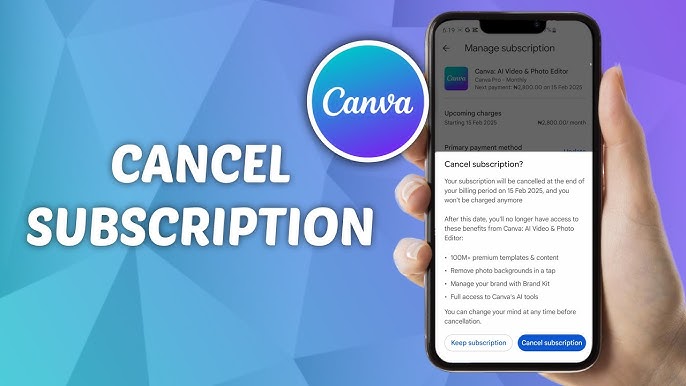
For Android users who subscribed through the Play Store, open the Google Play Store app and tap your profile icon. Select Payments & Subscriptions, then Subscriptions. Find Canva in your active subscriptions list.
Tap on Canva to see your subscription details, then select Cancel Subscription. Google will ask why you’re canceling and may show a retention offer from Canva. Complete the cancellation flow and wait for the confirmation email from Google.
Like Apple, Google handles refunds for Play Store purchases independently. Visit play.google.com/store/account/subscriptions on a desktop browser for easier navigation of refund requests. Google’s refund policy is generally more generous within the first 48 hours of a new subscription or renewal.
Understanding the Canva Refund Policy
Canva’s refund policy isn’t as straightforward as some users expect, and the rules differ based on your subscription type, billing cycle, and how long ago you were charged. Annual subscribers face different considerations than monthly subscribers, and the timing of your cancellation request matters significantly.
The general rule is that Canva doesn’t offer prorated refunds for partial billing periods. If you cancel mid-month on a monthly plan, you keep access until the period ends but don’t get money back for unused days. Annual plans have slightly more flexibility, but only under specific circumstances.
Eligibility for Refunds After Cancellation
Monthly subscribers rarely qualify for refunds because each payment covers a single month of access. If you’re charged on the 1st and cancel on the 15th, you’ve already received half the service, and Canva considers the transaction complete. Your best protection is setting calendar reminders before renewal dates if you’re considering cancellation.
Annual subscribers have a brief window, typically 14-30 days from the initial purchase or renewal, where refund requests receive more favorable consideration. After this window closes, refunds become discretionary rather than policy-based. If you’re on an annual plan billed monthly, the calculation becomes more complex because you’ve committed to a year but paid monthly. Early termination might result in being charged the remaining balance or a portion of it.
Document everything before requesting a refund. Take screenshots of your billing history, your cancellation confirmation, and any error messages or issues you experienced. Having this documentation ready makes the support conversation faster and gives you evidence if you need to dispute a charge with your credit card company.
How to Contact Canva Support for Billing Issues
Canva’s support is primarily chat-based and accessible through the Help Center. Click the question mark icon in the bottom right corner of any Canva page to access support options. For billing issues, select the billing category and describe your situation.
Be specific in your initial message. State your subscription type, the date you were charged, the amount, and what outcome you’re requesting. Vague requests get vague responses, while specific requests get actionable answers. If you have a legitimate case for a refund, such as being charged after canceling or experiencing a technical issue that prevented cancellation, state this clearly upfront.
If Canva support denies a refund you believe you’re entitled to, you have options. Credit card chargebacks are available for unauthorized charges or services not rendered as promised. Document your cancellation attempt, the denial from support, and file a dispute with your card issuer. This should be a last resort, but it’s available if needed.
What Happens to Your Designs After Downgrading
The transition from Canva Pro to Free isn’t as catastrophic as some users fear, but it does come with limitations that can affect your workflow. Understanding these changes before you cancel helps you prepare and avoid surprises when your premium access ends.
Your designs don’t disappear. Everything you’ve created remains in your account and accessible. However, premium elements within those designs become restricted, and certain features you may have relied on will no longer function.
Accessing Premium Assets in Existing Designs
Designs containing premium photos, graphics, or templates remain viewable and editable after downgrading. You can still access these designs, move elements around, change text, and make modifications. However, if you try to download or share a design containing premium elements you no longer have access to, Canva will watermark those elements or prompt you to purchase them individually.
This creates an interesting situation where your existing designs are partially functional. You might have a social media template with a premium background photo that now shows a watermark when exported. Your options are to purchase that specific element, replace it with a free alternative, or re-subscribe to Pro.
Some users prepare for this by replacing premium elements with free alternatives before canceling. It’s tedious but ensures your designs remain fully functional after the transition. Focus on your most-used templates and any designs you know you’ll need to export in the coming months.
Storage Limits and Brand Kit Restrictions
Canva Free includes 5GB of cloud storage compared to 1TB for Pro users. If you’re over the free limit when you downgrade, you won’t lose files immediately, but you won’t be able to upload new ones until you’re under the limit. Download and back up files before canceling to avoid being stuck with inaccessible storage.
Your Brand Kit, which stores brand colors, fonts, and logos, becomes severely limited on Free. You’ll retain one Brand Kit with limited assets instead of the multiple Brand Kits and extensive customization Pro offers. Logos and colors typically remain accessible, but custom uploaded fonts may become unavailable.
Download your brand assets, including any custom fonts you’ve uploaded, before canceling. Store these locally so you can re-upload them if you return to Pro or use them in other design applications.
Transitioning to the Canva Free Version
Canva Free remains a capable design tool that serves over 260 million monthly users, many of whom never upgrade to Pro. The free version includes thousands of templates, basic photo editing, and enough functionality for occasional design needs. The transition is about adjusting your workflow rather than starting over.
Identify which Pro features you actually used regularly versus which ones you had access to but rarely touched. Many users discover they primarily used features available on Free and were paying for Pro benefits they never utilized. Background remover, Magic Resize, and Brand Kit are the most commonly cited reasons for Pro subscriptions. If you weren’t using these regularly, Free might serve you fine.
Explore free alternatives for specific Pro features you’ll miss. Background remover has free alternatives like remove.bg, though with usage limits. Resize can be done manually or through other free tools. The inconvenience is real but manageable for occasional use.
Consider your actual design frequency. If you’re creating designs weekly, the Pro subscription likely pays for itself in time savings. If you’re designing monthly or less, the free version with occasional manual workarounds might make more sense financially.
The most important step is downloading everything you need before your Pro access ends. Export your key designs in multiple formats, download your brand assets, and save any templates you’ve customized extensively. Once you’re on Free, recreating these from scratch becomes much more time-consuming.
Make your decision based on actual usage patterns, not theoretical value. Check your Canva activity over the past three months. If Pro features genuinely improved your workflow and saved you time, the subscription has value.
If you’re paying for features you forgot existed, canceling makes sense. Either way, you now have the complete roadmap to execute your decision cleanly and protect your work in the process.