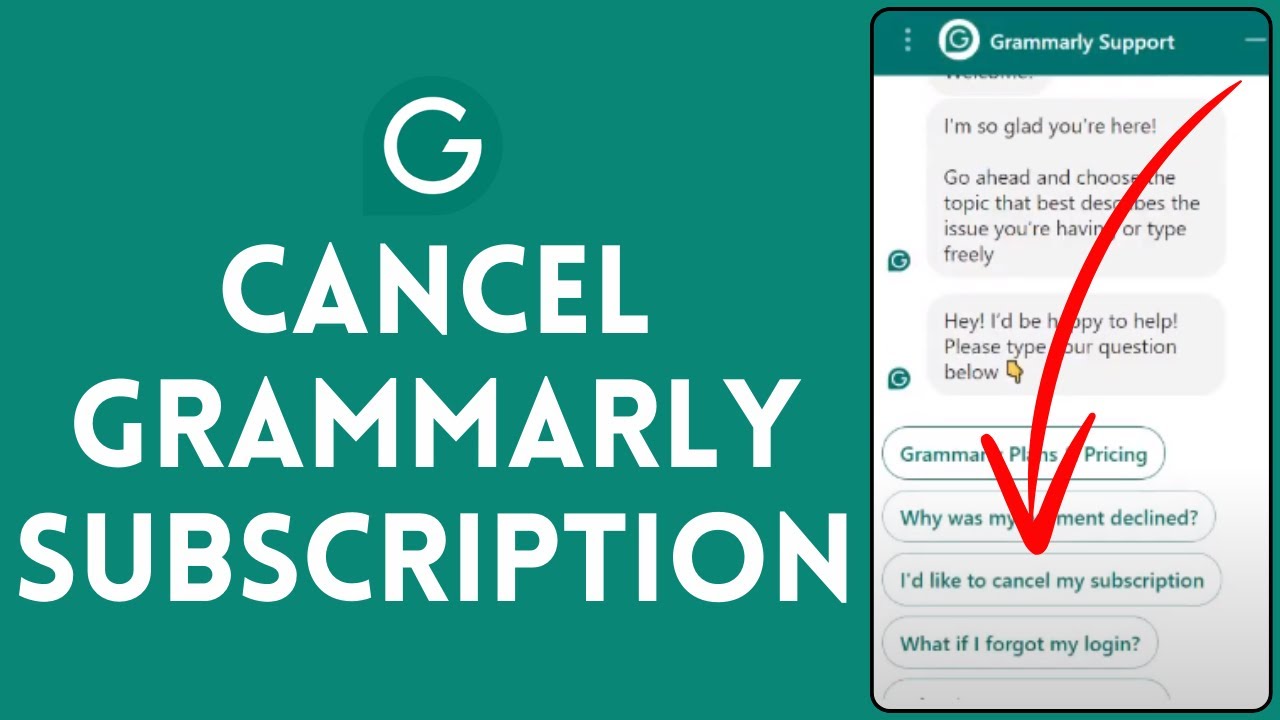

Signing up for Grammarly Premium takes about two minutes. Canceling? That should be just as quick, but the process trips up more people than you’d expect. Whether you’ve found a better writing tool, you’re trimming monthly expenses, or you simply don’t need premium features anymore, knowing how to cancel your Grammarly subscription without getting hit by an unexpected renewal charge is worth a few minutes of your time.
The good news is that you can cancel your Grammarly Premium or Business subscription at any time without penalty. There’s no early termination fee and no hidden hoops to jump through. But there are a few details that matter: your billing cycle, whether you subscribed directly or through a third-party app store, and what happens to your account after cancellation. Miss one of these details and you could end up paying for another month or year you didn’t want.
This five-step walkthrough covers the entire process from start to finish, including what to do if you subscribed through Apple or Google Play instead of Grammarly’s website. I’ve also included troubleshooting advice for the most common issues people run into. Let’s get your cancellation handled correctly the first time.
Before You Cancel: Things to Know About Your Grammarly Plan
Before clicking any buttons, take a minute to understand what you’re actually canceling and what you’ll lose. Grammarly’s paid plans come with features that disappear the moment your subscription period ends, and the company’s refund policy is stricter than most people assume. Knowing these details upfront prevents regret and saves you from wasting time contacting support about things they can’t help with.
Your current plan type also affects the cancellation process itself. A Grammarly Business subscription managed by a team admin works differently than a personal Premium account. If someone else is paying for your access through a team plan, you can’t cancel it yourself: the account administrator handles that. For personal subscriptions, you have full control, but the steps vary depending on where you originally purchased the plan.
One thing that catches people off guard is the difference between canceling and deleting. Canceling your subscription stops future payments and downgrades you to the free tier. Deleting your account removes everything permanently: your documents, personal dictionary, writing statistics, all of it. If you only want to stop paying, cancel the subscription. Don’t delete the account unless you genuinely want every trace of your data gone.
Premium vs. Free Account Differences
Grammarly’s free plan isn’t useless. It catches basic spelling mistakes, simple grammar errors, and some punctuation issues. For casual email writing or quick social media posts, it gets the job done. But the gap between free and Premium is significant, and understanding what you’ll lose helps you make an informed decision.
Premium adds advanced grammar and clarity suggestions, tone detection, full-sentence rewrites, a plagiarism detector, and vocabulary enhancement recommendations. If you write professionally (reports, articles, client emails, academic papers), these features genuinely improve output quality. The plagiarism checker alone is worth the price for students and content creators who need to verify originality before submitting work.
Grammarly Business layers on team-specific features: a style guide, brand tone settings, analytics dashboards for managers, and centralized billing. If you’re on a Business plan, downgrading to free means your team loses shared writing standards and consistency tools.
Here’s the practical takeaway: after cancellation, your account reverts to the free tier automatically. You keep access to your saved documents in the Grammarly editor, and the browser extension still works for basic corrections. You don’t lose your files. You lose the advanced suggestions, the plagiarism checker, and any Business-tier collaboration tools. If those features aren’t worth the cost to you right now, canceling makes sense. You can always re-subscribe later if your needs change.
Refund Policy and Billing Cycles
Grammarly offers monthly, quarterly, and annual billing. The annual plan is the cheapest per month but locks you into a larger upfront payment. This matters because Grammarly’s refund policy is strict: refunds are issued only if required by law, which means most users won’t get their money back after canceling mid-cycle.
If you’re on an annual plan and cancel six months in, you don’t receive a prorated refund for the remaining six months. Your Premium features simply stay active until the end of the billing period you’ve already paid for. The same applies to monthly and quarterly plans: cancel anytime, but you’ve already paid for the current cycle, and that payment is final.
This is why timing matters. To avoid charges for the next billing cycle, cancel at least 24 hours before your renewal date. If your annual plan renews on March 15, canceling on March 14 might not be early enough. Give yourself a buffer of a few days to be safe. You can find your exact renewal date in your account settings, which I’ll cover in the steps below.
One exception to the no-refund rule: if you were charged incorrectly, billed after canceling, or experienced a technical error that led to an unwanted charge, Grammarly’s support team can sometimes help. But “I forgot to cancel” or “I changed my mind” typically won’t qualify. Check your renewal date now if you’re even considering cancellation, so you know exactly how much time you have.
Step 1: Access Your Grammarly Account Settings
Start by logging into your Grammarly account through a web browser. Go to grammarly.com and click “Log in” in the upper right corner. Use whatever method you originally signed up with: email and password, Google sign-in, Facebook, or Apple ID. If you can’t remember which method you used, try each one. Grammarly will tell you if no account exists for that login method.
Once you’re logged in, you’ll land on the Grammarly dashboard, which shows your recent documents and the editor. Don’t look for cancellation options here: they’re buried in your account settings, not the main writing interface.
Click on your profile icon or avatar in the top-left corner of the dashboard. This opens a dropdown menu with several options. Select “Account” from this menu. You’ll be taken to a separate account management page that handles your profile information, security settings, and subscription details.
A critical note: you cannot cancel your subscription through the Grammarly mobile app or the desktop app directly. The cancellation process must happen through the web browser interface at grammarly.com. If you’ve been searching through the mobile app’s settings and can’t find a cancel button, that’s why. Open a browser (Chrome, Safari, Firefox, whatever you prefer), navigate to the website, and log in there.
If you’re part of a Grammarly Business team but also have a separate personal Premium subscription, make sure you’re logged into the correct account. Some people have multiple Grammarly accounts tied to different email addresses and cancel the wrong one. Double-check the email address shown in your account settings before proceeding.
Step 2: Navigate to the Account Subscription Tab
Once you’re on the account management page, you’ll see several tabs or sections along the left sidebar or across the top, depending on your screen size. Look for the tab labeled “Subscription.” Click it.
The Subscription page displays your current plan type (Premium, Business, or Free), your billing cycle (monthly, quarterly, or annual), the price you’re paying, and your next renewal date. Take a screenshot of this page or write down the renewal date. You’ll want this information for your records, especially if a billing dispute comes up later.
If you see “Free” listed as your plan, you don’t have an active paid subscription to cancel. This could mean you already canceled previously and forgot, your payment method failed and Grammarly automatically downgraded you, or you’re logged into the wrong account. Check the email address associated with the account to confirm you’re in the right place.
For active paid subscriptions, the Subscription page will show a link or button related to managing or changing your plan. The exact wording varies: it might say “Cancel Subscription,” “Manage Plan,” or “Downgrade.” Grammarly occasionally updates its interface, so the button labels shift slightly over time. But the function is always accessible from this page.
If you subscribed through Apple’s App Store or Google Play Store, this page will look different. It may tell you that your subscription is managed by a third party and direct you to cancel through that platform instead. I’ll cover those specific processes in a later section. For now, if you subscribed directly through Grammarly’s website, the cancellation controls will be right here on the Subscription page.
Step 3: Initiate the Downgrade or Cancellation Process
Here’s where the actual cancellation begins. On the Subscription page, click the option to cancel or downgrade your plan. Grammarly frames this as a “downgrade” because your account reverts to the free tier rather than being deleted entirely. Don’t let the terminology confuse you: downgrading to free is the same as canceling your paid subscription.
After clicking, Grammarly will present you with a retention screen. This is standard practice for subscription services. Expect to see one or more of the following:
- A discounted rate to keep your subscription active (sometimes 40-50% off)
- A reminder of Premium features you’ll lose
- A suggestion to pause your subscription instead of canceling
- Statistics about how many corrections Grammarly has made for you
These screens are designed to make you reconsider. If you’ve already decided to cancel, click through them. The discount offer can be genuinely worthwhile if your only reason for canceling is cost: a 50% discount on an annual plan brings the price down considerably. But if you’re leaving for other reasons, don’t let a temporary price cut keep you locked in.
You may need to click “Continue” or “No thanks” through two or three of these retention screens before reaching the actual cancellation confirmation. Grammarly isn’t being deceptive here: this is a normal part of the process for nearly every SaaS product. Just keep clicking through until you reach the final confirmation step.
One thing to watch for: make sure you’re clicking the correct buttons. Some retention screens have a large, colorful “Keep My Plan” button and a small, gray “Continue to Cancel” link. Read carefully. Clicking the wrong option could restart the process or keep your subscription active when you intended to end it.
Step 4: Provide Feedback and Confirm Cancellation
After navigating through the retention offers, Grammarly asks why you’re canceling. You’ll see a list of common reasons: too expensive, not using it enough, switching to another tool, missing features, or something else. Select the reason that best fits your situation.
This feedback step is mandatory: you can’t skip it. But it takes about five seconds. Pick a reason, optionally add a comment in the text field if one appears, and then click the final confirmation button. The exact button text is usually something like “Cancel Subscription” or “Confirm Downgrade.”
Once you click that final button, the cancellation is processed immediately. Your Premium features remain active until the end of your current billing period. If you paid for an annual plan and you’re only four months in, you still get the remaining eight months of Premium access. You just won’t be charged again when the period ends.
There’s no additional confirmation popup or “Are you really sure?” step after this point. Once you see the confirmation screen, it’s done. Grammarly will update your Subscription page to reflect the pending downgrade, and you should receive a confirmation email within a few minutes.
A word of advice: don’t close the browser tab immediately after confirming. Wait for the page to fully load and display the confirmation message. If your internet connection drops mid-process or the page doesn’t load completely, the cancellation might not go through. Give it a moment to confirm before moving on.
Step 5: Verify Your Cancellation Status
Trusting that the cancellation went through isn’t enough. Verify it. I’ve seen too many cases where people thought they canceled a subscription, only to discover months later that the process didn’t complete and they’d been charged repeatedly. A two-minute verification now saves you from a billing headache later.
Checking for the Confirmation Email
Within a few minutes of completing the cancellation, Grammarly sends a confirmation email to the address associated with your account. Check your inbox for a message with a subject line like “Your subscription has been canceled” or “Your plan has been updated.”
If you don’t see it in your primary inbox, check your spam, promotions, or junk folders. Gmail users should look in the Promotions tab specifically, since Grammarly’s emails often get filtered there. Outlook users should check the Focused and Other tabs.
If 30 minutes pass and you still haven’t received a confirmation email, don’t panic yet. Check your account directly on Grammarly’s website (I’ll explain how in the next subsection). Email delivery can be delayed by server issues, and the absence of an email doesn’t necessarily mean the cancellation failed. But if you see no email and your account still shows an active subscription, contact Grammarly support immediately.
Save the confirmation email once you find it. Move it to a folder or star it. If Grammarly charges you after your cancellation date, this email is your proof that you canceled on time. Without it, disputing a charge with your bank or credit card company becomes much harder.
Viewing Your Account Expiration Date
Log back into grammarly.com and navigate to your Account settings, then the Subscription tab. If the cancellation processed correctly, this page will now show one of two things: your plan listed as “Free” (if your billing period already ended) or your plan listed as Premium with a note indicating when it expires and that it will not renew.
Look for language like “Your Premium plan expires on [date]” or “Your subscription will not renew.” If you see “Next payment on [date]” with an upcoming charge amount, the cancellation did not go through. Repeat the process from Step 3 or contact Grammarly support.
Write down or screenshot the expiration date. Mark it on your calendar. After that date passes, log in one more time to confirm your account has been downgraded to Free. This final check ensures everything went as planned and no surprise charges appear on your next credit card statement.
Canceling Grammarly Through Third-Party Services
If you didn’t subscribe to Grammarly directly through their website, the cancellation process described above won’t work. Subscriptions purchased through the Apple App Store or Google Play Store must be canceled through those platforms. Grammarly literally cannot cancel these subscriptions for you because Apple and Google control the billing.
This is the single biggest source of confusion I see with Grammarly cancellations. Someone signs up through their iPhone, then tries to cancel on grammarly.com, can’t find the cancel button, and assumes Grammarly is making it deliberately difficult. The reality is simpler: the cancel button doesn’t exist on Grammarly’s site because the billing relationship is between you and Apple (or Google), not you and Grammarly.
Check your email for the original purchase confirmation to determine where you subscribed. Apple sends receipts from [email protected], and Google sends them from [email protected]. If you find one of those, follow the appropriate instructions below.
How to Cancel via Apple App Store
Canceling through Apple takes about a minute once you know where to look. On your iPhone or iPad:
- Open the Settings app (not the App Store).
- Tap your name at the very top of the screen to access your Apple ID settings.
- Tap “Subscriptions.” You’ll see a list of all active and expired subscriptions tied to your Apple ID.
- Find Grammarly in the list and tap it.
- Tap “Cancel Subscription” and confirm.
If you’re on a Mac, you can do this through the App Store app: click your profile picture in the bottom-left corner, then “Account Settings,” then “Subscriptions,” and manage from there. You can also cancel through Apple’s website by going to reportaproblem.apple.com and signing in with your Apple ID.
Apple’s cancellation policy mirrors Grammarly’s: you keep access until the end of the current billing period, and no prorated refunds are given for unused time. If you want a refund from Apple for a recent charge, you need to request it separately through Apple’s Report a Problem page, and approval isn’t guaranteed.
One thing Apple does differently: if you cancel an annual subscription through Apple and later want to re-subscribe, you’ll go through Apple’s pricing, which is sometimes slightly different from Grammarly’s direct pricing. Keep that in mind if you think you might come back to Premium later.
How to Cancel via Google Play Store
Google Play subscriptions are managed through the Google Play Store app or website. On an Android device:
- Open the Google Play Store app.
- Tap your profile icon in the top-right corner.
- Tap “Payments & subscriptions.”
- Tap “Subscriptions.”
- Find Grammarly and tap it.
- Tap “Cancel subscription” and follow the prompts.
You can also cancel through a web browser by going to play.google.com/store/account/subscriptions, signing in with the Google account you used to subscribe, and canceling from there.
Google Play handles refunds slightly differently than Apple. Google offers a refund request option for subscriptions within certain timeframes, though approval depends on the circumstances. If you just renewed and want your money back, submit a refund request through Google Play’s support page quickly: the sooner you request it after the charge, the better your chances.
Like Apple, Google Play cancellation keeps your Premium access active until the billing period ends. And if you re-subscribe later through Google Play, you’ll be subject to Google’s pricing and payment processing rather than Grammarly’s direct billing.
Common Troubleshooting Tips for Cancellation Issues
Even with clear steps, things go wrong. Here are the most common problems people encounter when trying to end their Grammarly subscription, along with specific fixes.
The cancel button is missing or grayed out. This almost always means you subscribed through Apple or Google Play, not directly through Grammarly. Check your email for the original purchase receipt to confirm where you signed up. If you subscribed through a third-party platform, you must cancel there. Grammarly’s website won’t show a cancel option for subscriptions it doesn’t manage.
You were charged after canceling. First, check whether the charge occurred before or after your cancellation date. If your billing period hadn’t ended yet when you canceled, the charge you’re seeing might be the one you already paid for (not a new charge). Compare the charge date on your credit card statement with the cancellation confirmation email date. If the charge genuinely occurred after cancellation, contact Grammarly support with your confirmation email as evidence. If they can’t resolve it, dispute the charge with your bank.
You can’t log into your account. If you’ve forgotten your password, use the “Forgot password” link on the login page. If you can’t remember which email you used, check your email accounts for messages from Grammarly: the address receiving those emails is the one tied to your account. If you signed up using Google or Facebook authentication, try those login methods instead of email and password.
Your subscription shows as active after canceling. Wait 24 hours and check again. Sometimes Grammarly’s system takes time to update the account status. If it still shows active after a full day, take a screenshot and contact Grammarly support through their help center. Include the date and time you canceled, the confirmation email (if you received one), and a screenshot of the Subscription page still showing an active plan.
You want to cancel a Business plan but can’t. If your company or organization manages the Grammarly Business subscription, individual team members typically can’t cancel it. Only the account administrator has that ability. Contact whoever manages your team’s Grammarly account and ask them to handle the cancellation or remove your seat.
You accidentally canceled and want to undo it. If you’re still within your current billing period, you may be able to reactivate your subscription by going back to the Subscription page and selecting a plan. If the period has already ended, you’ll need to purchase a new subscription. Grammarly doesn’t offer a grace period for accidental cancellations, so act quickly if you made a mistake.
Grammarly keeps sending marketing emails after cancellation. Canceling your subscription doesn’t unsubscribe you from marketing emails. Those are separate. Scroll to the bottom of any Grammarly email and click the “Unsubscribe” link to stop receiving promotional messages. You can also manage email preferences in your account settings under the Notifications or Email Preferences section.
If none of these solutions fix your problem, reach out to Grammarly’s support team directly. You can contact them through the help center at support.grammarly.com. Response times vary, but most straightforward billing and cancellation issues get resolved within one to three business days. Be specific in your support request: include your account email, the date of the issue, screenshots if possible, and exactly what you need them to do.
Canceling a Grammarly subscription is straightforward once you know where to look. The entire process takes five minutes or less if you subscribed directly through Grammarly’s website, and only slightly longer if you went through Apple or Google Play. The key steps: log in through a web browser, find your Subscription settings, click through the retention screens, confirm the cancellation, and verify it actually went through.
The most important thing to remember is timing. Cancel at least a few days before your renewal date to avoid being charged for another cycle, because Grammarly’s refund policy leaves very little room for reversals. Save your confirmation email, check your account status after canceling, and mark the expiration date on your calendar.
If you’re canceling because of cost, consider whether the free tier meets your basic needs before deleting the account entirely. Your documents and account history stick around on the free plan, and you can always upgrade again if the need arises. But if you’re done with Grammarly for good, follow these five steps and you’ll be cleanly unsubscribed with no surprise charges down the road.